 SaleHero
Menu names in this guide (for example Settings, Integrations) are the ones you see in SaleHero after you sign in. The screenshots show a demo shop.
WMS app
The handheld warehouse app: scan an order, product or bin, move stock and record courier handovers.
The WMS app is the part of SaleHero made for the warehouse floor. It works on a phone or a handheld scanner, with large buttons and one task per screen. Scan anything to find an order, a product or a bin, then move stock or hand parcels to the courier.
The home screen and the scan bar
Open the WMS app from the WMS app link in the sidebar. It is a full-screen, touch-friendly version of SaleHero made for a phone or a handheld scanner. The top bar shows the screen name and your company; the X on the right takes you back to the normal SaleHero.
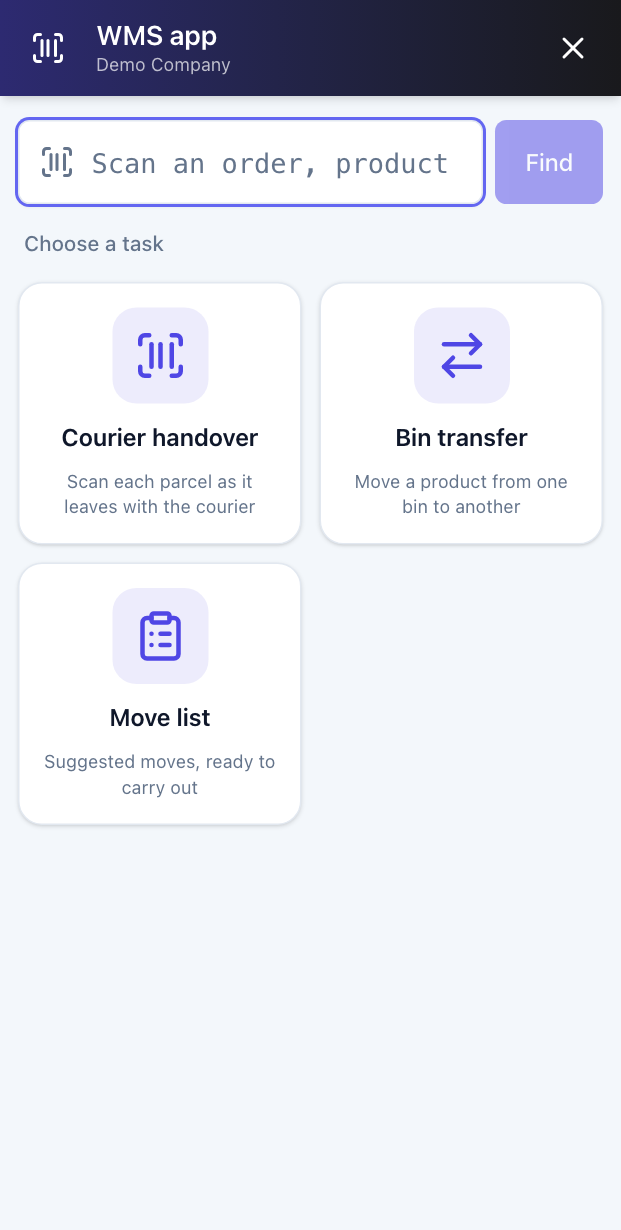
Under the scan bar you see one tile per task: Courier handover, Bin transfer and Move list. You only see the tiles you are allowed to use. If none is open to you, the screen tells you to ask an admin for access.
The scan bar answers one question: what is this code? Scan or type an order barcode from the packing list, an order number, an AWB, a product EAN, a SKU or a bin label. A scanner works anywhere on the page, you do not have to tap the box first. You can also type only a piece of a SKU (at least 4 characters, for example the tail printed on a box label) and you get every SKU that contains it.
- 1Scan the code, or type it in the box and tap Find.
- 2If exactly one order, product or bin matches, its screen opens at once.
- 3If several match, you get a list. Tap the right one.
- 4Use the arrow at the top left to go back to where you scanned from.
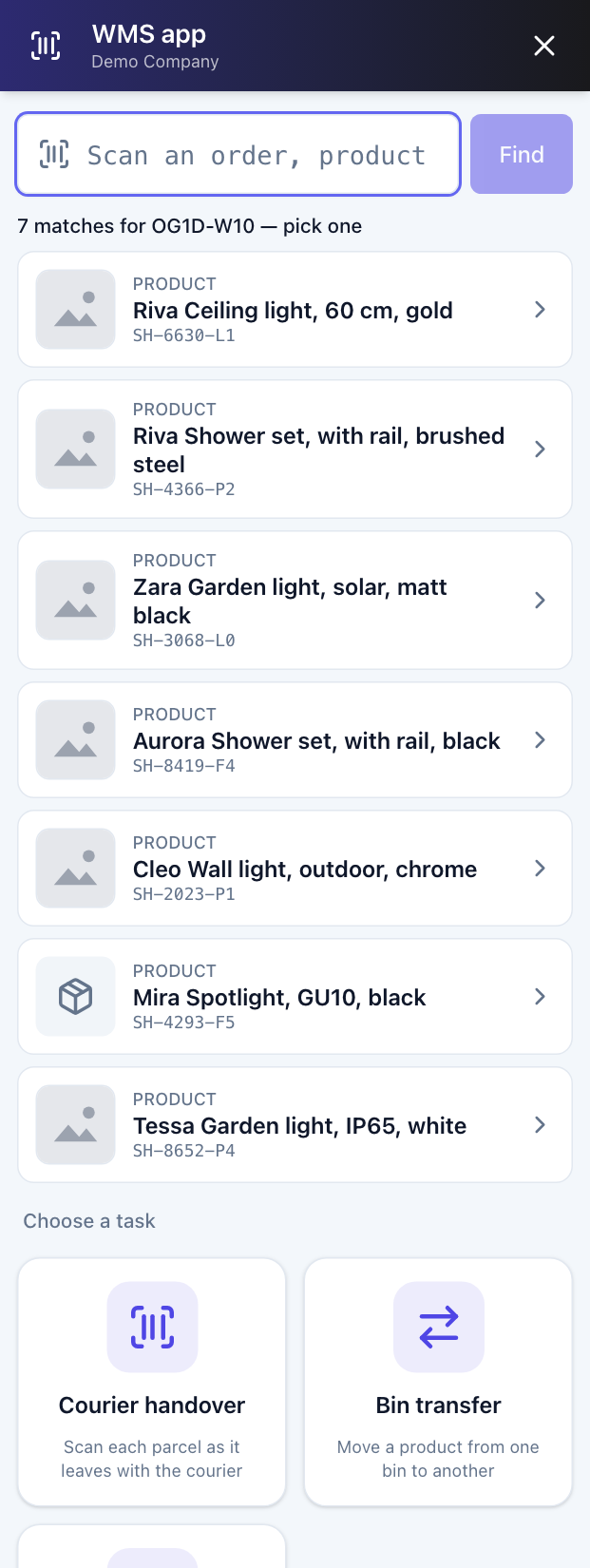
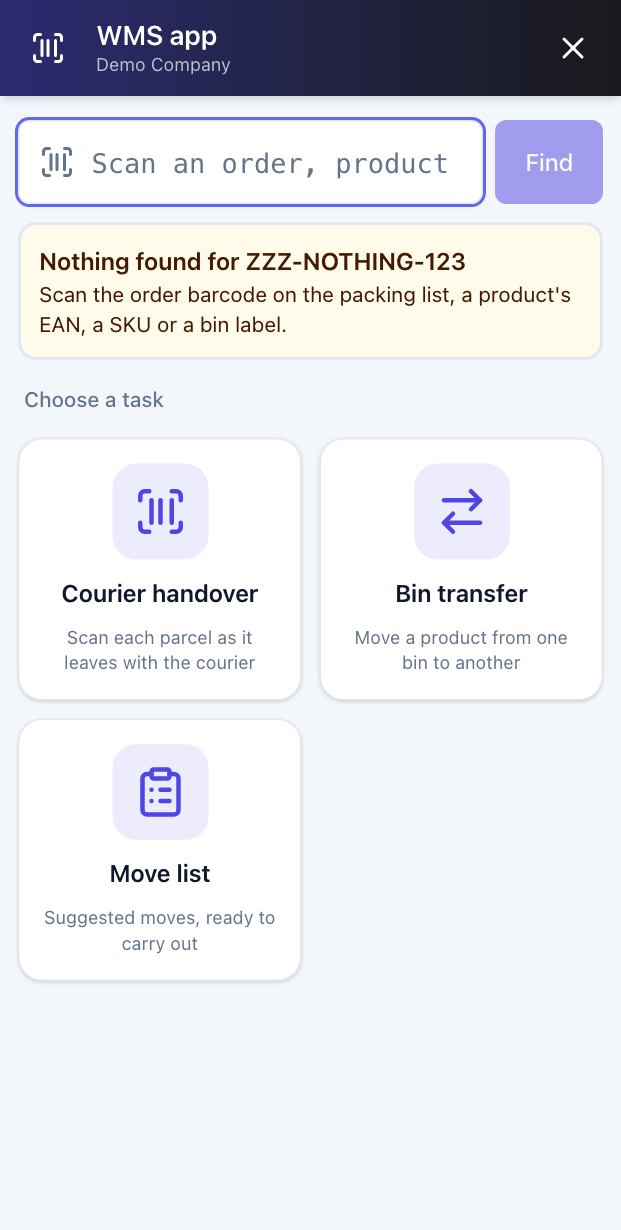
The same scan bar sits at the top of the order, product and bin screens, so you can keep scanning without going back to the menu. The scan bar only looks things up. Nothing is changed by it.
Product screen
Scan a product EAN or SKU to see what the item looks like and where it is in the warehouse. Use it when you hold a box and are not sure what it is, or when you need to know which bins hold more of it.
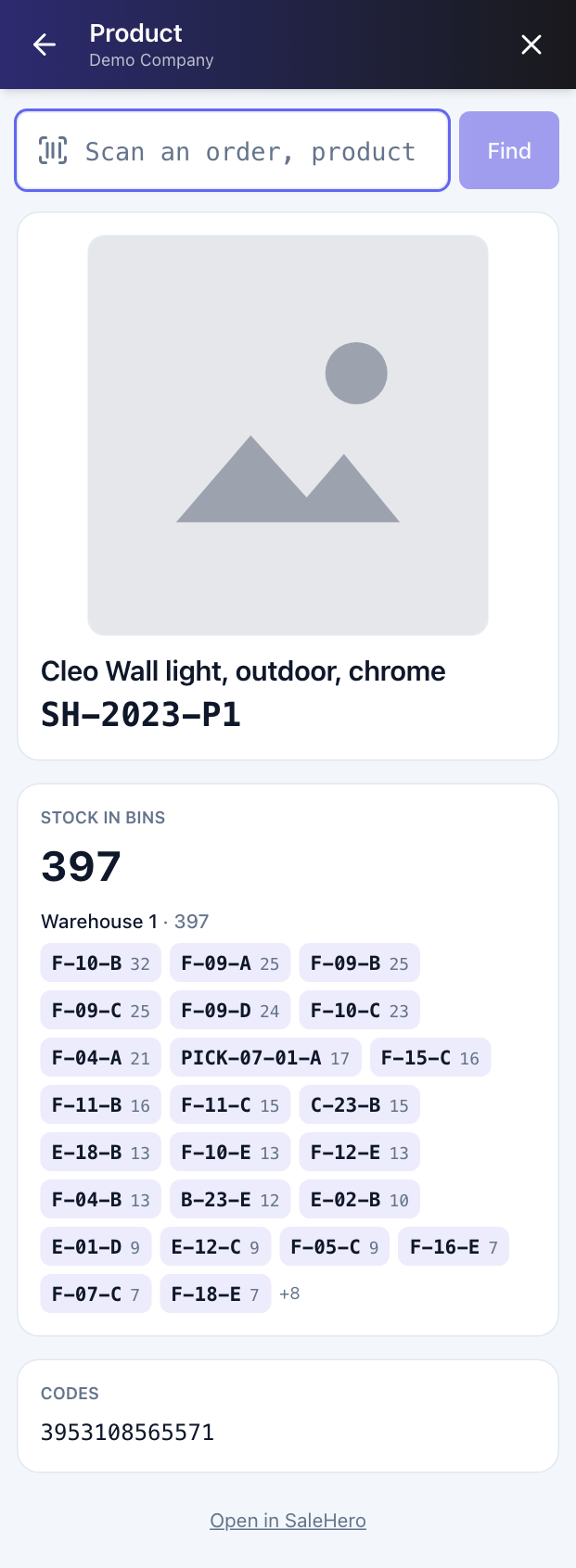
- Photo, name and SKU in large type. An Inactive badge appears if the product is switched off.
- Stock in bins: the total, then each warehouse with its bins as chips. Each chip shows the bin name in bold and the quantity beside it. If the list is long, the last chips are cut off with a plus number.
- Codes: the EAN codes on record and the weight, if known. When there is no EAN it says so.
- Open in SaleHero at the bottom opens the full product page in the normal app.
If it says Not in any WMS bin, SaleHero has no bin quantity for the product. You need the Products permission to open this screen.
Bin screen
Scan a bin label to see what is inside that bin. Use it to check a shelf, or to find a product in the bin and move it somewhere else.
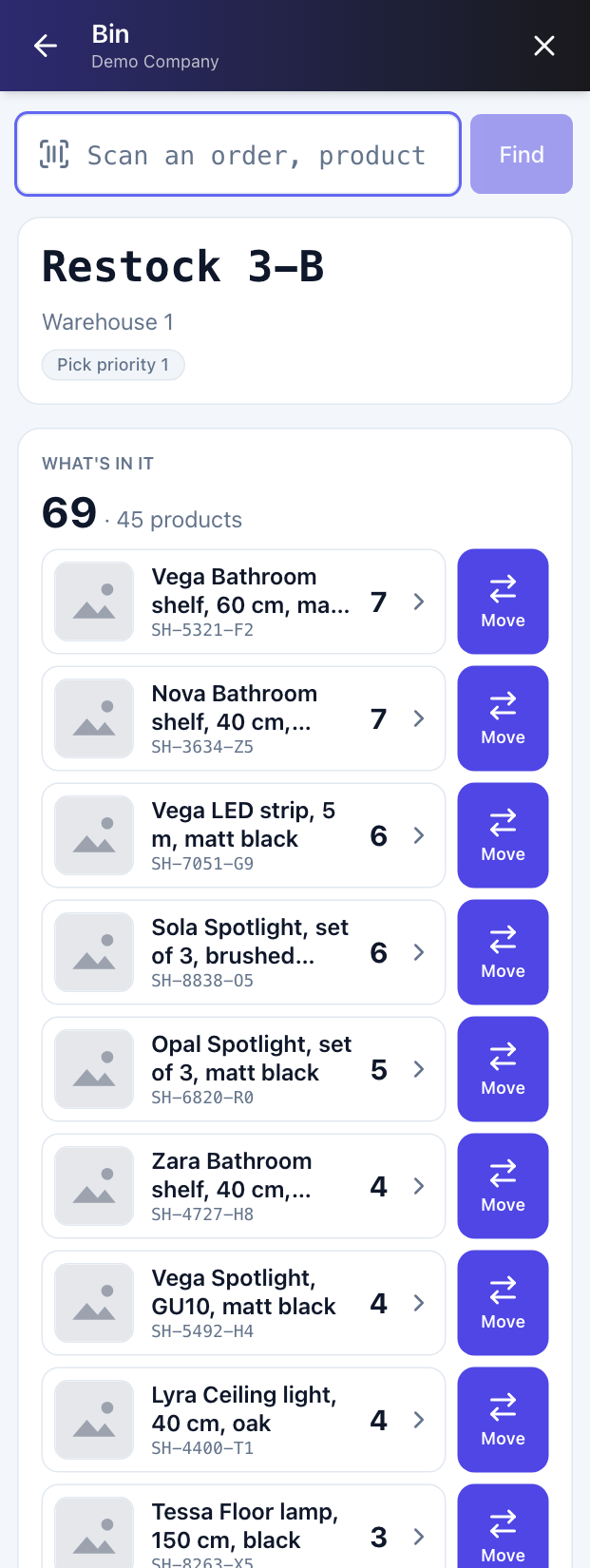
- The big name and the warehouse the bin belongs to.
- Badges: Marked full (the relocation suggestions will not send anything here), Not pickable, Pick priority and Not in Base's bin list.
- What's in it: the total quantity, the number of products, then one row per product with photo, name, SKU and quantity. Tap the row to open the product screen.
- The purple Move button on a row opens the Bin transfer with the product and the bin already filled in.
- At the bottom, Mark this bin full (or Remove the full mark). It appears only for people who can move stock and only for bins of the main warehouse.
Quantities are checked live in Base. If Base cannot be reached, you see the last saved reading and a yellow note says so. A product put in the bin from Base's own app after the last bin reading may not show yet.
Order screen
Scan the barcode printed on the packing list (or the order number, or an AWB) to see the order the way the floor needs it: where it goes, what to pick and from which bins, and whether it has left with the courier.
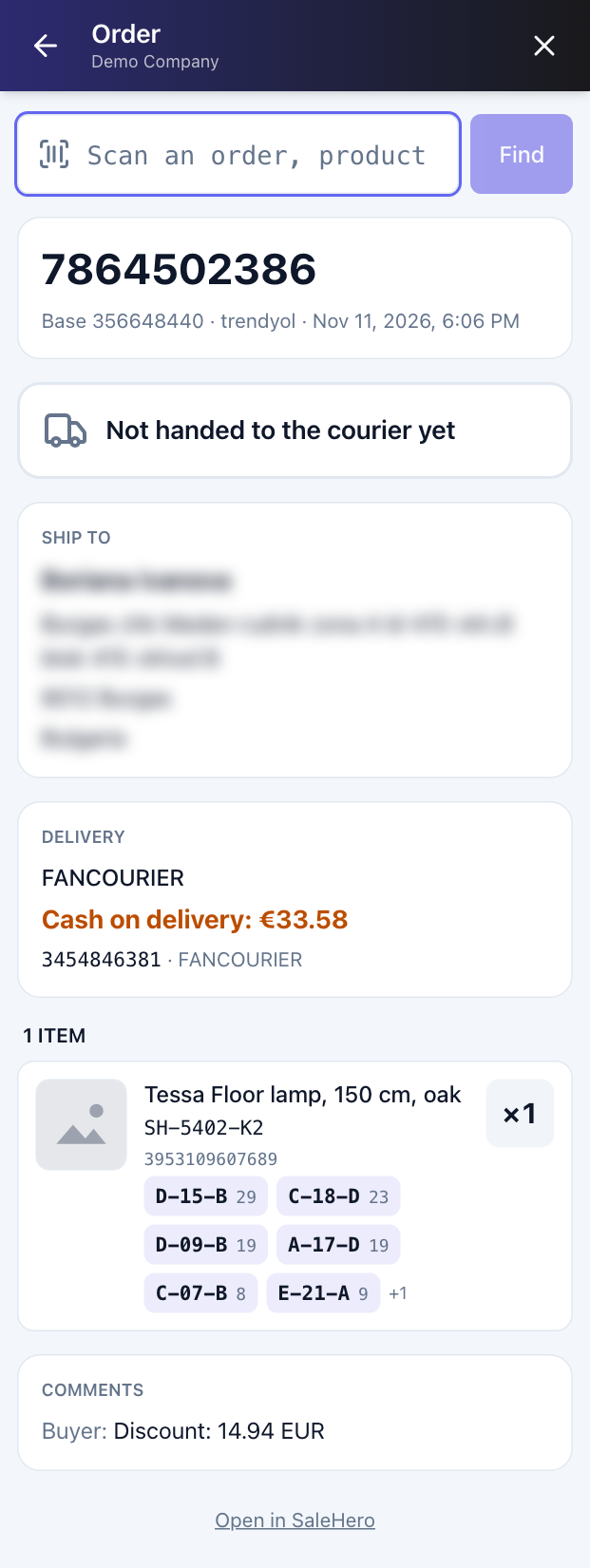
- At the top: the order status in its colour, the order number, the Base id, the sales channel and the confirmation date. A Pickup at the warehouse badge means the customer collects it.
- The handover box: Not handed to the courier yet, or Handed over with the number of parcels scanned (for example 1 of 2). A green box means all known parcels were scanned. The date of the last scan is shown under it.
- Ship to: name, address, pickup point if there is one, and a phone number you can tap to call.
- Delivery: the delivery method, the Cash on delivery amount in orange when there is one, and the AWB numbers with the courier.
- Items: one card per line with photo, name, SKU, EAN and the bins that hold it with quantities. The number on the right is the quantity to pick; it turns yellow when more than 1 is needed. Tap a card to open the product.
- Comments from the buyer and the seller, when there are any.
If a line has no bins it shows the Base location instead, or No bin on record. If Base cannot be reached, a note says you are looking at the last saved copy. You need the Orders permission for this screen. Open in SaleHero at the bottom opens the order in the normal app.
Move list
The Move list turns the suggestions of the Relocations page into floor work. Each card is one move: which product, how many, from which bin, to which bin and why. Open it when you have time to tidy the warehouse and want to know what to carry next.
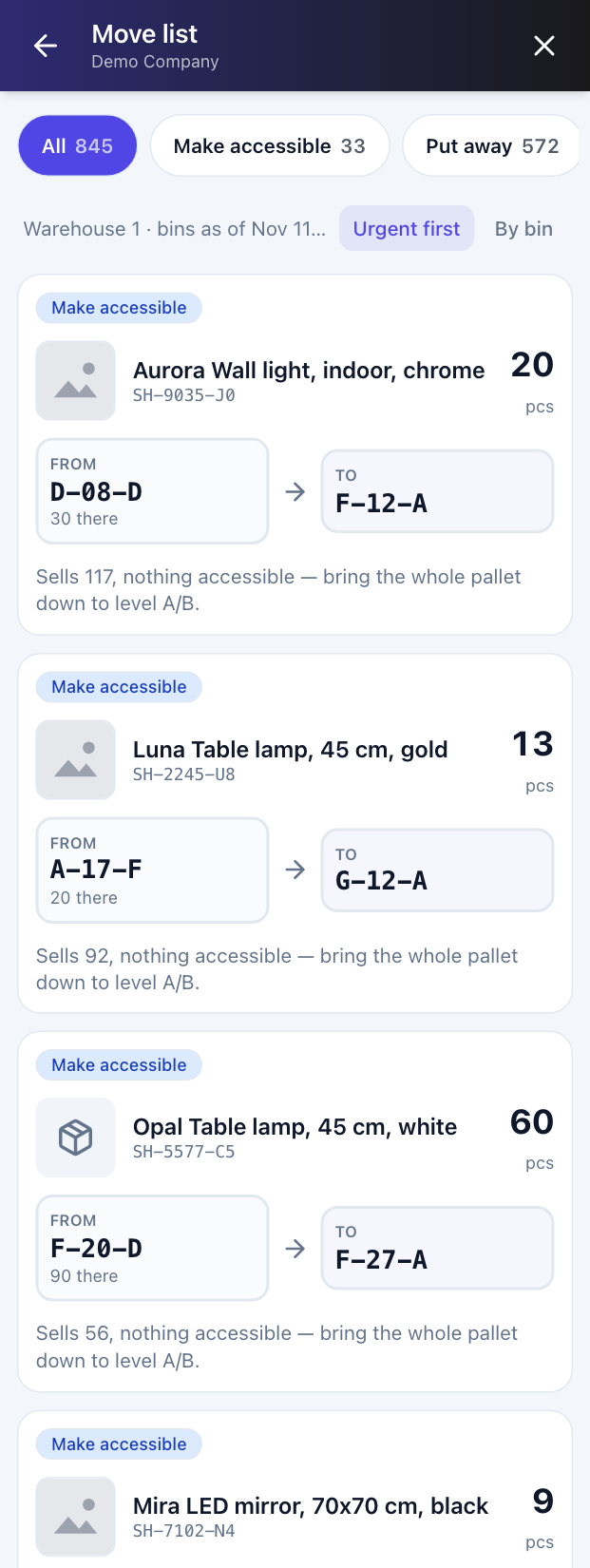

- Tabs: All, Make accessible, Put away and Merge, each with the number of open moves. Make accessible brings stock that is hard to reach down to a bin you can pick from. Put away and Merge are the other kinds of tidy-up moves.
- Under the tabs: the warehouse, the time the bins were last read, and the sort switch. Urgent first puts the most pressing moves on top; By bin orders them so you can walk the aisles in sequence.
- A card shows the product, the quantity, the From bin with how many are there, the To bin (or a dashed box such as any free PICK face when any free place will do) and one sentence with the reason, for example Sells 116, nothing accessible, bring the whole pallet down.
- 1Choose a tab and a sort order.
- 2Tap a card. The Bin transfer opens with the product, the From bin, the To bin and the quantity already filled in.
- 3Check the numbers and confirm the move there (see the next section).
- 4Use Back to the move list to return to the next card.
A card that was already sent shows a badge (Draft in Base, Moved or Not sent with the document number), is greyed out and cannot be opened again. Only the first moves are listed; a note says how many more will come up as you finish these. A product that is not in the catalog says to move it in Base. You need the Warehouse (WMS) write permission.
Bin transfer
The Bin transfer moves a quantity of one product from one bin to another. The move is sent to BaseLinker, which keeps the stock. Open it from the tile, from a Move button on a bin, or from a card of the Move list (then everything is already filled in).
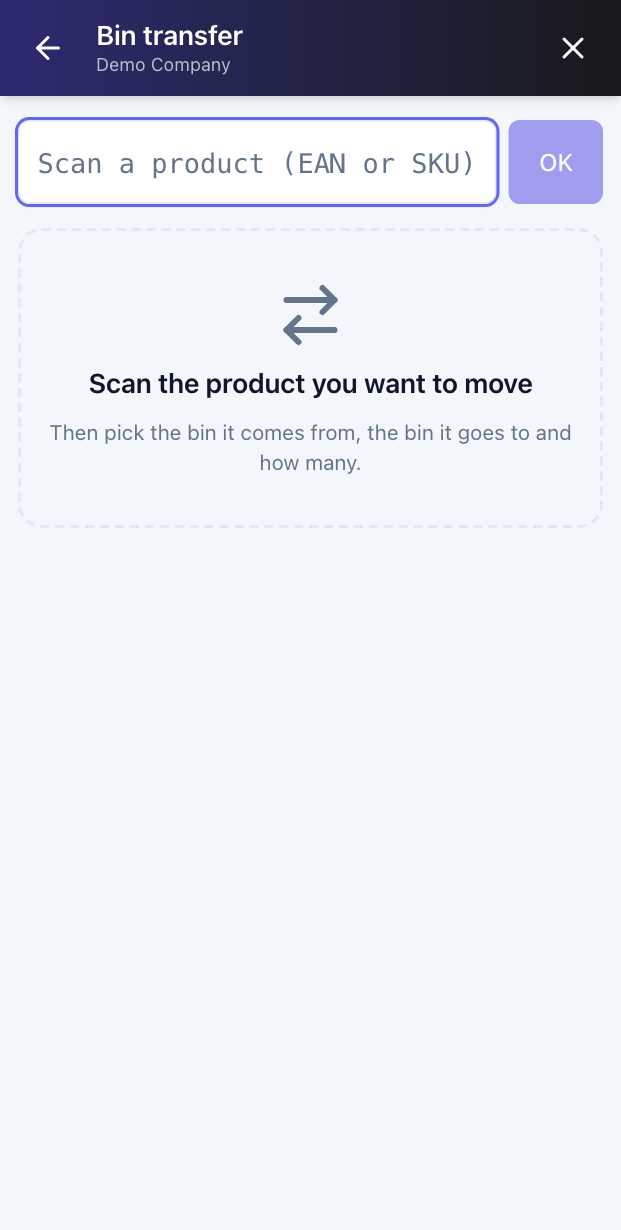
- 1Scan the product (EAN or SKU) or type it and tap OK. If several products match, tap the right one.
- 2Take from: scan the bin you take it from, or tap it in the list. Each row shows the bin and how many pieces are in it.
- 3Put into: scan or type the destination bin, or tap one of the Other bins with this product. A code that is not a bin of that warehouse is refused with a message.
- 4Set the Quantity with the minus and plus buttons, type it, or tap All to move everything in the bin.
- 5Check the big button at the bottom, which reads Move 5 to F-09-A, and tap it. This is the step that changes the stock.
- 6A green confirmation shows Moved 5 × SKU and the Base transfer number. Tap Move more of this product or Next product.
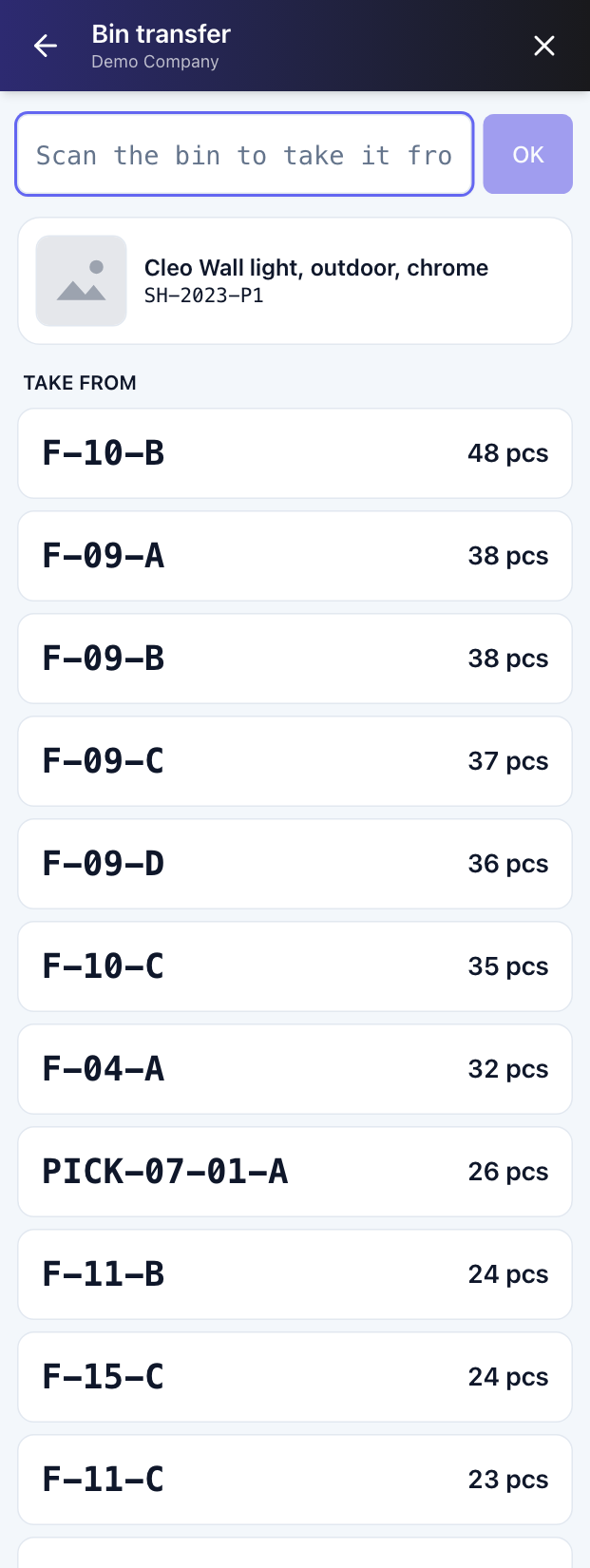
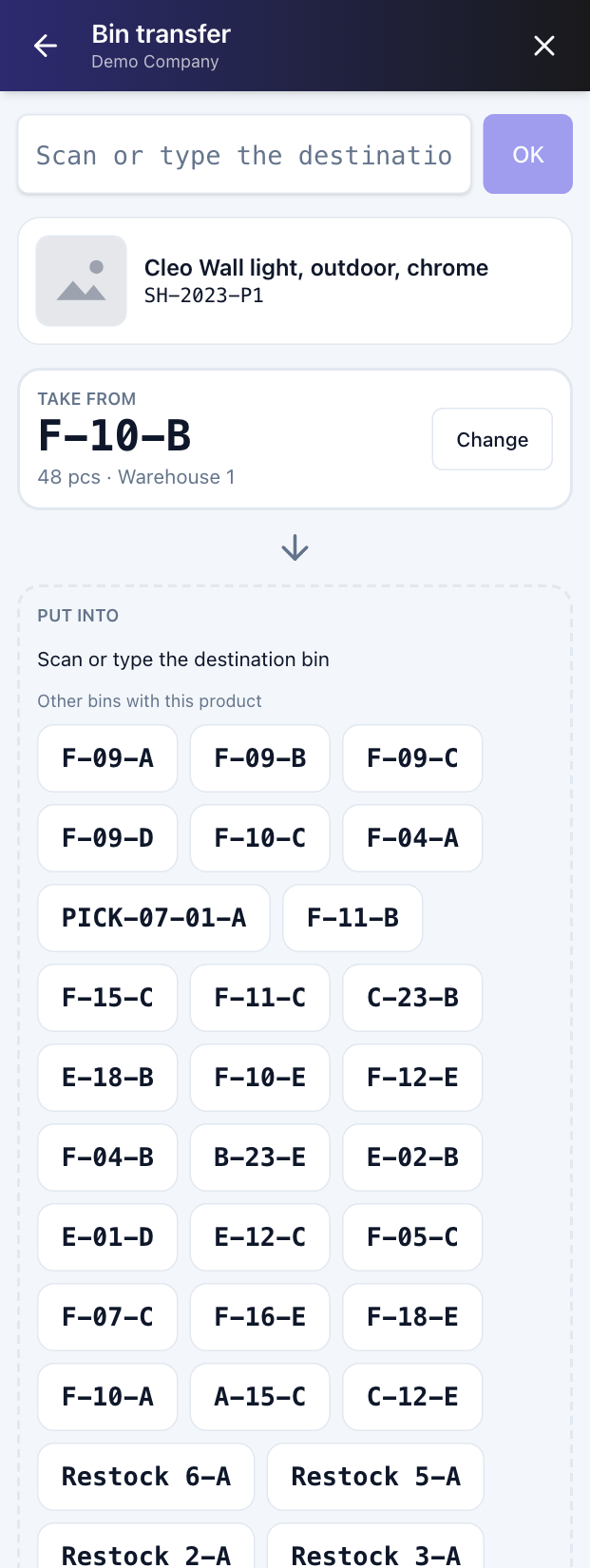
You cannot move more than the bin holds. Use Change on the source card to pick another bin. When you arrive from a bin or from the Move list, the buttons Back to the move list or Back to bin appear after the move. If Base cannot be reached, the bins shown are those of the last sync and a note says so. Moves between warehouses also show the warehouses involved, and a container or lot number and expiry date appear when the stock has them.
Courier handover
Courier handover records every parcel that leaves with the courier. Scan the AWB barcode on each parcel label as you hand it over. Each scan is matched to its order, so you can see which parcels have left and which are still in the warehouse. It is the same data as the Courier handover page of the main app, laid out for a handheld.
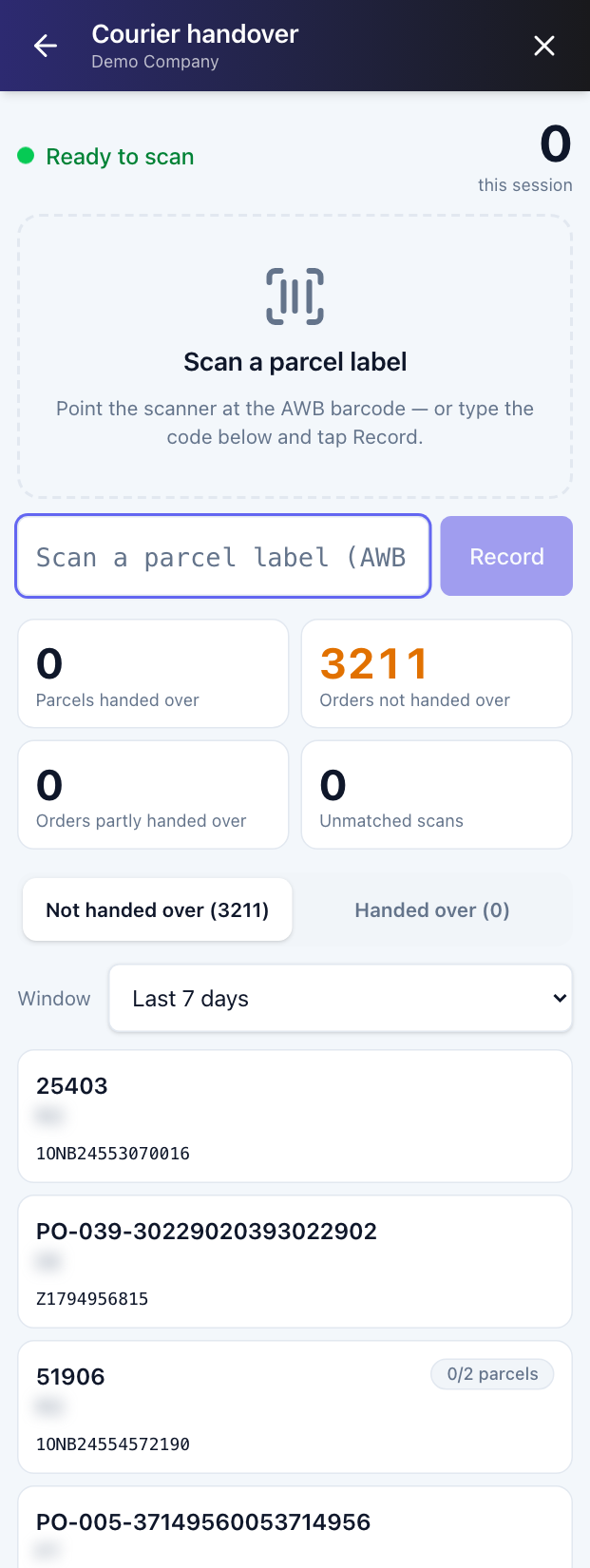
- Ready to scan (green) means scans reach the screen. If it says Not receiving scans, tap it so the scan box is active again. The big number on the right counts the parcels you scanned in this session.
- After a scan, a large card shows the result. Green, Handed over, with the order number and recipient (and Parcel 1 of 2 when the order has several parcels). Blue, Already handed over, with the date. Amber, Recorded with no order found yet, or the code fits more than one order and must be checked by hand. Red, Not recorded, with the reason.
- Undo on the result card cancels the scan you just made.
- If you scan a packing list barcode or a product code by mistake, the card says it is not a parcel label, nothing is recorded, and it shows the order or product it found.
- Four counters: Parcels handed over, Orders not handed over, Orders partly handed over and Unmatched scans.
- Two tabs. Not handed over lists the orders that still have a parcel in the warehouse, each with order number, recipient, AWB, status and a parcel count such as 1/2. Handed over lists every scan, newest first, with time and who scanned it.
- The Window list sets how far back to look: last 24 hours, 3, 7, 14 or 30 days.
- 1Open Courier handover from the tile and check that it says Ready to scan.
- 2Scan the AWB barcode on each parcel as you give it to the courier, or type the code and tap Record.
- 3Read the card: green is fine, anything else needs a look.
- 4At the end, open the Not handed over tab to see what is still waiting.
To undo an older scan, open the Handed over tab and tap the bin icon on the row, then tap the red button within a few seconds to confirm. Unmatched scans are checked again about every 15 minutes as labels arrive from BaseLinker. The order numbers here are plain text, so a stray tap never drops you out of the WMS app. The settings for packed statuses and for moving orders to a status after handover are on the Courier handover page of the main app, and they change what the Orders not handed over counter means. You need the Orders permission.
Try it on your own shop
Create an account, connect your tools and the first data lands the same day.