 SaleHero
Menu names in this guide (for example Settings, Integrations) are the ones you see in SaleHero after you sign in. The screenshots show a demo shop.
All guides
Connect Google Workspace, cameras and the API
The Workspace directory, the camera agent and SaleHero's own API keys.
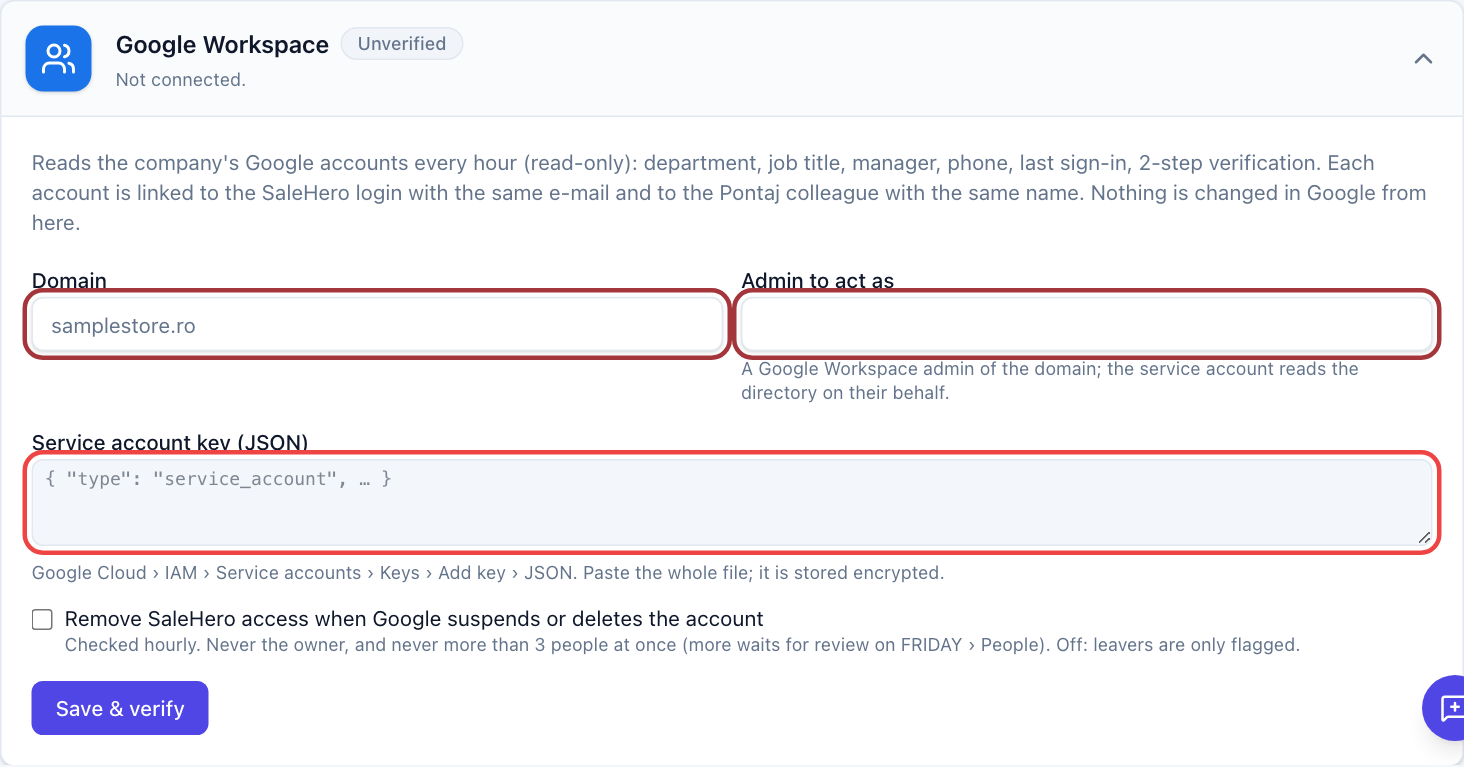
Google Workspace
- 1In Google Cloud open IAM, Service accounts, and create a service account.
- 2Open it, go to Keys, Add key, JSON. A file downloads.
- 3In SaleHero open Integrations, tab Marketplaces, couriers & tools, expand Google Workspace and fill in the domain, an admin e-mail of the domain and the whole JSON file. Save.
- 4In the Google Admin console open Security, Access and data control, API controls, Domain-wide delegation. Add the Client ID and the scopes the SaleHero card shows.
Camera agent (CCTV)
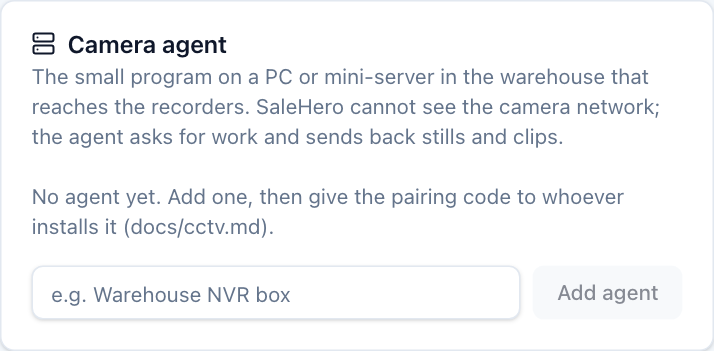
The camera agent is a small program on a PC in the warehouse that reaches the recorders. It is the one thing in this list that needs installing.
- 1In SaleHero open Cameras, name the agent under Camera agent and click Add agent.
- 2Click Pairing code. The code is valid for 15 minutes.
- 3Install the agent on the warehouse PC and enter the code when it asks.
- 4Back in SaleHero add the recorders (NVR) with their address, user and password.
SaleHero API keys
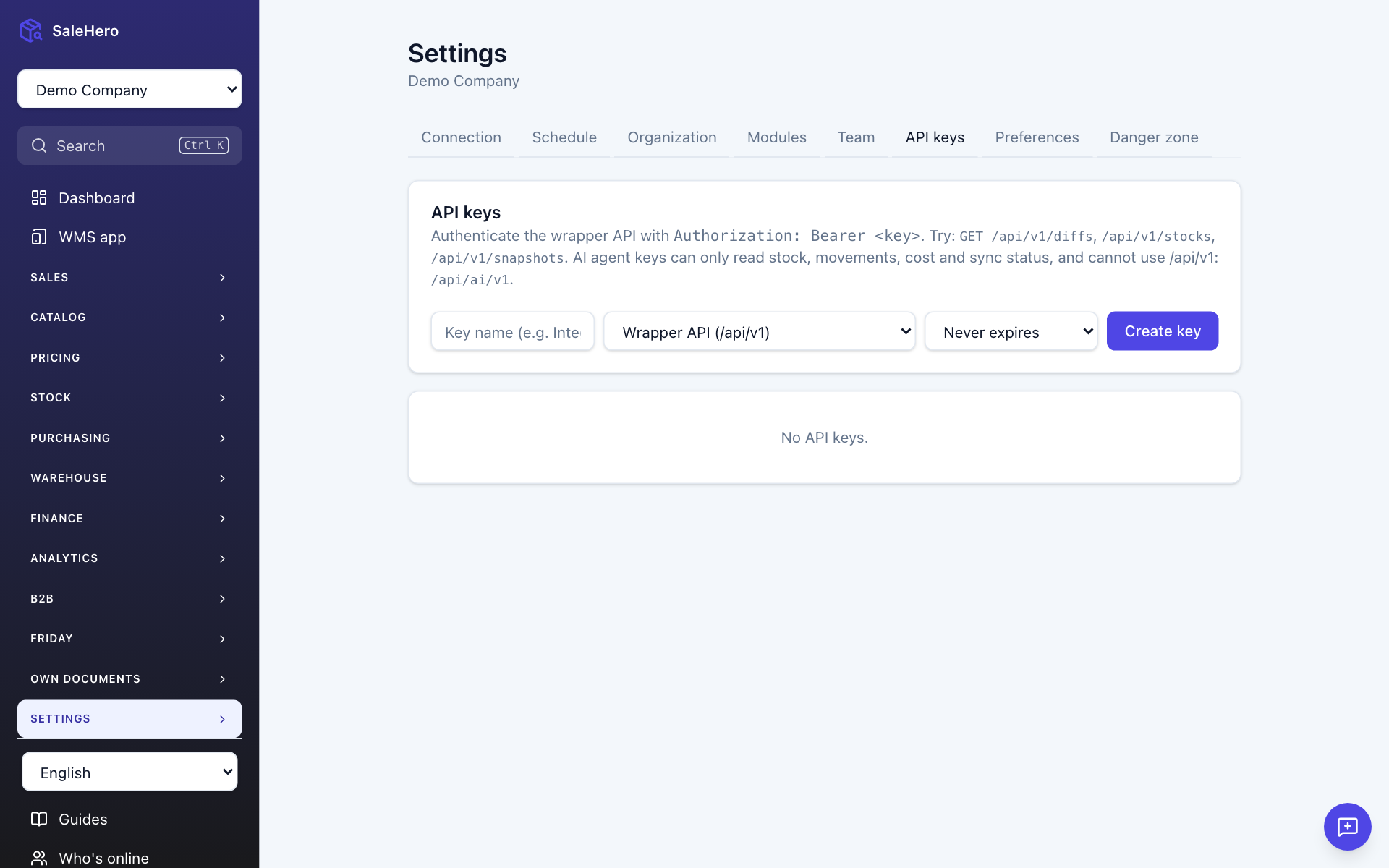
For your own scripts or an AI agent that reads SaleHero. Here SaleHero is the one giving out the key.
- 1Open Settings, tab API keys, name the key, pick what it may do and click Create.
- 2Copy the key at once: it is shown only once.
- 3Send it in the Authorization header of every request: the word Bearer, a space, then the key.
Try it on your own shop
Create an account, connect your tools and the first data lands the same day.