SaleHero where the work happens: packing bench, shelf and chat
The orders, stock and prices live in SaleHero. These apps put them where people need them. Every entry says whether you can use it today.
Pilot
SaleHero Print
“The label printer works only from one PC, and nobody knows which tab prints what.”
What it does
A Windows service on the packing-station PC. It prints the AWB labels and documents that SaleHero queues for that station. Zebra labels (ZPL) go to the printer as they are, PDFs go through the printer's driver (SumatraPDF is bundled). USB or network printers both work, as long as Windows has a print queue for them. After each job it asks the printer whether the label really came out (Zebra over the network or USB, office printers over SNMP), so SaleHero shows printed, not confirmed or failed with the reason. A tray icon next to the clock shows the station and its last prints. Installing is one file from the Printers page: run it, choose Yes, and the PC is paired with its station. It replaces Base Printer.
What you need
A Windows PC at the station, with internet access
The printer installed in Windows (a ZPL driver such as ZDesigner for Zebra labels)
A pairing code from the Printers page in SaleHero (a station's own installer from that page pairs itself)
“SaleHero is one more tab among thirty, and I lose it every time the browser restarts.”
What it does
SaleHero as an app on your computer, for macOS and Windows. It opens the same SaleHero you use in the browser, with the same sign-in. When you close the window it stays in the tray, and it starts when you sign in to the computer. It is a pilot: the installers are not code-signed or notarized yet, so macOS and Windows warn the first time (the steps are on the download page), and it does not update itself yet. Printing is a separate download (SaleHero Print, above).
What you need
A Mac (Apple silicon or Intel) or a Windows PC
A SaleHero account; you sign in as in the browser
Allow the app once in the system warning (macOS: Open Anyway; Windows: More info, Run anyway)
“Pickers walk the whole warehouse with a printed list in their hand.”
What it does
A phone app for warehouse work, built on the same warehouse tools as the WMS: scanning orders, products and bins, picking, packing, moving stock between bins and the courier handover. Scan with the camera, a handheld's built-in scanner or by typing. It is a pilot for Android, installed from the file below, not from Google Play. Fixes reach the installed app on their own; you reopen it to get them. The iPhone version is not out yet.
What you need
An Android phone or handheld (Android 7 or newer)
A SaleHero account; you sign in with the same email and password
Allow installing apps from your browser once, when Android asks
“To find a bin or check an order I walk back to the office PC.”
What it does
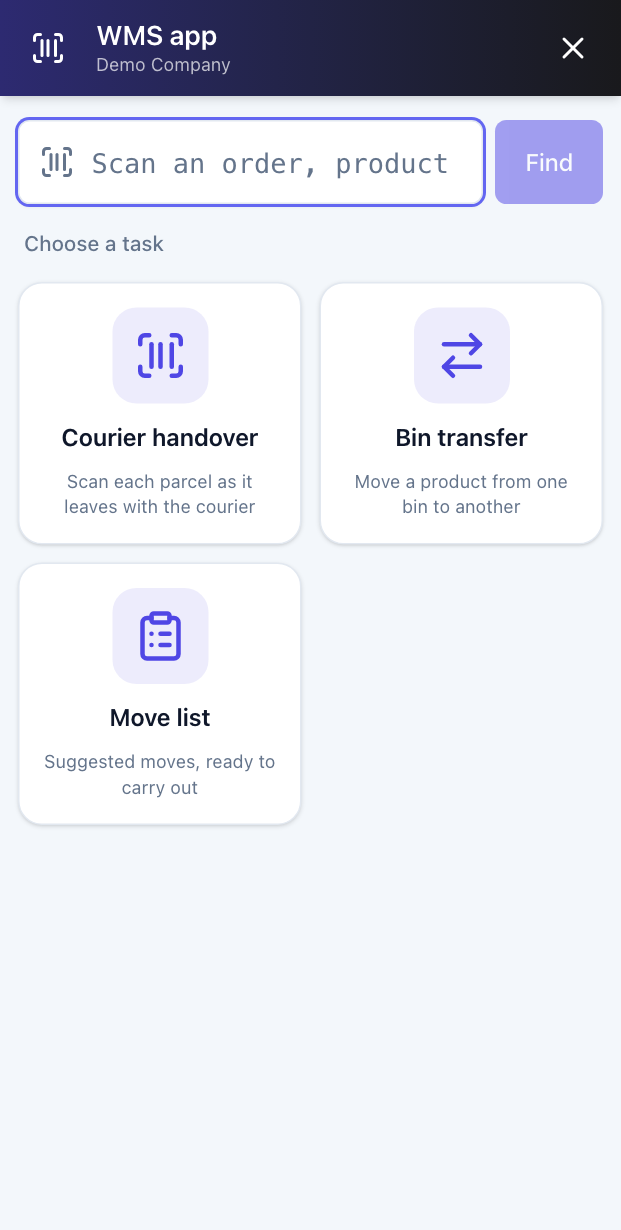
A full-screen, touch-first area for phones and handhelds, outside the desktop menu. Scan or type an order number, AWB, EAN or SKU and open the order, the product or the bin. Tasks: courier handover scans, moving a product between bins, a list of suggested moves, picking and packing. Each task shows only to people with the matching permission.
The WMS app home screen
What you need
A SaleHero account with access to the section behind each task
A phone or handheld with a browser; a scanner is optional, typing works too
“I ask five people and three tabs for one number.”
What it does
SaleHero has an MCP server, so AI assistants such as Claude can read your stock, orders, invoices, returns, payouts and profit and answer from them. It offers 35 tools, most of them read-only. Access is by an API key made for agents, in two kinds: read-only, or full access. A full-access key can also change data, limited to the role, sections and routes set on the key. Every tool call is logged. The assistant's own client should ask a person before it writes.
What you need
An AI client that speaks MCP (Claude Desktop, Claude Code, Cursor and similar)
 SaleHero
 Pilot