 SaleHero
Menu names in this guide (for example Settings, Integrations) are the ones you see in SaleHero after you sign in. The screenshots show a demo shop.
Finance
Stock accounting, invoices, receivables, payments, payouts and e-Factura.
This guide covers the Invoices & accounting group of the sidebar and its neighbours: where you check that the books match the warehouse, follow your invoices, chase unpaid ones, record payments and reconcile with ANAF.
Stock as SmartBill sees it
The Invoices & accounting group of the sidebar holds everything that comes from or goes to SmartBill, your invoicing program. Its stock entry is Book stock: the Stock page in its SmartBill view, with the same table as the Stock page but showing the quantities SmartBill holds per warehouse instead of the quantities counted in the warehouse. It shows only when SmartBill is connected.
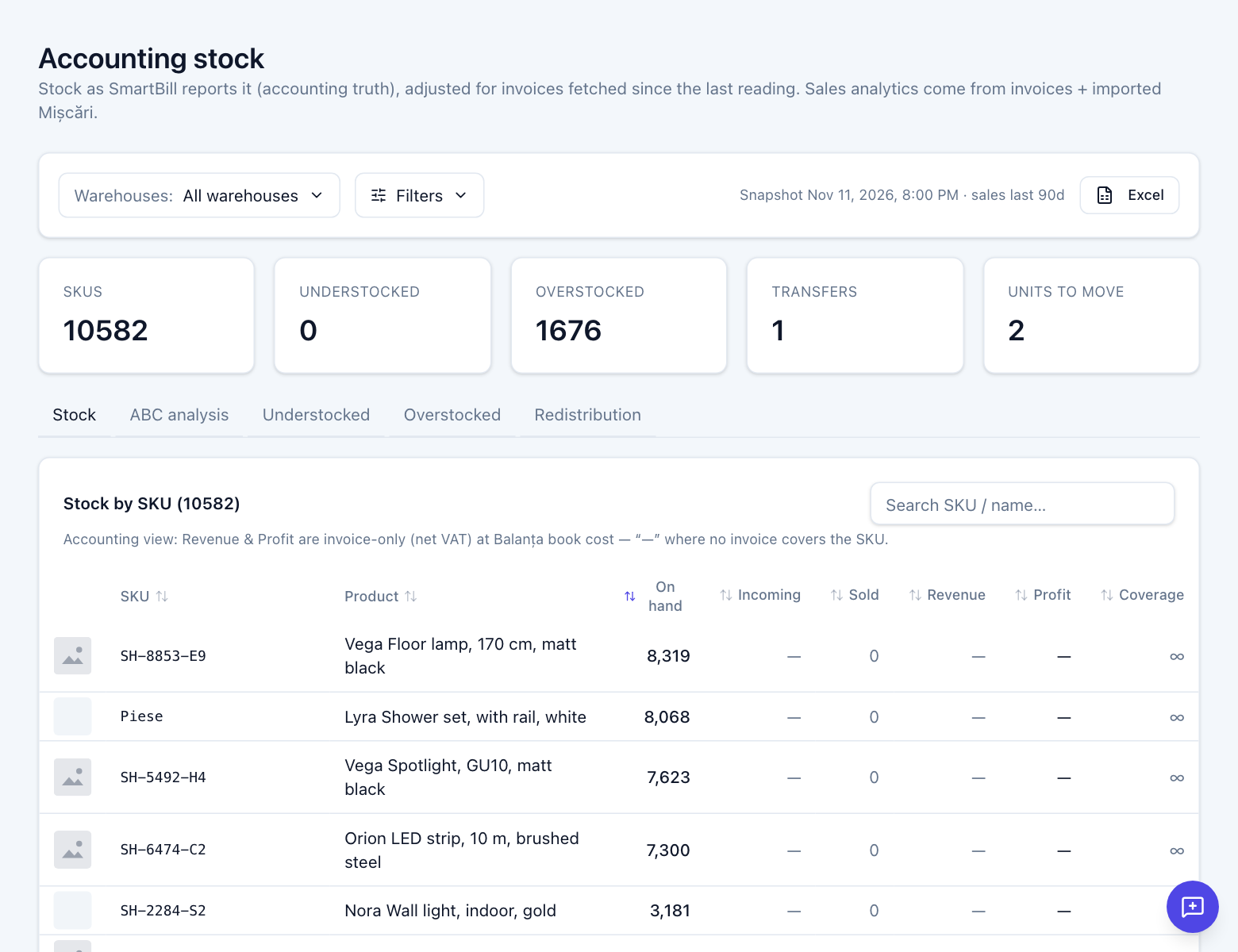
Use this view when you want to know what the books say. To compare it with the warehouse, use Stock control and the Stock movements pages described next.
Movements: the history of stock changes
Stock movements is a page with the tabs Movements, Ledger, Valuation. Together with the Differences and Adjustments tabs of Stock control they let you check that the stock in SmartBill matches reality. Movements is the starting point: it holds the SmartBill export called Mișcări stocuri, one line per stock movement.
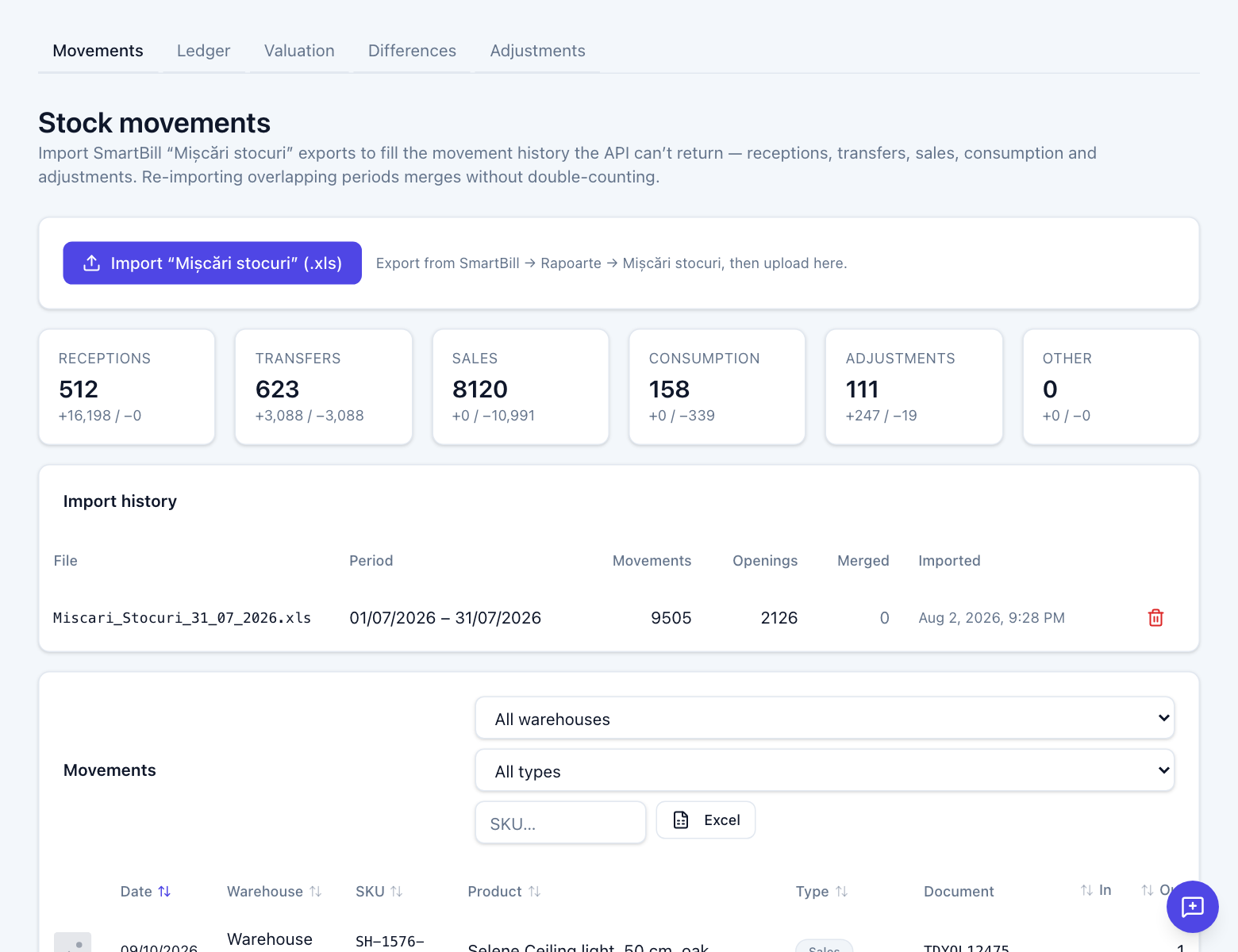
The cards at the top count the movements by type: Receptions, Transfers, Sales, Consumption, Adjustments and Other.

Only an administrator can import a file or remove an import. Importing reads the file, shows a preview with the warehouses it contains, and asks you to choose which ones to bring in. If the file contains an invoice series that SaleHero does not know yet, the preview offers to create it and to choose its warehouse.

The import history lists each file with its period, how many movements and opening balances it held, how many were merged with earlier imports and how many were new. Importing the same period twice is safe: movements already known are merged, not counted again. An administrator can remove a whole import from this table.

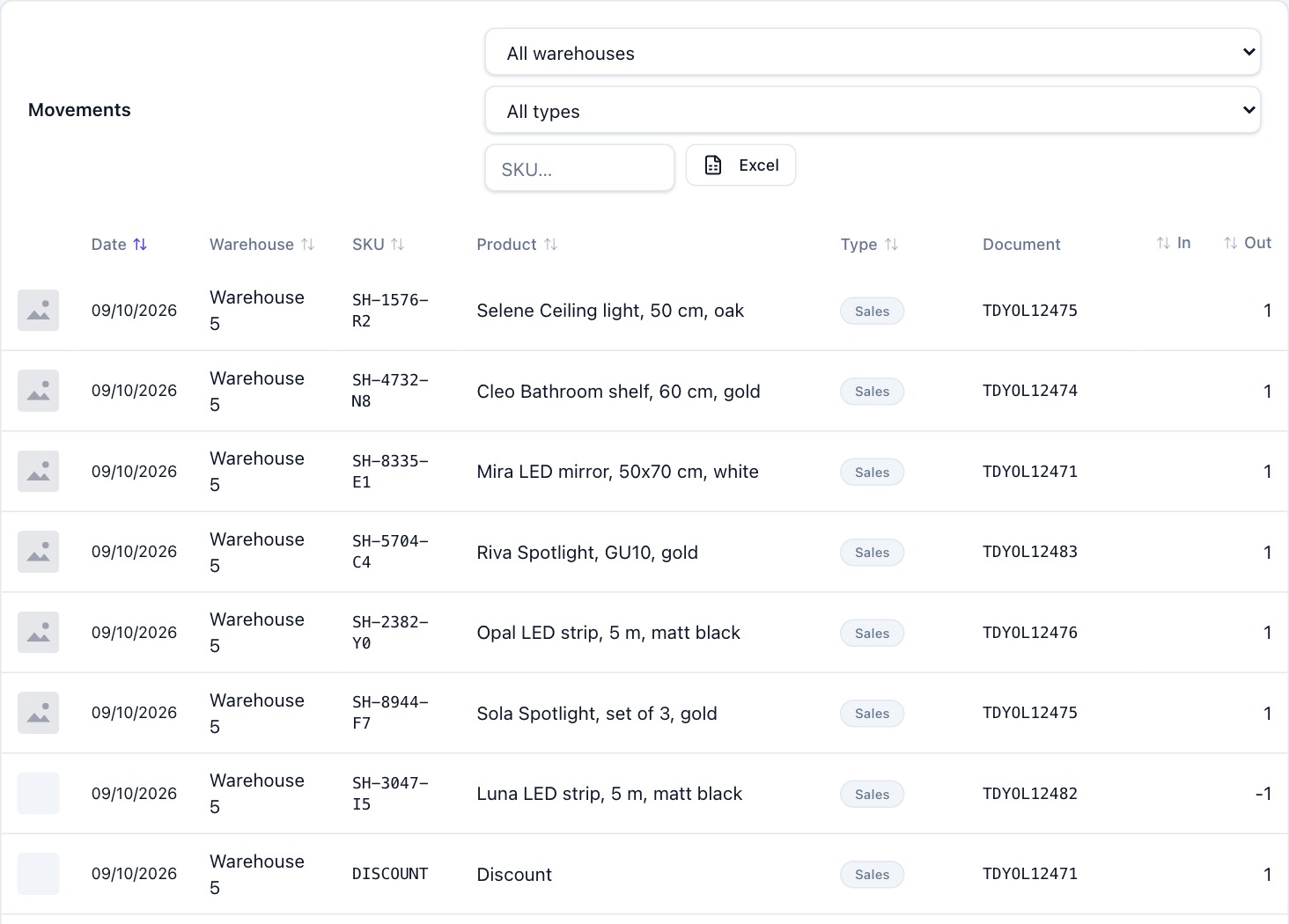
The movements table can be filtered by warehouse, by type and by SKU. Each row shows the date, warehouse, SKU, product, type, document, and the quantity in or out. A sale that SaleHero could link to an invoice shows the link next to its document. The Excel button exports the list.
Ledger: what the stock should be
The Ledger rebuilds, for every warehouse and SKU, the quantity the stock should have: it starts from the opening balances and adds and subtracts the movements, invoices and receptions. It then compares that figure with the latest SmartBill stock reading.
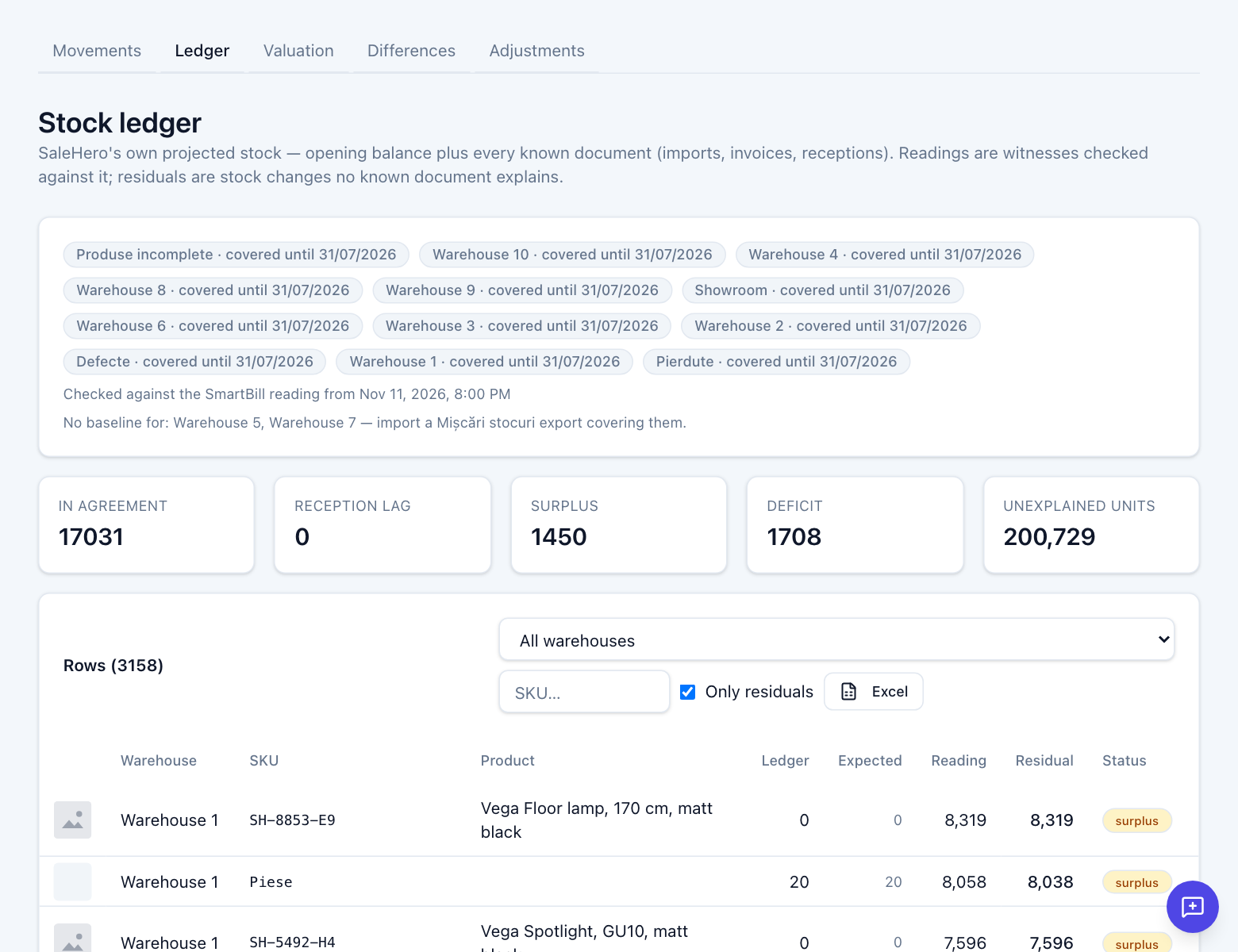
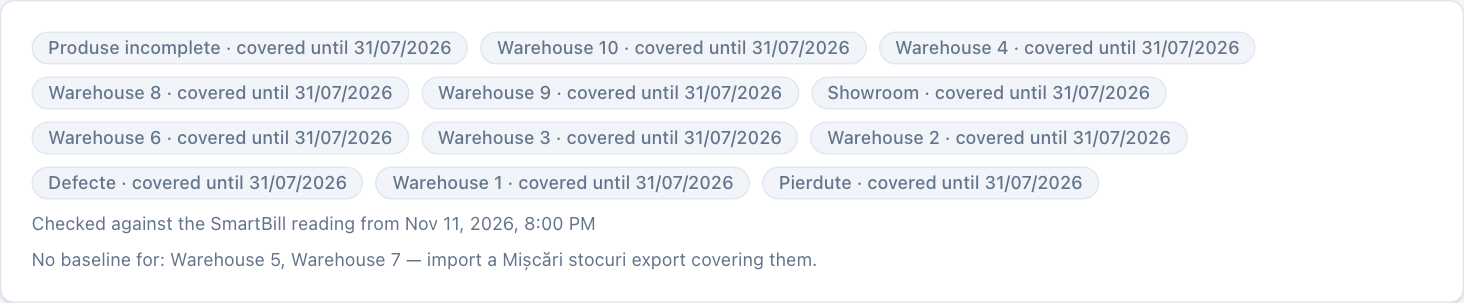
The line at the top tells you how far the ledger is covered by imported movements (covered until a date), how many sales and receptions have been added since, and which SmartBill reading it was checked against. If there is no reading yet, the ledger says so. A last line names the warehouses for which no opening balance exists yet: import a Mișcări stocuri export that covers them.
The summary cards count the rows by status (in agreement, reception lag, surplus, deficit) and add the total of unexplained units, and the table shows for each row the ledger quantity, the expected quantity, the SmartBill reading and the residual, which is the difference between them.

The status of a row is one of: match (the ledger and the reading agree), reception lag (goods received but not yet in the reading), surplus (the reading is higher than expected), deficit (the reading is lower than expected) or no reading. By default the table shows only the rows with a residual; untick Only residuals to see all of them. The Excel button exports the table.
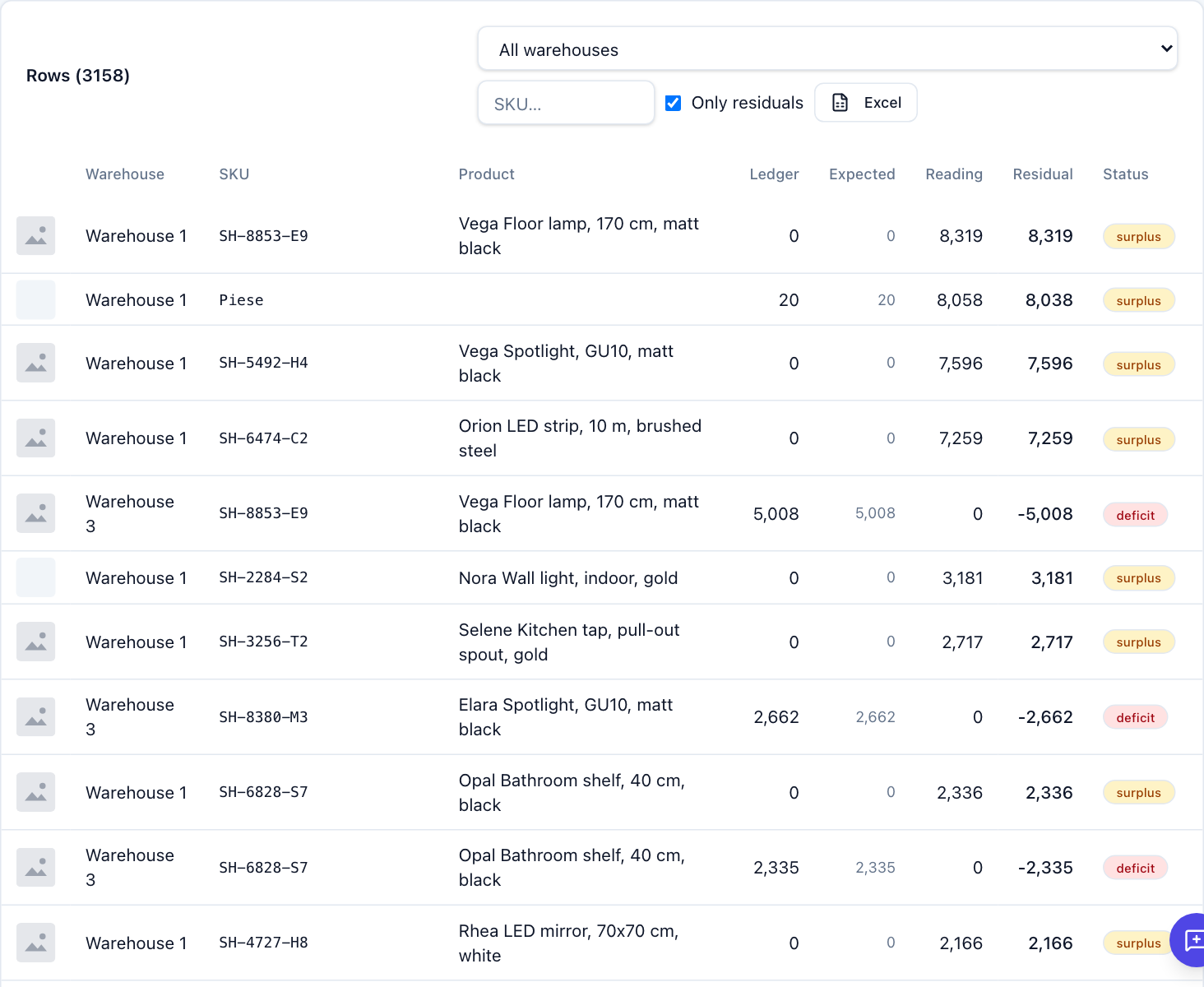
A residual is a lead, not a verdict. Check the movements of that SKU first: a missing import is the most common reason.
Valuation: what the stock is worth
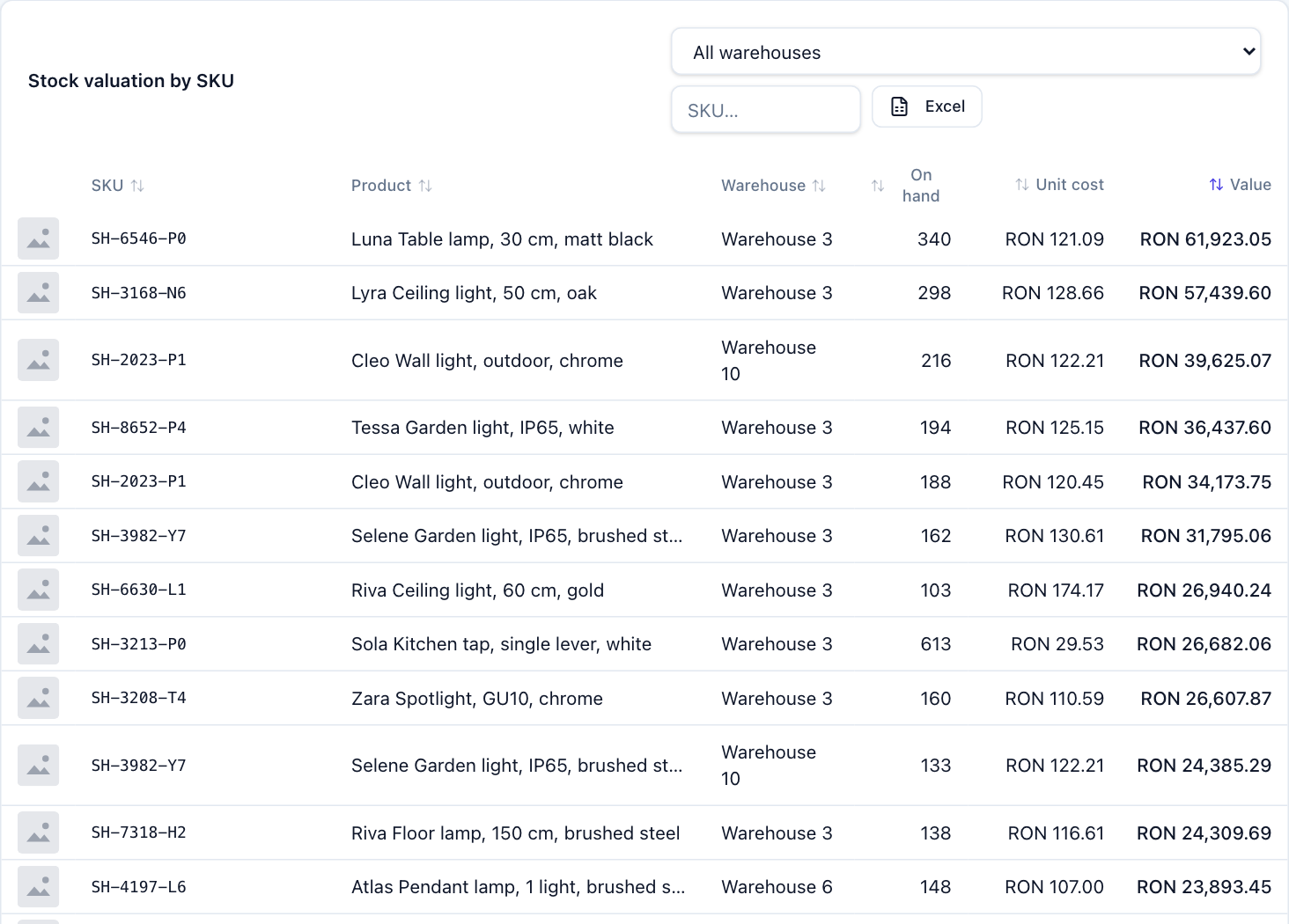
The Valuation tab (Balanța stocului in Romanian) imports the SmartBill export of the same name and shows the value of your stock: the total value, the number of units on hand and the number of warehouses, then the value per warehouse and per SKU.
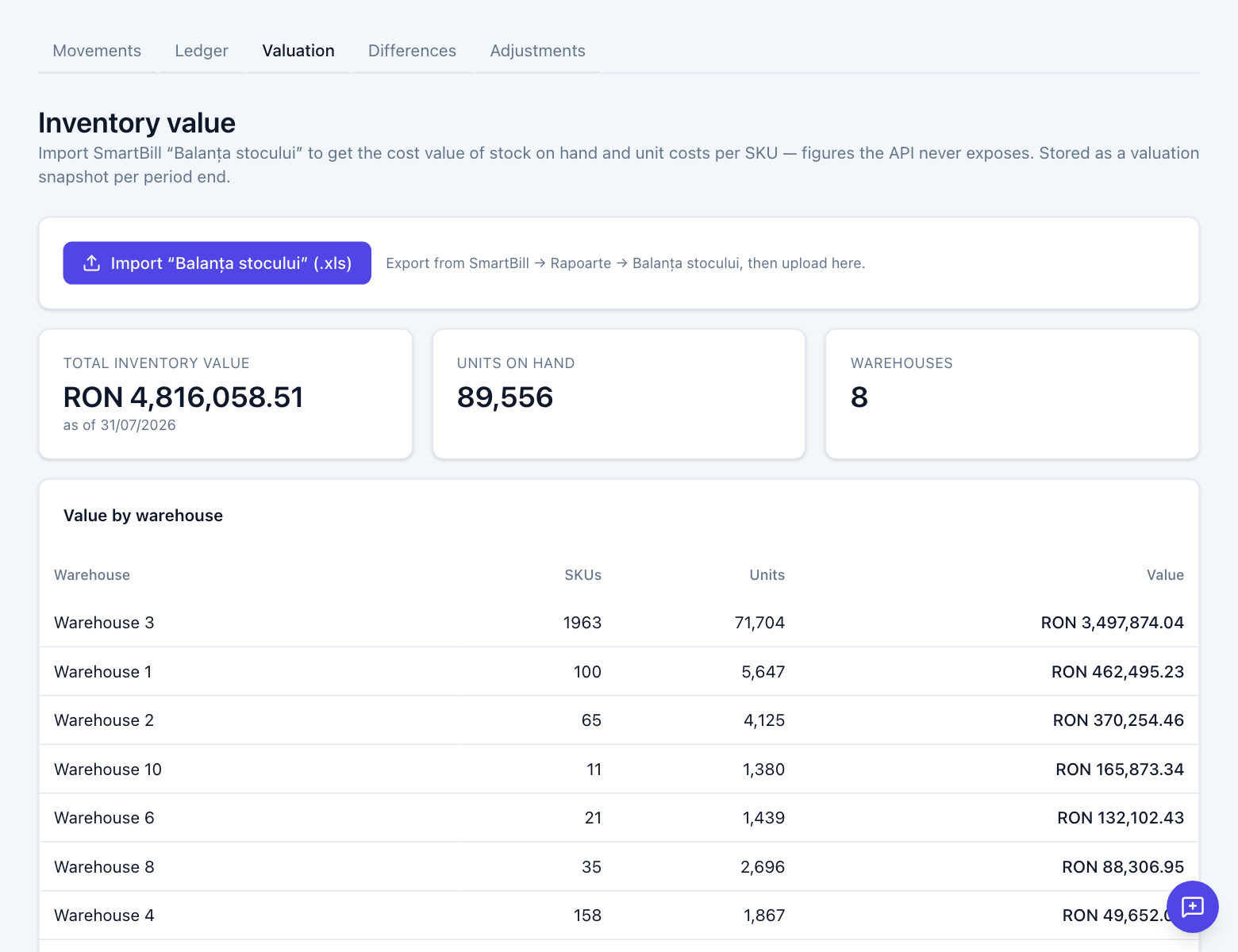
As with Movements, only an administrator can import or remove a file. The preview asks which warehouses to bring in and shows the date the balance refers to. A new import for the same date replaces the earlier figures for that date.
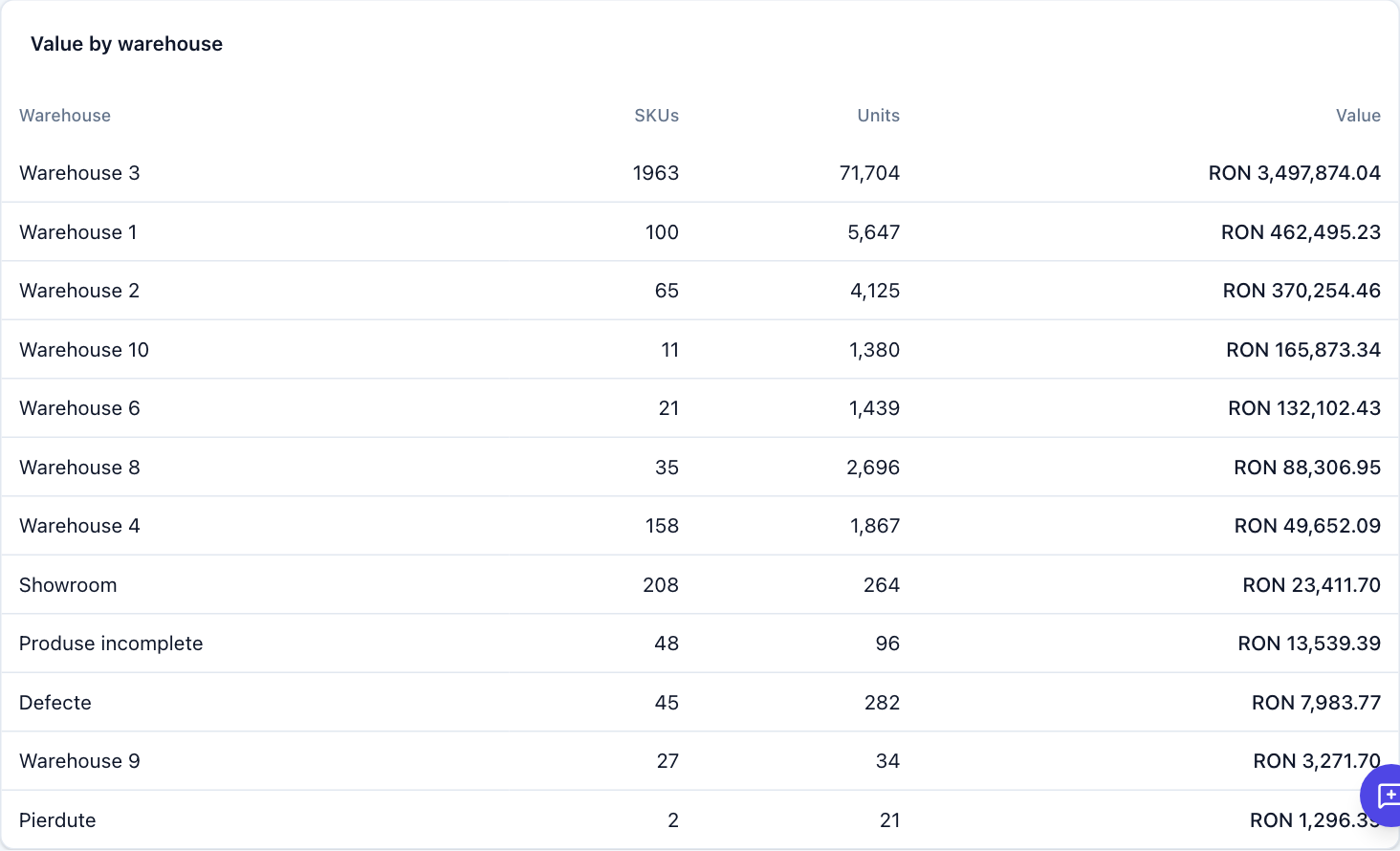

The table at the bottom, Stock valuation by SKU, gives for each SKU and warehouse the quantity on hand, the unit cost and the value, and can be filtered by warehouse or SKU.
Differences: how each stock figure changed
Each time the SmartBill stock is read, SaleHero compares it with the previous reading. The Differences tab of Stock control lists what changed: SKUs that are new, increased, decreased or removed, with the quantity before and after, the difference and when the change was seen. The Excel button exports the list.
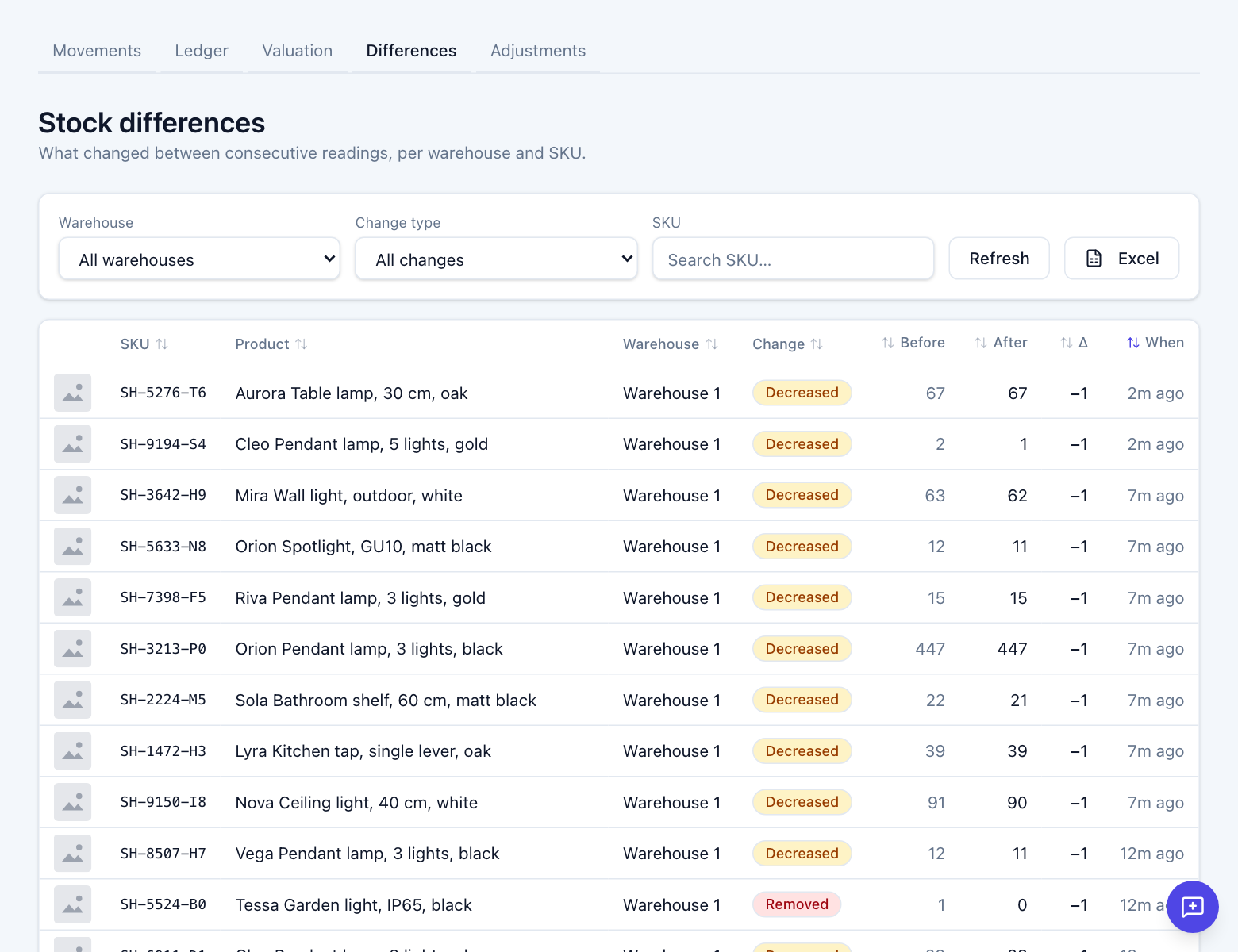
- 1Filter by warehouse, by change type (new, increased, decreased, removed) or search for a SKU.
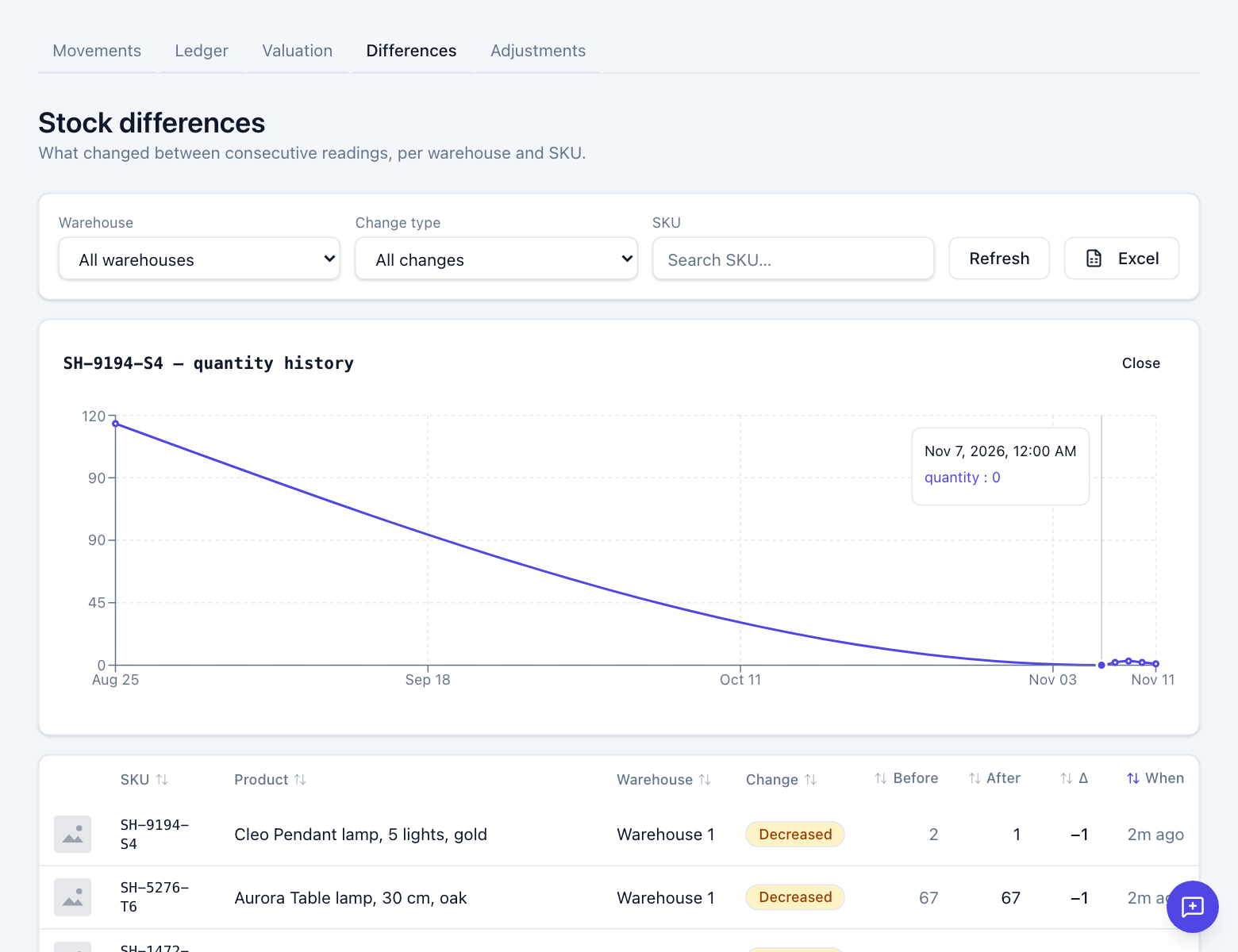
Click a row to open the quantity history of that SKU as a chart. Close it with the Close button. Refresh reloads the list.
Adjustments: suggested corrections
When the warehouse and SmartBill disagree, the books can be corrected with stock adjustments. The Adjustments tab of Stock control suggests them. It compares the WMS stock with the SmartBill stock and pairs a SKU whose book quantity is too low with a SKU whose book quantity is too high in the same warehouse and of similar value, so that the correction barely changes the total value of the stock.
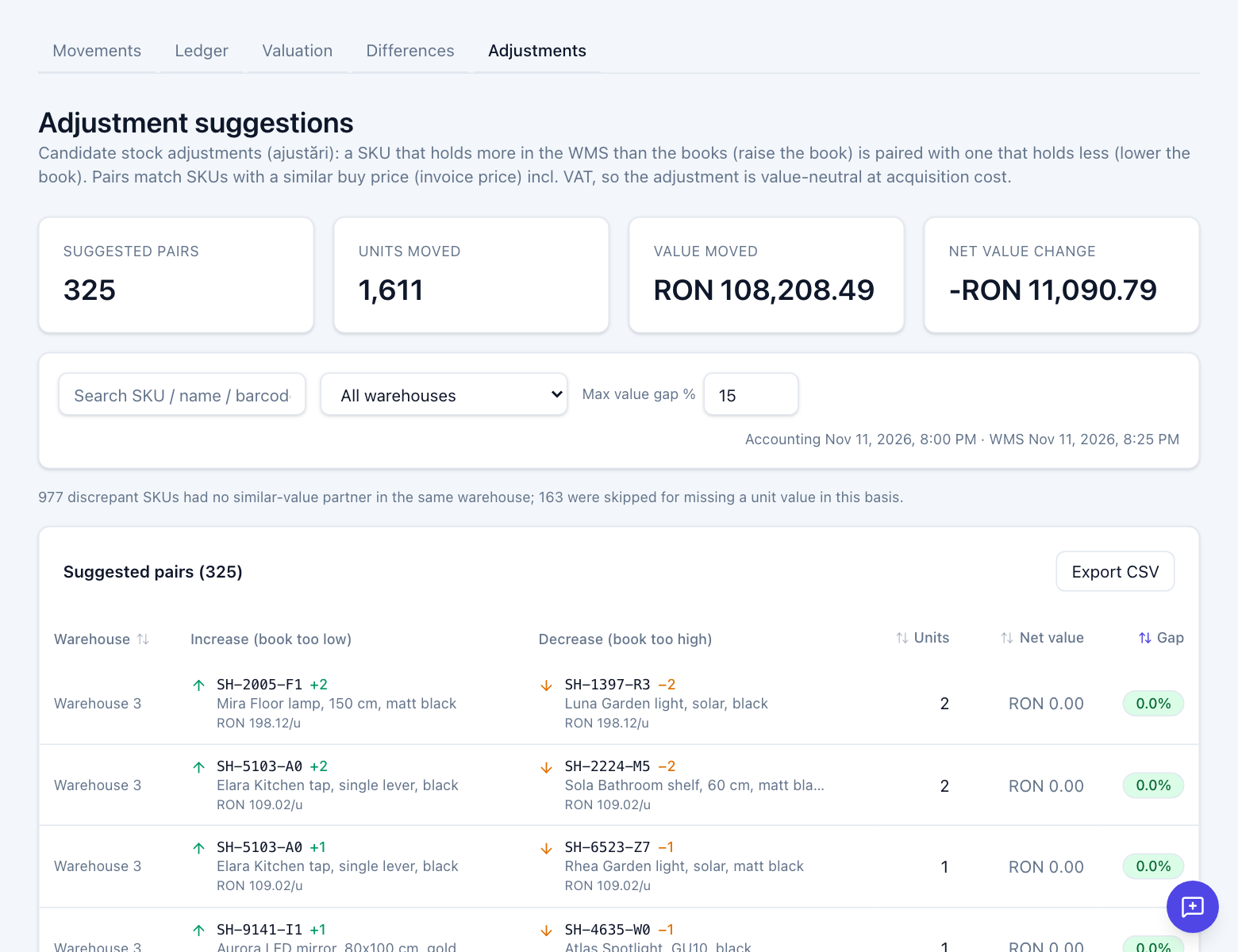
Search for a SKU, choose a warehouse, and set the maximum value gap in percent allowed between the two SKUs of a pair (15 by default). Below, Suggested pairs lists each pair with the SKU to increase, the SKU to decrease, the units, the net value and the gap; when there is nothing to pair, the page says so. Summary cards show the number of pairs, the units moved, the value moved and the net value change.
- Export CSV downloads the pairs so they can be entered in SmartBill.
The page needs both stock sources. If it says so, map the BaseLinker warehouses in Integrations or run a stock reading first.
Invoices: the series SaleHero follows
SmartBill does not let other programs list all your invoices, so SaleHero follows your invoices by series. You tell it which series exist (for example the series of a warehouse) and from which number to start, and it fetches the invoices of each series one number after another.
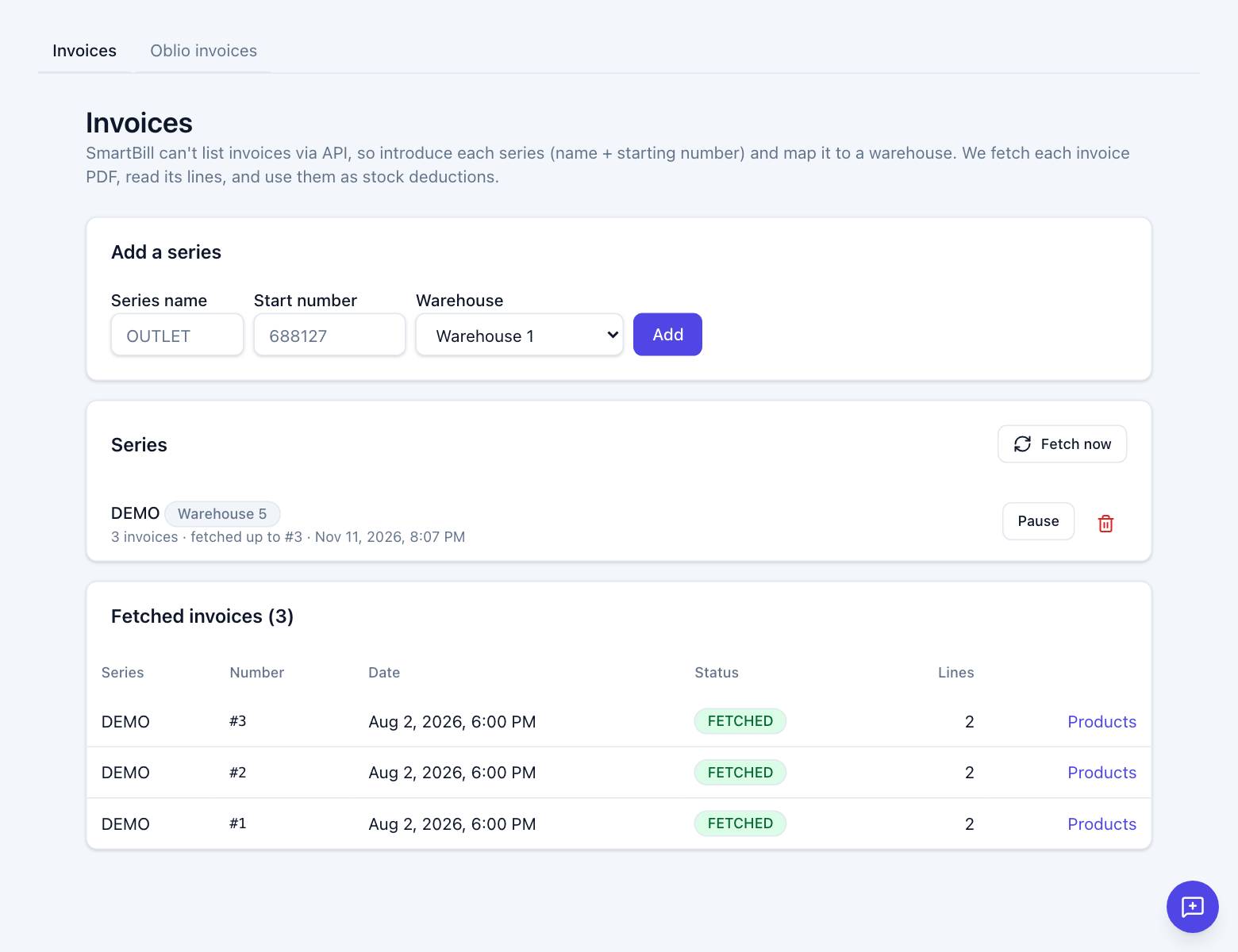
Invoices: adding and managing a series
- 1In Add a series, type the series name exactly as it appears on your invoices.
- 2Enter the start number and choose the warehouse the series sells from.
- 3Press Add. The series appears in the Series list.

Each series in the list shows how many invoices were fetched, up to which number, and the range already known. Four buttons act on a series: Fetch now looks for new invoices straight away, Pause and Resume stop and restart the fetching, and Request full history asks SaleHero to go back and fetch the older invoices too. A request can be cancelled with Cancel request.
A paused series is marked Paused and is skipped until you resume it.
Invoices: the fetched invoices
Below the series, Fetched invoices lists the invoices that were pulled in, with series, number, date, status and number of lines. The status tells how far SaleHero got with the invoice: Fetched means it was read successfully.
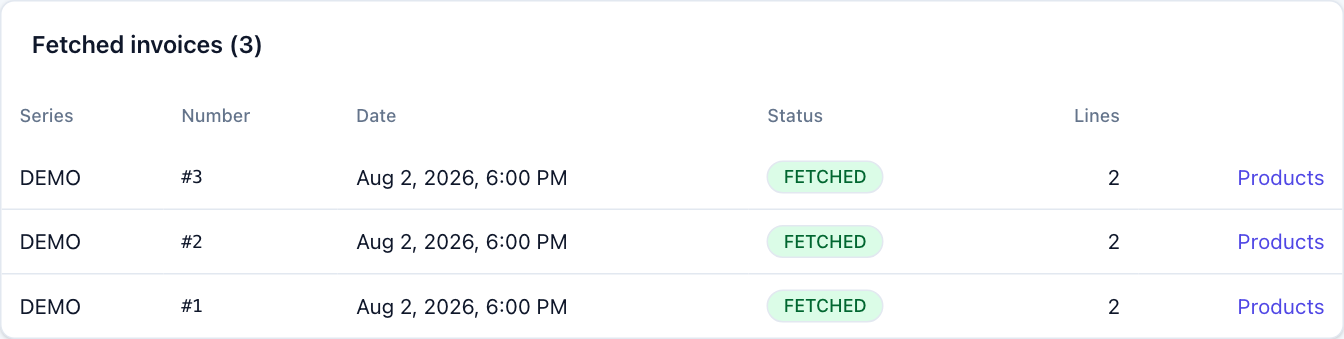
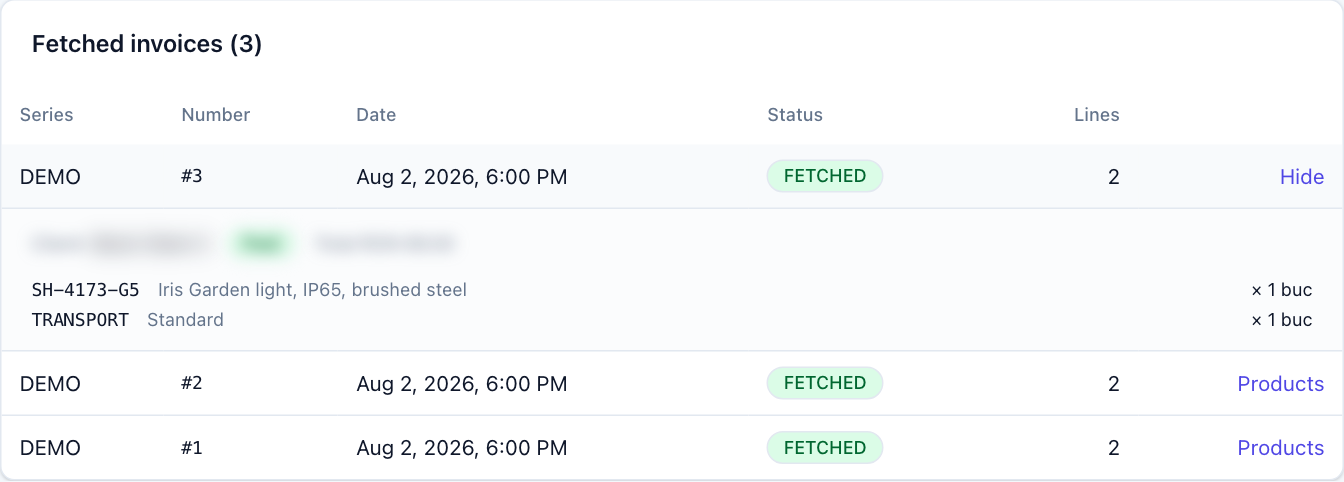
Click Products on a row to open it. It shows the client, whether the invoice is paid or unpaid, the total, the amount still outstanding, and the product lines with their SKU and quantity. Click Hide to close it again.
Receivables: who owes you money
Receivables aging (the Receivables tab of Cashflow) groups the unpaid invoices by how old they are: current (0 to 30 days), 31 to 60 days, 61 to 90 days and over 90 days. The first card shows the total outstanding, and the table lists each client with the amount in every group and the age of the oldest unpaid invoice.
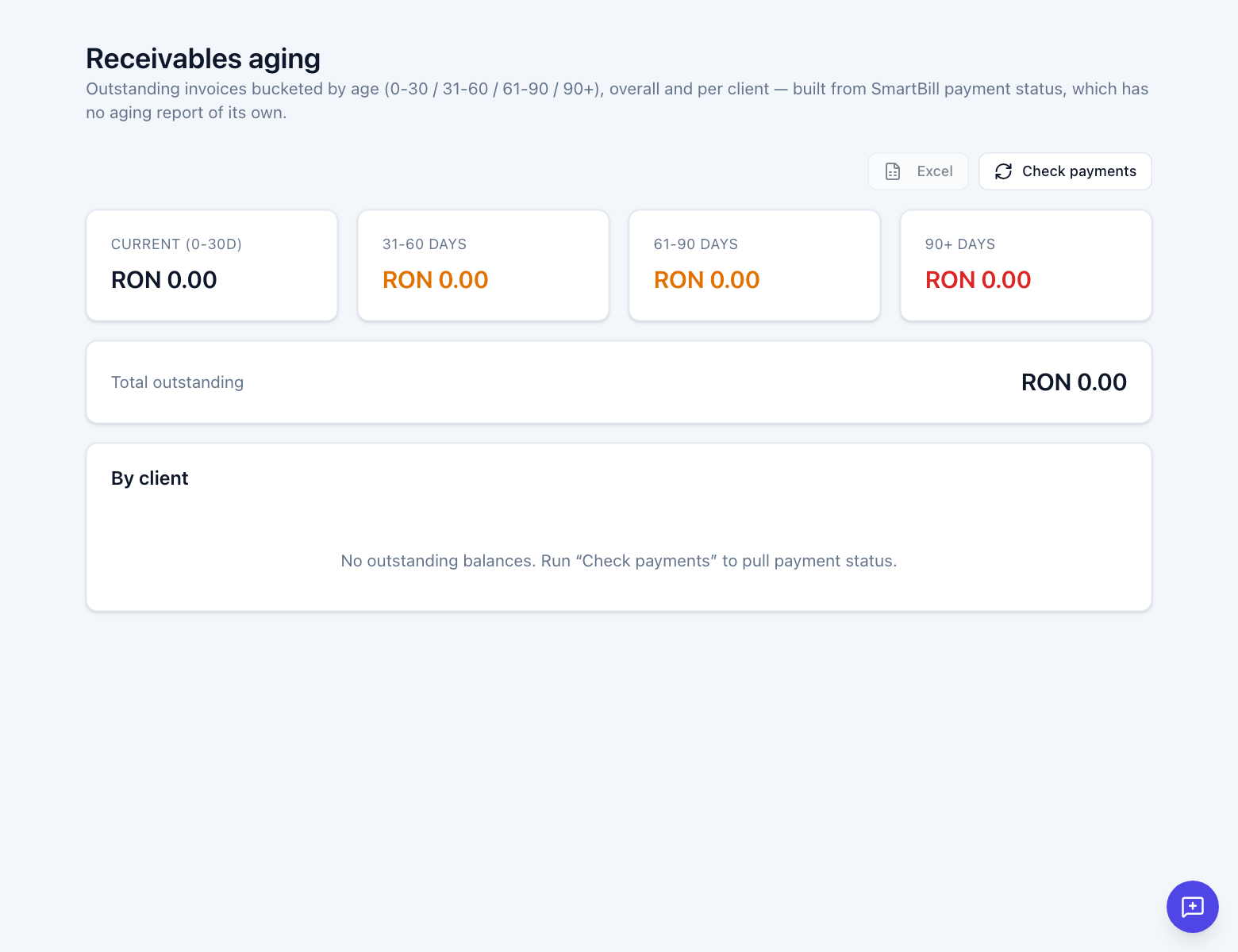
Check payments asks SmartBill whether the invoices still marked unpaid have been paid in the meantime, and updates the page. Use it before chasing a client.
An empty page means no invoice is waiting for payment among the series SaleHero follows.
Payments: marking an invoice as paid
The Payments page lists the open invoices, the ones with an outstanding amount, with invoice, client, issue date, total and outstanding. Next to each one the Mark paid button records the payment.
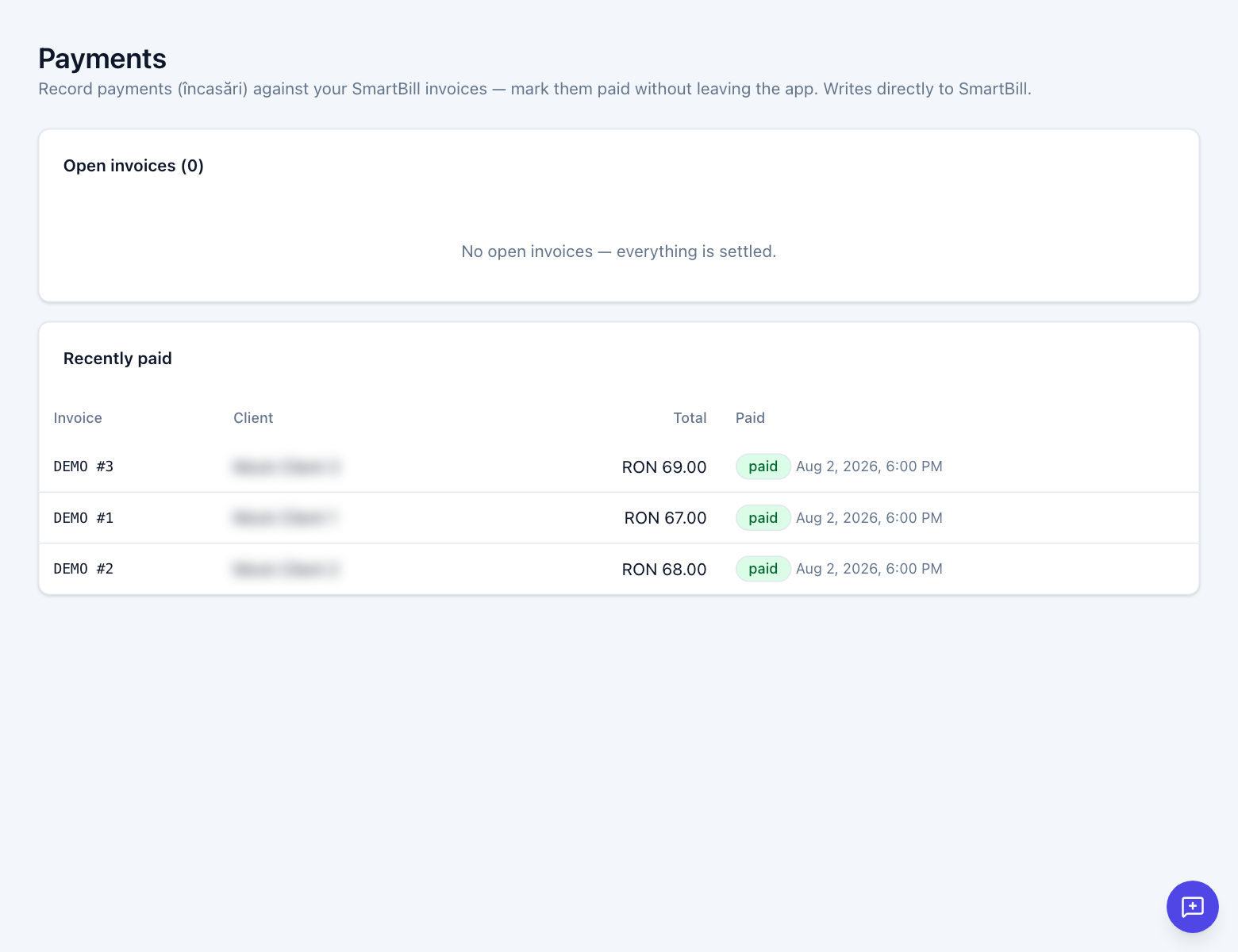
Marking an invoice as paid writes the payment into SmartBill itself, so use it only for a payment that was really received. The invoice then moves to Recently paid. For payments that arrive in bulk from a courier or a marketplace, the Payouts page does this for many invoices at once.
Payouts: reconciling a settlement file
Couriers and marketplaces pay you in bulk and send a settlement file (a borderou) listing the orders they paid. The Payouts page reads that file, finds the invoice of each order and, when you decide, records all the payments in SmartBill at once.
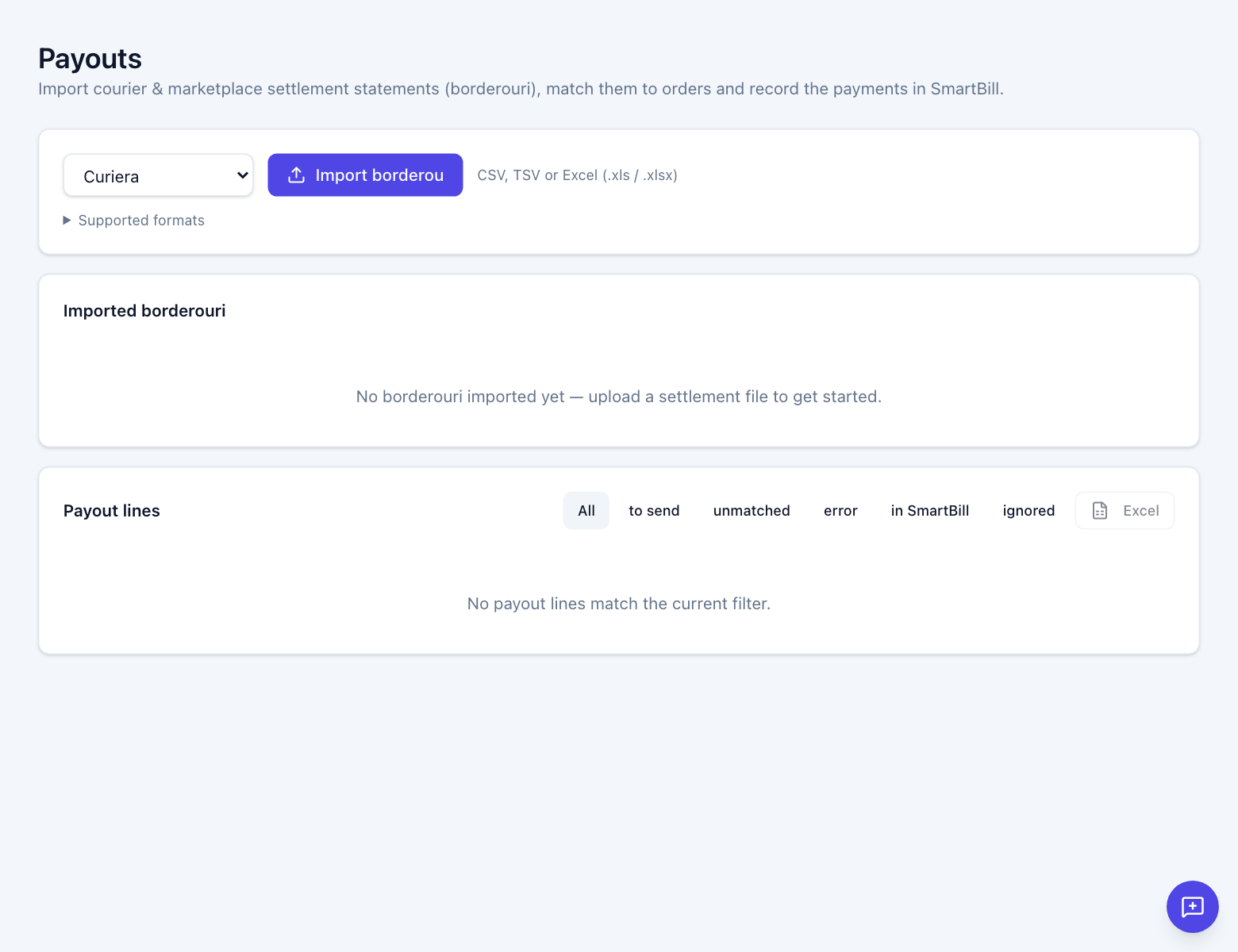
Payouts: importing a file
Choose the provider in the list next to the button, then press Import borderou and choose a CSV, TSV or Excel file (.xls or .xlsx). Supported formats lists the files SaleHero can read: courier COD settlements, Packeta billing, Trendyol settlement reports, Temu transactions and the eMAG payments breakdown.
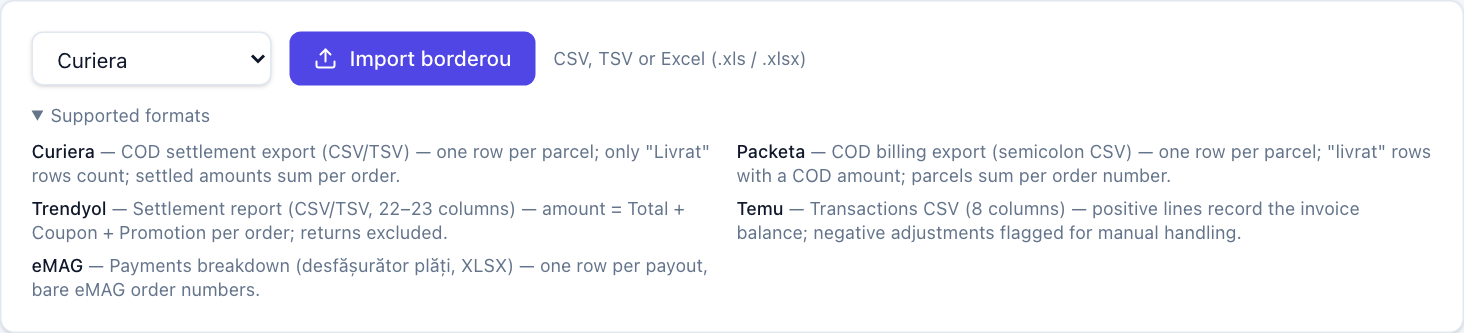
Importing first shows a preview, nothing is recorded yet. The preview counts the lines in the file and how many are matched to an invoice, unmatched, in error or already imported before, and mentions rows that were skipped. A file that was already imported is flagged. If the preview looks right, press Import; otherwise press Cancel.
Importing the same file twice is blocked, and a line that was already imported is marked duplicate.
Payouts: batches, lines and statuses
Imported borderouri are listed with provider, file, transfer date, number of lines, amount and how many lines are already in SmartBill. Click a batch to show only its lines, and clear the batch filter to see all of them. Delete removes a whole imported batch and its lines, after asking you to confirm.
Each payout line shows the order, the payer, the invoice, the pay date and the amount, and has one of these statuses: to send (matched to an invoice and ready to record), in SmartBill (already recorded), unmatched (no invoice found), ignored, error or unconfirmed. Filter the lines by status with the buttons above the table.
Four actions help with lines that are not ready: Assign order links an unmatched line to an order number you type, Ignore sets a line aside and Restore brings it back, and Retry tries again a line that ended in error.
Payouts: recording in SmartBill
Recording is the step that matters, because it writes real payments into SmartBill. It works on the lines that are to send. Where the amount in the file matches, the line records that amount on the invoice; where the file does not give a usable amount, it records the invoice balance, and the line says so before you press anything.
- 1Check the preview and the lines: every payment should belong to the right invoice.
- 2Press Record for one batch, or Record with the number of payments to send them all.
- 3Wait while the progress counter runs. A message tells you how many payments were sent to SmartBill and how many failed.
- 4Open any failed line, fix the cause (for example assign the right order) and press Retry.
Only one recording runs at a time. If you open the page while one is running, you see its progress instead of a second button.
SPV / e-Factura: checking against ANAF
SPV is the ANAF space where e-Factura invoices are exchanged. This page connects SaleHero to ANAF and compares the invoices you issued in SmartBill with what ANAF received, and also shows the supplier invoices that ANAF delivered to you.
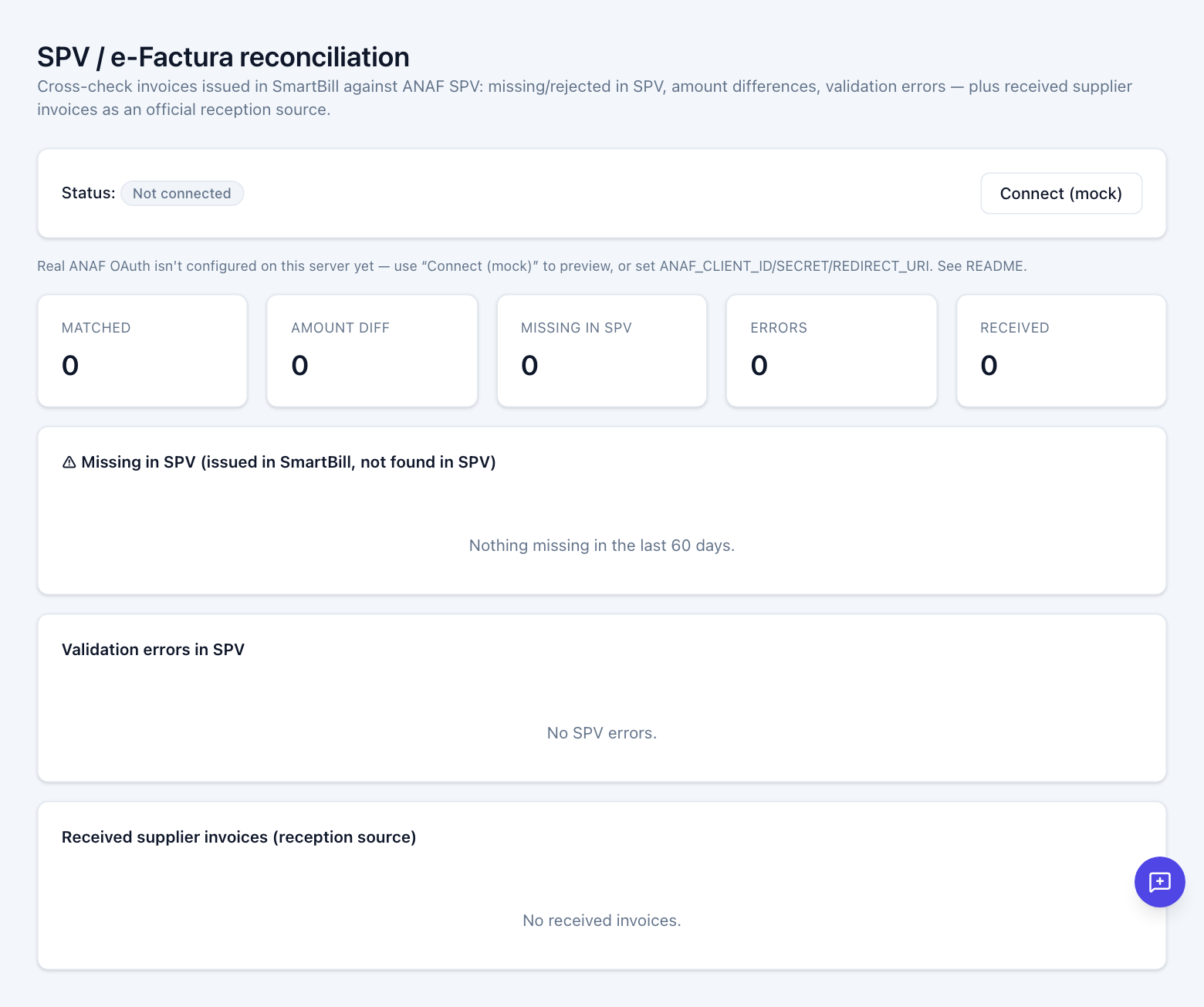
- The Status line shows whether ANAF is connected and when it last synced. Connect ANAF starts the connection, Sync now fetches the latest messages and Disconnect ends the connection.
- The counters show how many invoices are Matched, have an Amount diff, are Missing in SPV, have Errors, and how many were Received.
- Missing in SPV lists the invoices issued in SmartBill in the last 60 days that ANAF does not have. Validation errors in SPV lists invoices ANAF rejected.
- Received supplier invoices lists the invoices from your suppliers; they are used as a source for receptions.
A missing invoice is the one to act on: it was issued but ANAF never got it, so it may not be valid for your client.
See what it does for your shop
Feature pages that go with this guide:
Try it on your own shop
Create an account, connect your tools and the first data lands the same day.