 SaleHero
Menu names in this guide (for example Settings, Integrations) are the ones you see in SaleHero after you sign in. The screenshots show a demo shop.
Integrations
Connect shops, order management, accounting, marketplaces, courier and messaging, and check that every sync is healthy.
Everything SaleHero talks to is on the Integrations page. This guide explains the page, how to connect each provider and how to read its history and failures.
The Integrations page
Integrations is where SaleHero is connected to your shops, order management, accounting, marketplaces, courier and messaging tools. Open it from Settings, then Integrations. You need access to the Settings section; people with read-only access can look but not change anything.
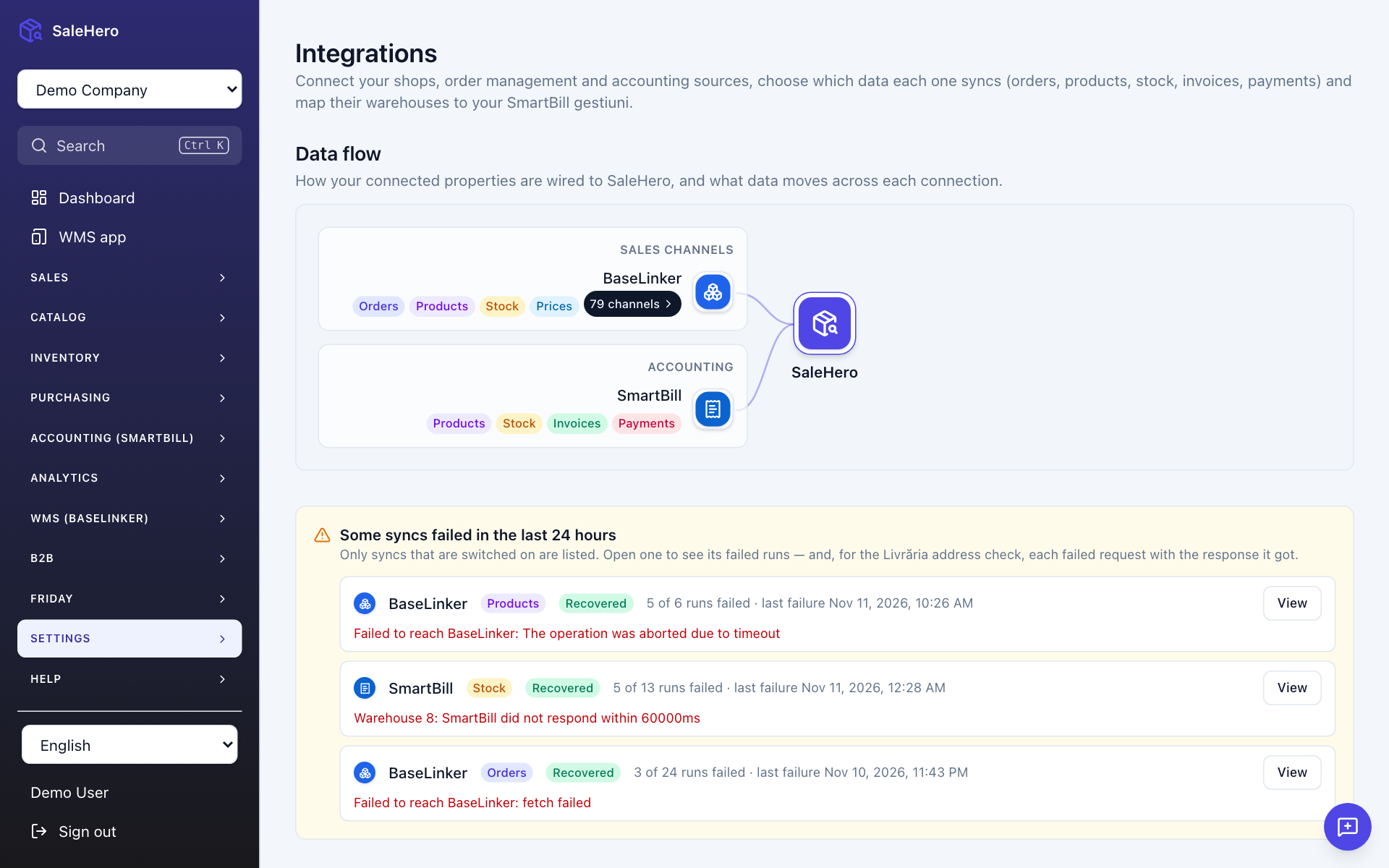
- Shops: Shopify.
- Order management: BaseLinker.
- Accounting and ERP: SmartBill and Oblio.
- Marketplaces: Trendyol and TEMU.
- Shipping: Livrăria.
- Product identification: GS1 România.
- Returns and support: DPD and monday.com.
- Messaging: WATI and Slack.
The data flow graph
The graph shows SaleHero in the middle and every connected provider around it. On each line, coloured pills say which data moves: Orders, Products, Stock, Prices, Invoices, Payments or Addresses. A provider that is paused or disabled shows no data flowing.
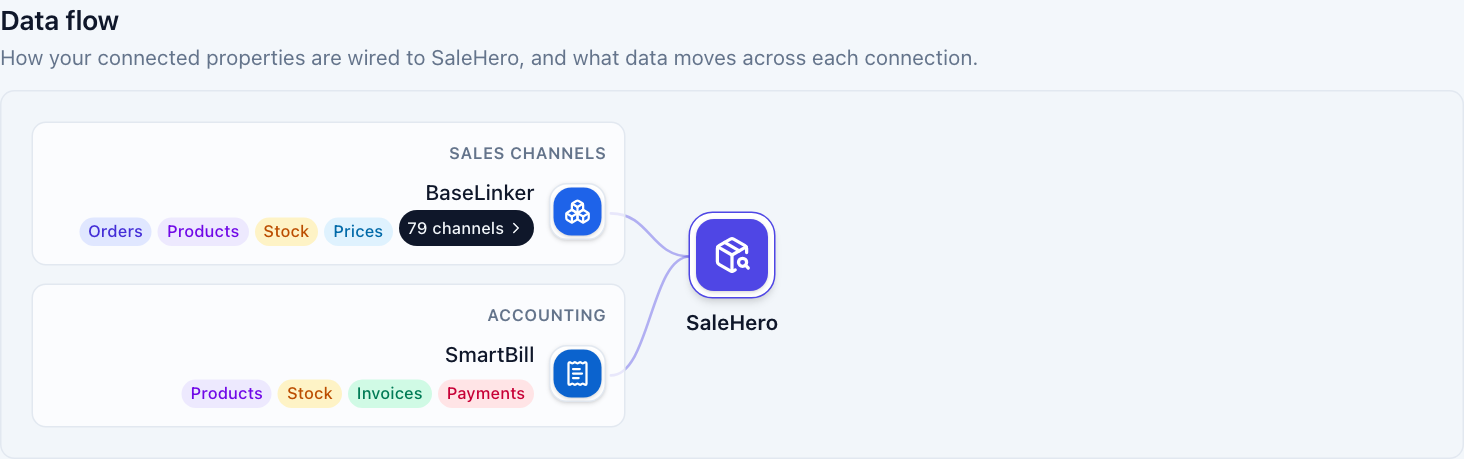
- BaseLinker has a button with the number of channels. It opens the shops, marketplaces and other channels that BaseLinker feeds.
- Livrăria shows what it does for you (addresses and labels) and the couriers behind it.
- If nothing is connected yet, the graph says there are no connections.
When two sources write the same data, or data goes round in a loop, an amber warning called Data flows that collide appears. The last write wins, so use its Review button and switch off one side.
Failure warnings
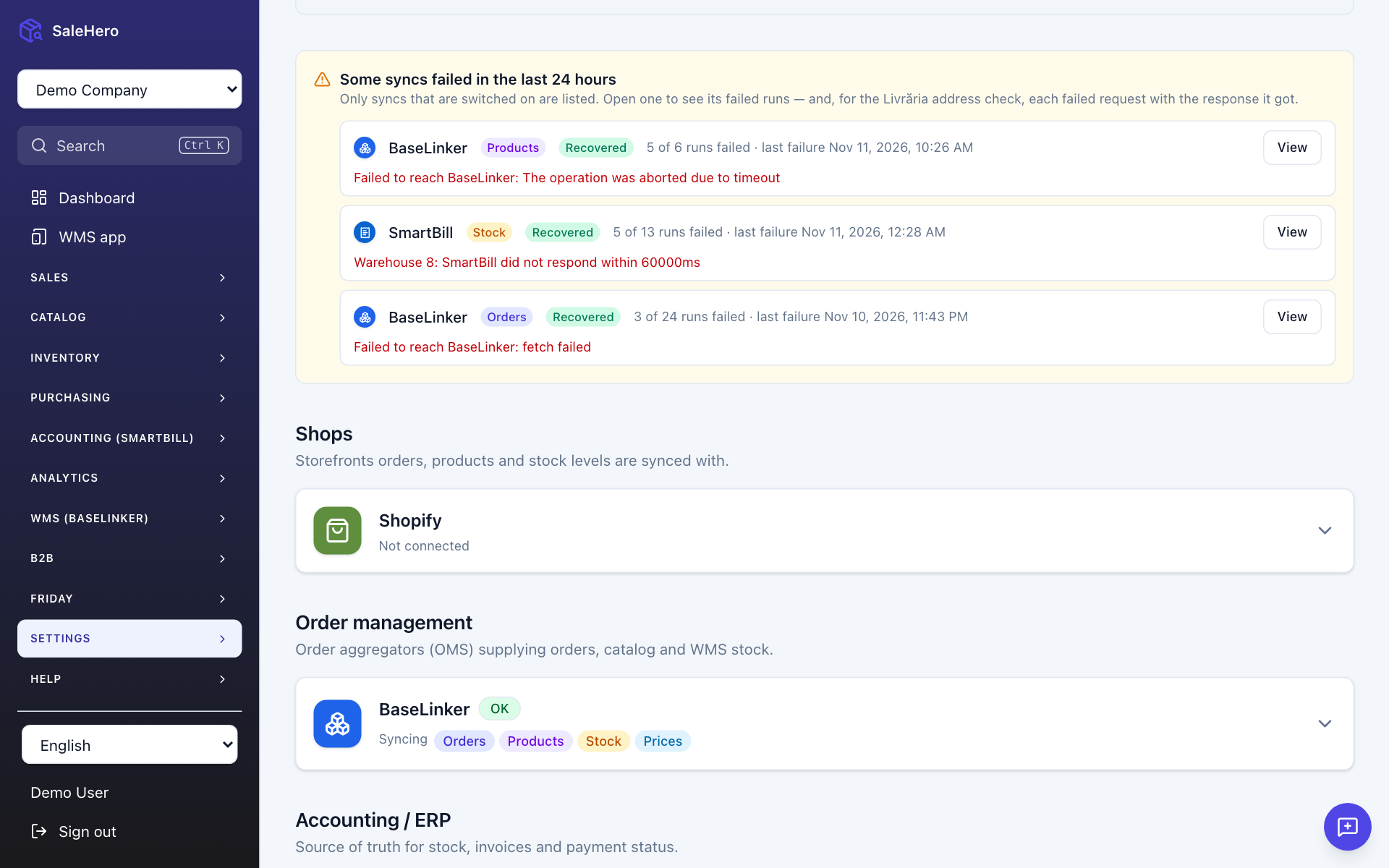
When a sync that is switched on failed in the last 24 hours, an amber box lists it. This is the first place to look when stock, orders or invoices look out of date.
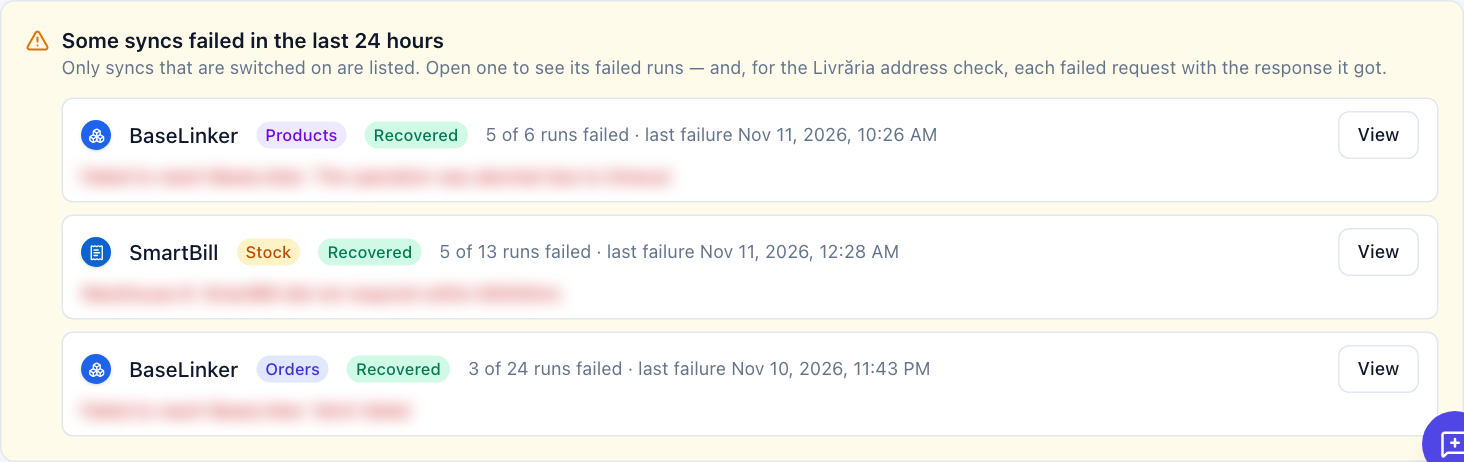
- The badge says Still failing (red) or Recovered (green). Recovered means a later run worked.
- It also shows how many of the recent runs failed, when the last failure happened and the error text.
- The View button opens the history with the newest failed run already expanded.
Run history of each data type
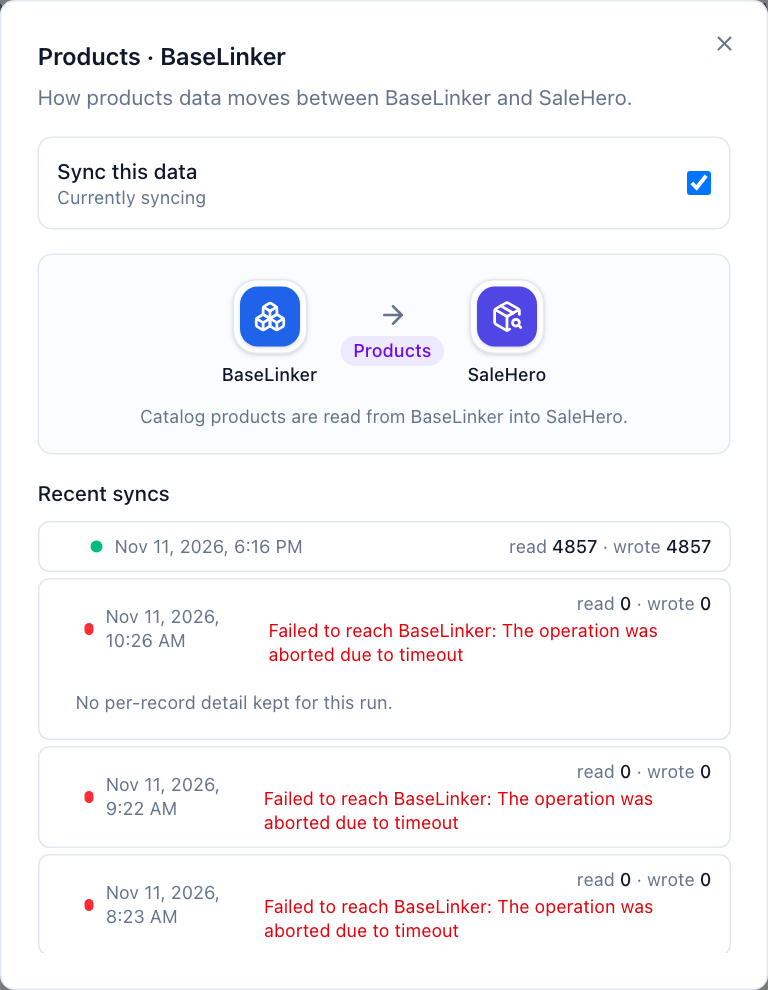
Click a coloured pill on the graph, or a data chip on a provider card, to open a window for that data and that provider.
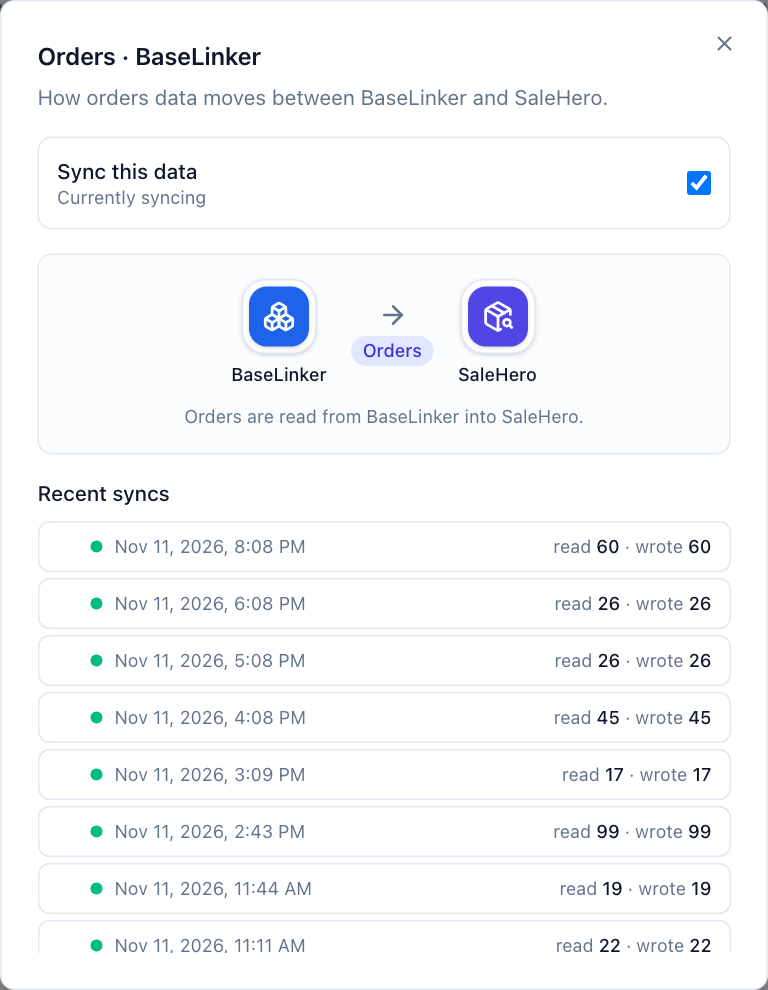
- Sync this data: a switch that pauses or resumes only this kind of data for this connection.
- A small diagram shows the direction. Into SaleHero: Shopify orders and products, BaseLinker orders and products, SmartBill products, stock and invoices. Out of SaleHero: Shopify stock, BaseLinker stock and prices. Both ways: SmartBill payments and Livrăria addresses.
- Recent syncs: up to 15 runs, each with a coloured dot, the date, how many records were read and written, and the error if there was one. Click a run to see its records; tick Failed only to hide the good ones.
This window is in English in every language of the app.
Connecting and reconnecting
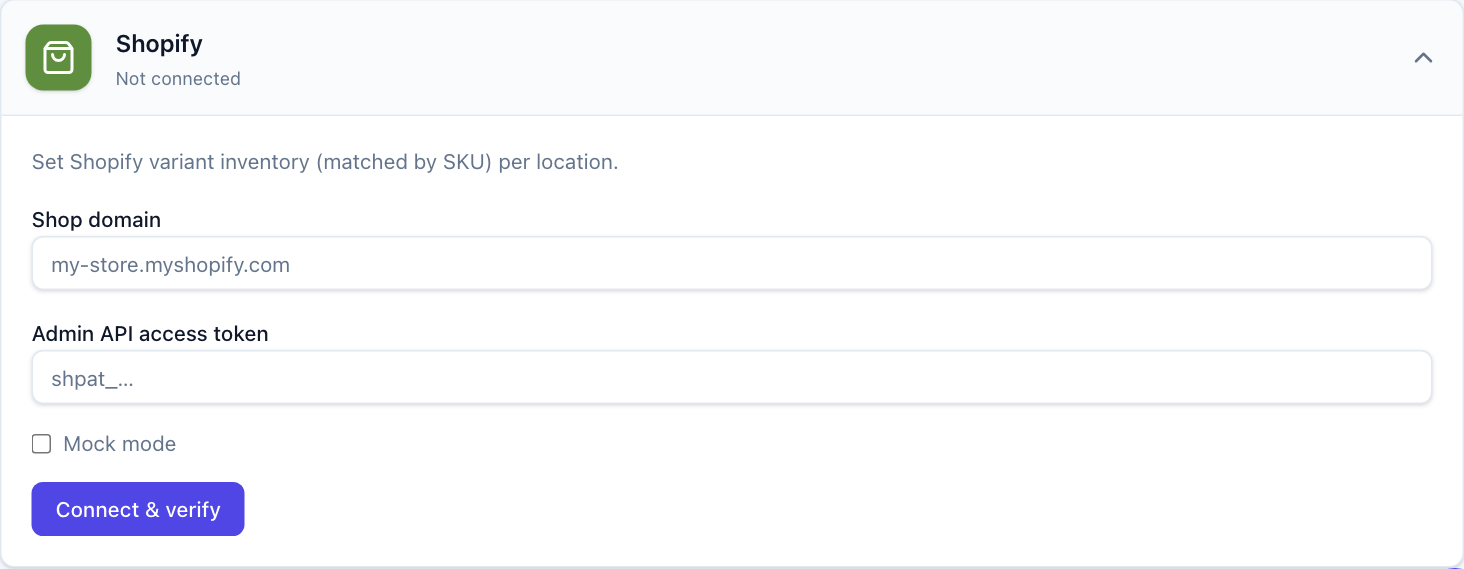
There is no separate connect window. Each provider is a card: click its header to open it, fill in the fields and press the button at the bottom. Closed cards show the status and which data is syncing, or Not connected.
- 1Open the card of the provider.
- 2Enter the credentials the provider gave you.
- 3Press Connect and verify. SaleHero tests the credentials and shows the result on the card.
- 4Choose the data to sync under Synced data.
- 5To reconnect, open the card again, enter the new credentials and press Update and verify.
- Once connected, a card shows the last sync date and the last error in red.
- Disable sync and Enable sync stop and restart a whole connection without losing its settings.
- Warehouse mapping connects each SaleHero warehouse to a location or warehouse at the provider. Load them first, choose, then Save mappings.
- Mock mode connects a demo instead of the real service. Leave it off in real use.
Credentials are stored encrypted and are never shown again. A field that says unchanged keeps the saved value if you leave it empty.
BaseLinker
BaseLinker is the order management system and the source of truth for stock. SaleHero reads orders and products from it and writes stock and prices back.
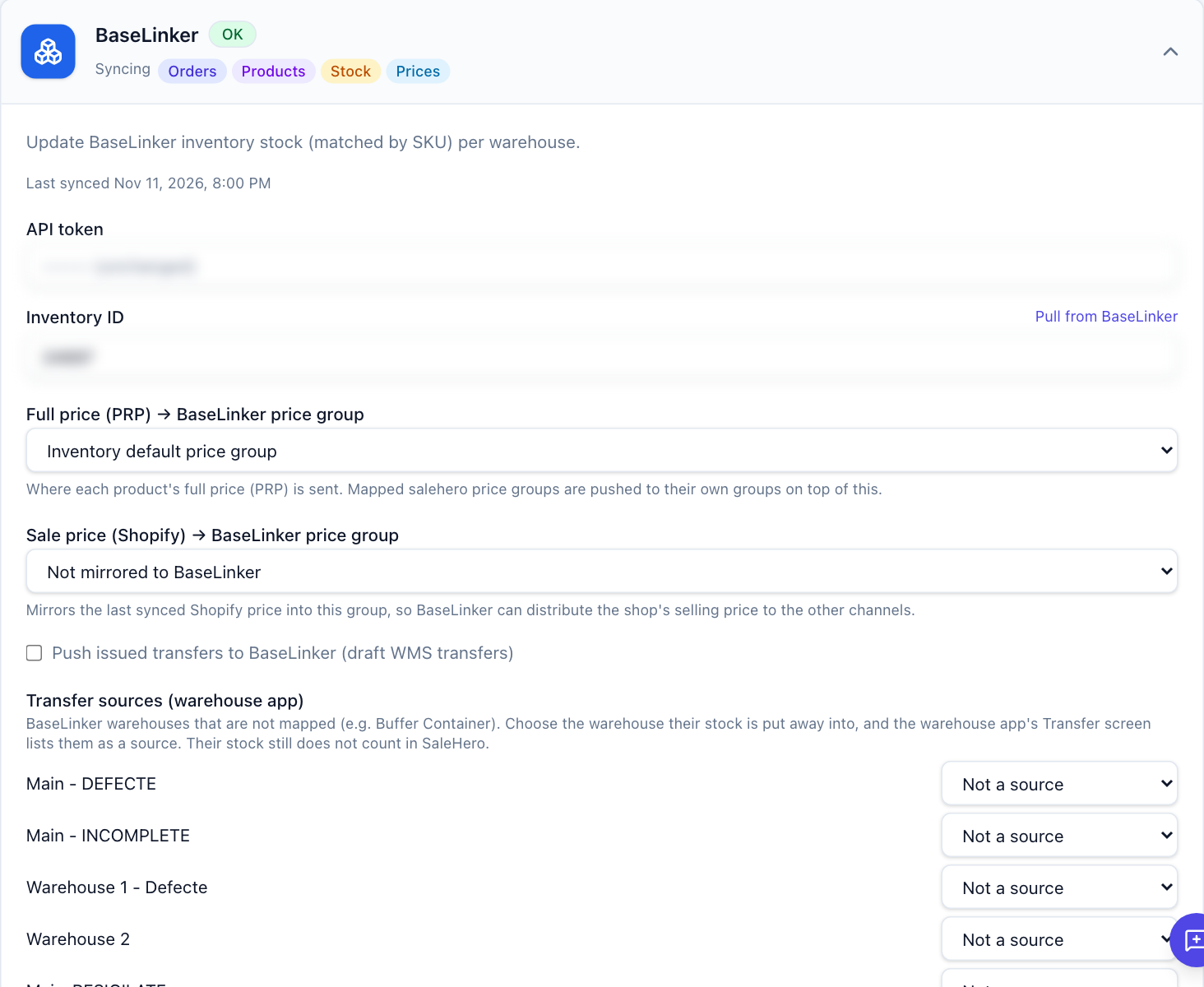
- API token and Inventory ID. Next to Inventory ID, Pull from BaseLinker lists your inventories so you can pick one.
- Two price group choices: the full price and the sale price each go to a BaseLinker price group.
- An option to push issued transfers to BaseLinker as draft transfers, and a setting for warehouses that are not mapped.
- Managers also see Resync WMS stock, Full catalog resync and Push pending prices (only products whose price changed are sent), and a link to the reading history.
SmartBill
SmartBill is the invoicing and accounting program. SaleHero reads products, stock and invoices, and reads and records payments.
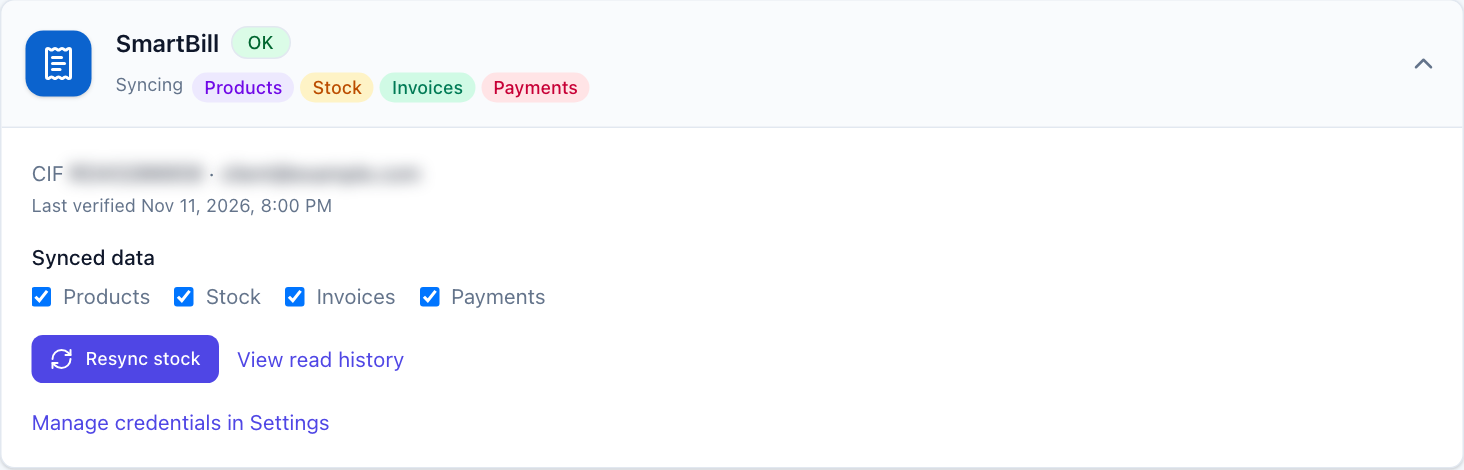
- The card shows the company, when it was last verified, whether polling is paused and the last error.
- Credentials are not edited here. Use Manage credentials in Settings, which opens the Connection tab of Settings.
- Resync stock reads the warehouses again now. View read history opens the list of past readings.
Marketplaces: Trendyol and TEMU
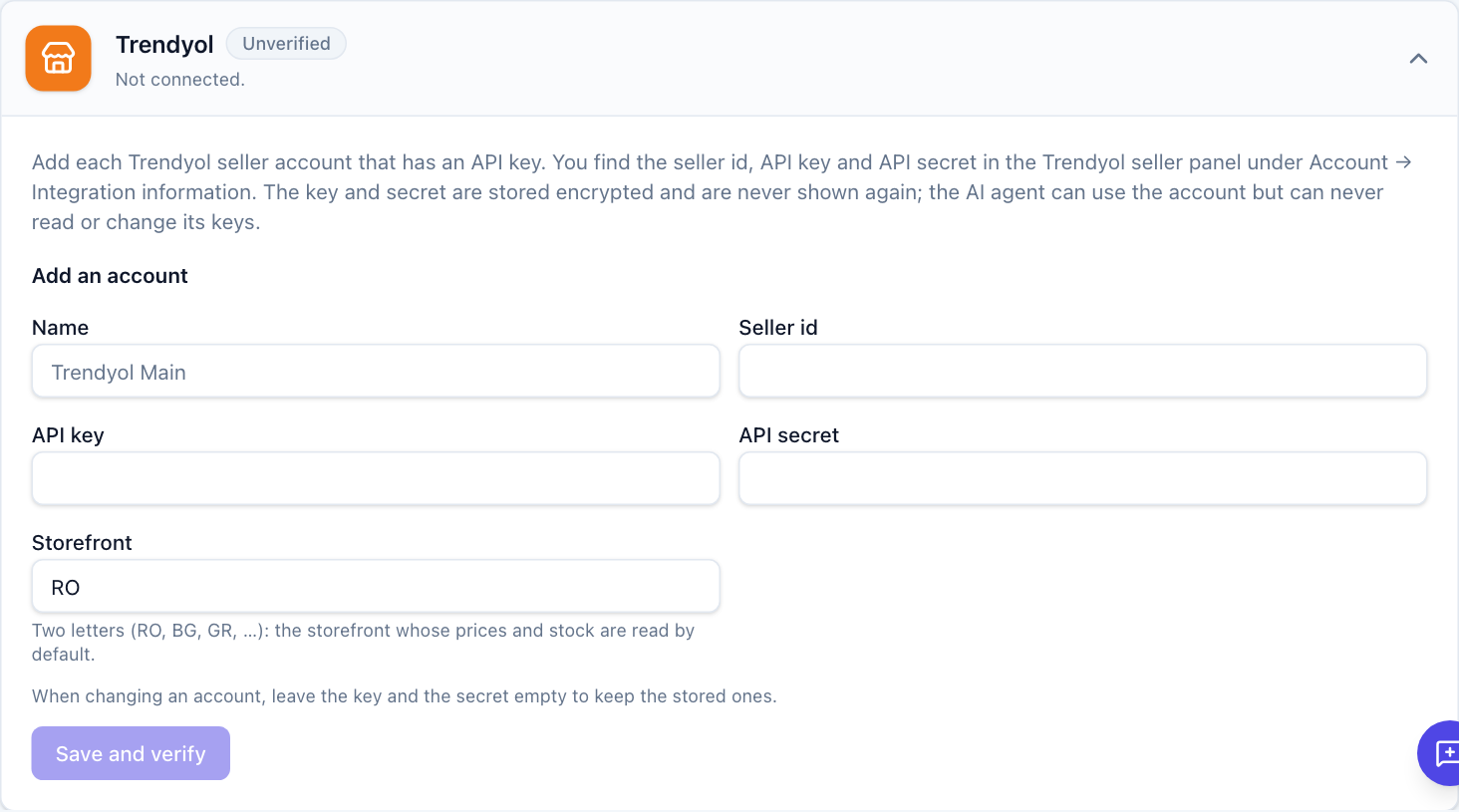
Trendyol accepts several seller accounts. Under Add an account enter a name, the Seller id, the API key, the API secret and the two-letter storefront such as RO, then press Save and verify. Find these in the Trendyol seller panel under Account, Integration information. Each account shows Connected, Error or Not verified, and can be changed or removed.
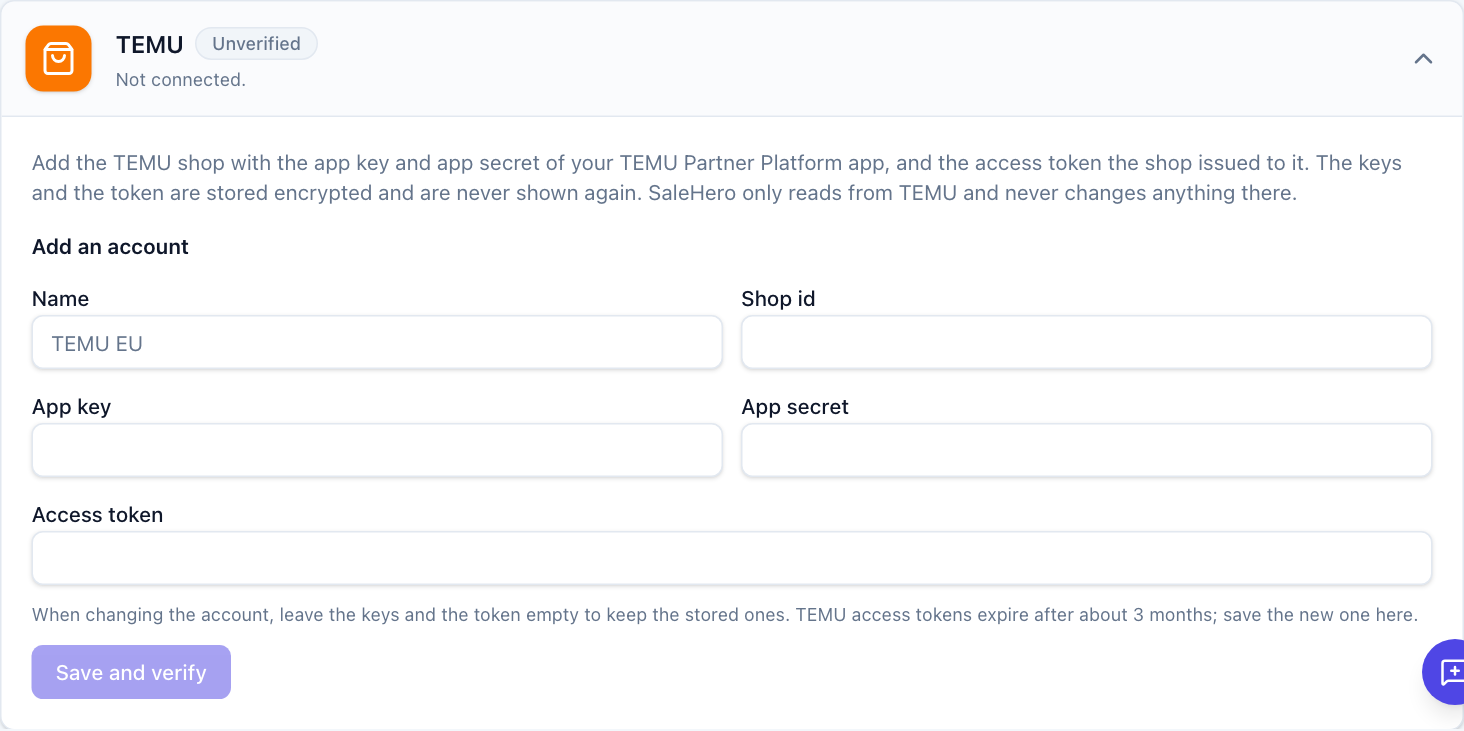
TEMU is read only: SaleHero reads orders, after-sales requests and customer messages and never changes anything in TEMU. The access token expires after about three months; the card shows the expiry date with a warning when it is near or past. Read now fetches immediately.
GS1 România
GS1 România is the barcode registry. SaleHero signs in to the CODALOC portal with a portal user, read only, and mirrors the registry of allocated codes every night, matching them to products by barcode.
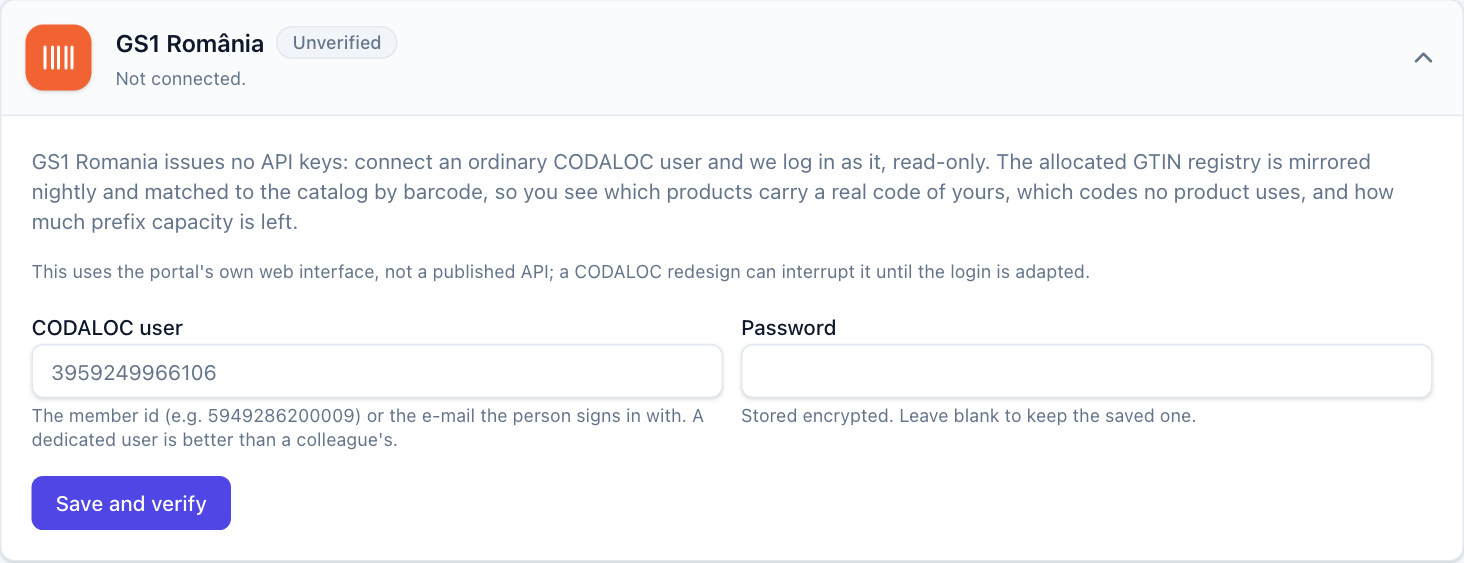
- When connected it shows the licence validity and how many codes are used and how many are free.
- Sync now refreshes the registry immediately.
- The portal is used through its web pages, so a redesign by GS1 can interrupt the sync.
DPD
DPD is used for return pickup labels. Outbound labels still come from BaseLinker.
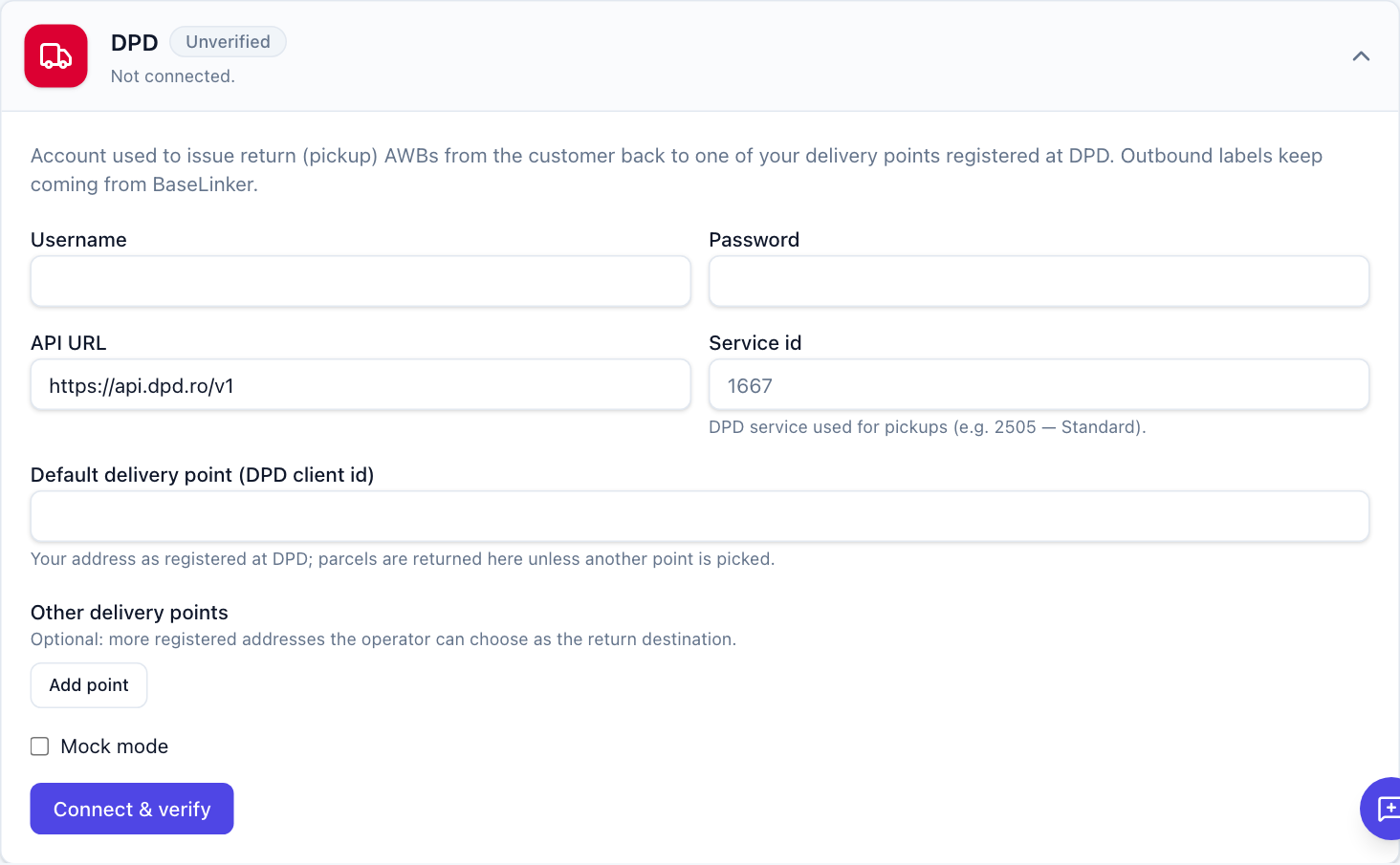
- Fields: username, password, API URL, service id (for example 2505 Standard), the default delivery point and other delivery points.
monday.com
monday.com holds the support board. SaleHero creates and updates cases there, for example for returns and missing parcels.
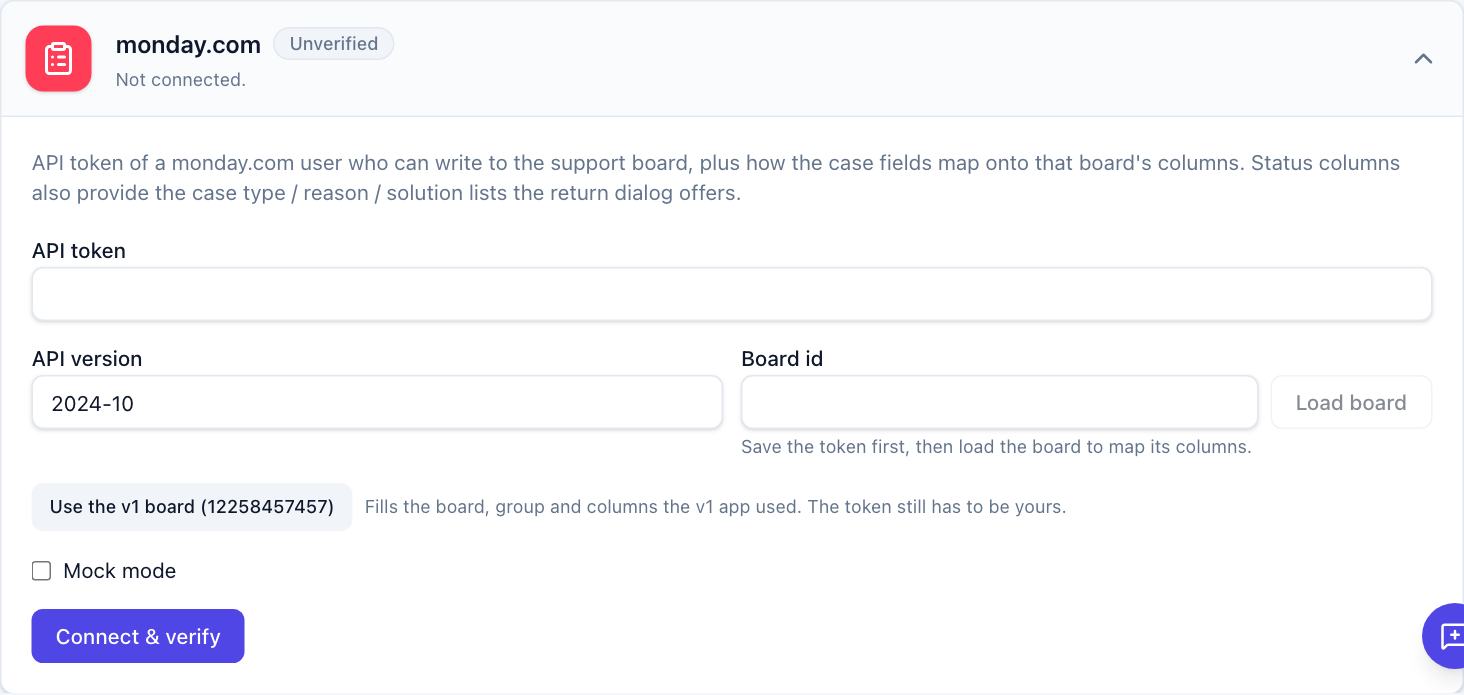
- Fields: API token, API version and board id. Load board reads the board so you can pick the group.
- Column mapping tells SaleHero which column holds the phone, SKUs, order number, invoice number, amount, date opened, case type, reason, solution, reference and IBAN, plus the AWB column for subitems.
- A second board receives customer requests from the public returns form.
Messaging: WATI and Slack
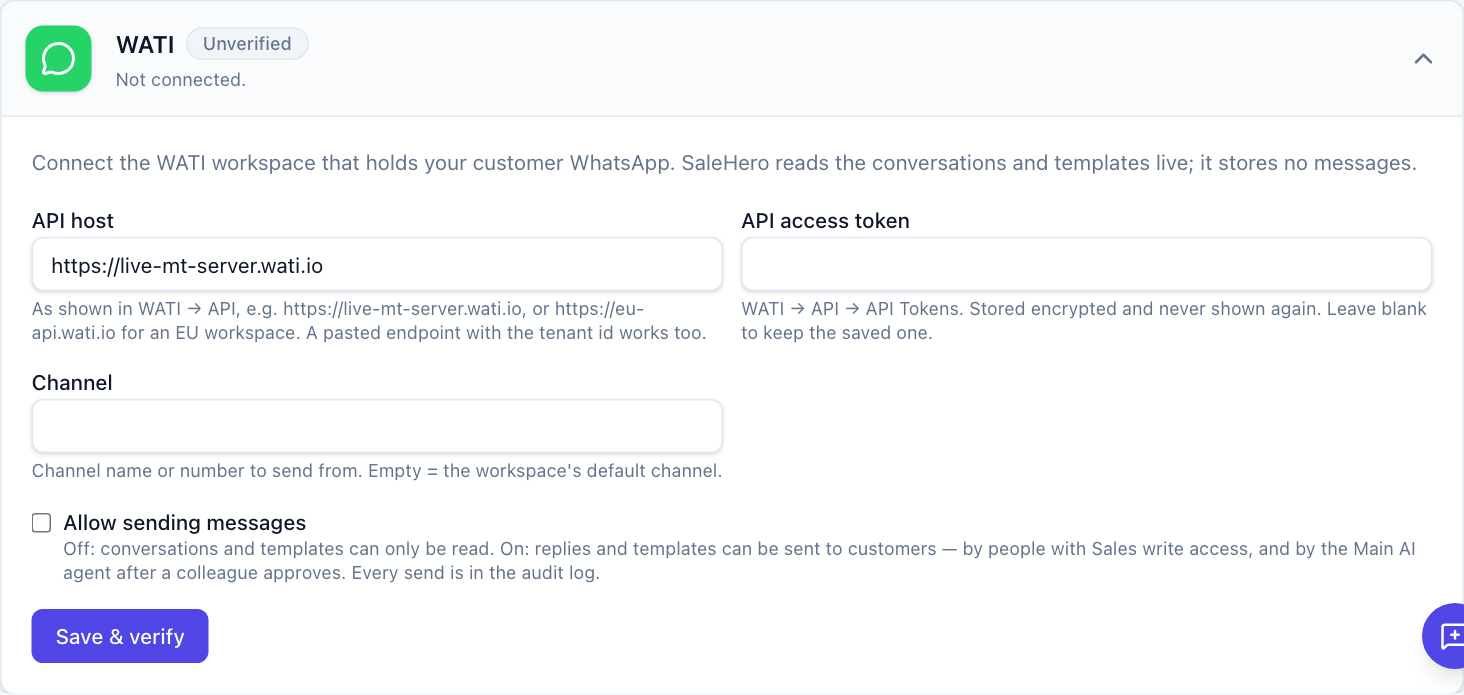
WATI is WhatsApp. Fill in the API host, the access token and the channel. The option Allow sending messages is off by default: with it off, conversations and templates can only be read. No messages are stored in SaleHero.
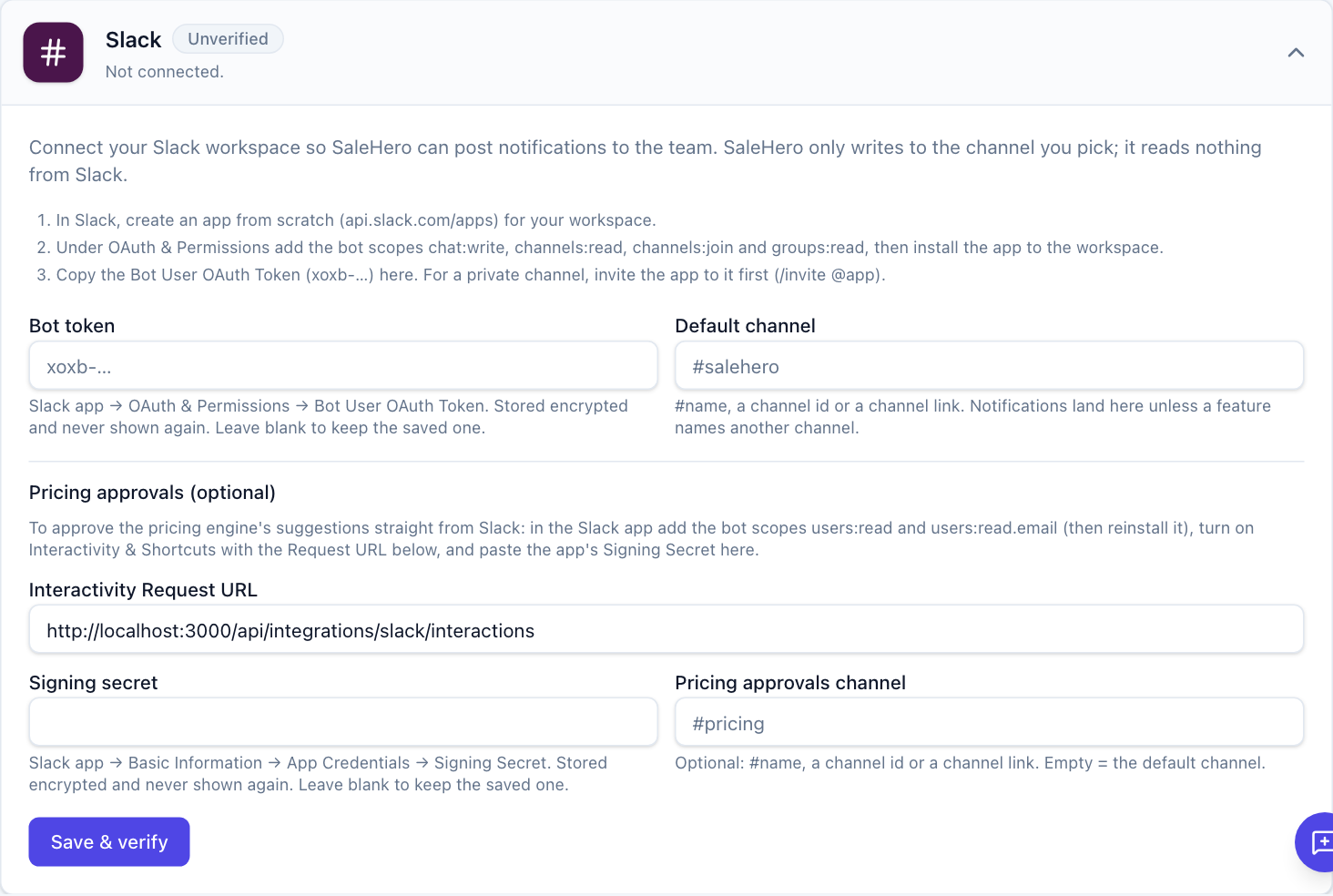
Slack takes the bot token and a default channel; Send test message posts one line to check it. Pricing approvals are optional and need a signing secret, the interactivity address and an approvals channel. SaleHero only writes to Slack and reads nothing from it.
See what it does for your shop
Feature pages that go with this guide:
Try it on your own shop
Create an account, connect your tools and the first data lands the same day.