 SaleHero
Menu names in this guide (for example Settings, Integrations) are the ones you see in SaleHero after you sign in. The screenshots show a demo shop.
Connect your shops and Base
Where to find the BaseLinker, Shopify, Trendyol and TEMU keys, and where to paste them.
Every section has two parts: where to copy the key in the other service, and where to paste it in SaleHero. A red frame on a screenshot marks the place. Keys are stored encrypted and never shown again; to change one, paste the new key over it. To keep the saved one, leave the field empty.
BaseLinker (Base)
SaleHero reads orders and stock from Base and writes transfers and order changes back, so it needs an API token with full permissions.
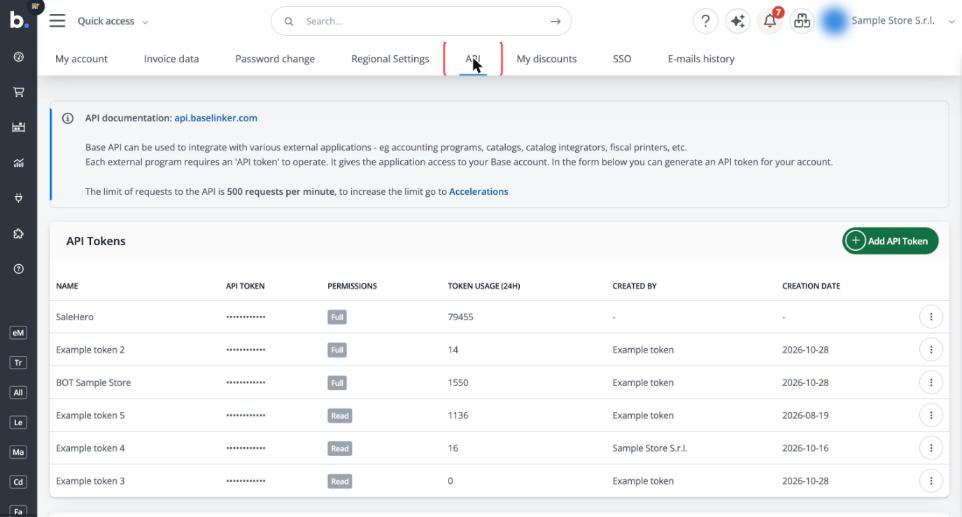
- 1Sign in to Base, open the account menu at the top right and choose My account.
- 2Open the API tab.
- 3Click Add API Token, name it SaleHero and give it Full permissions.
- 4Copy the token from the new row.
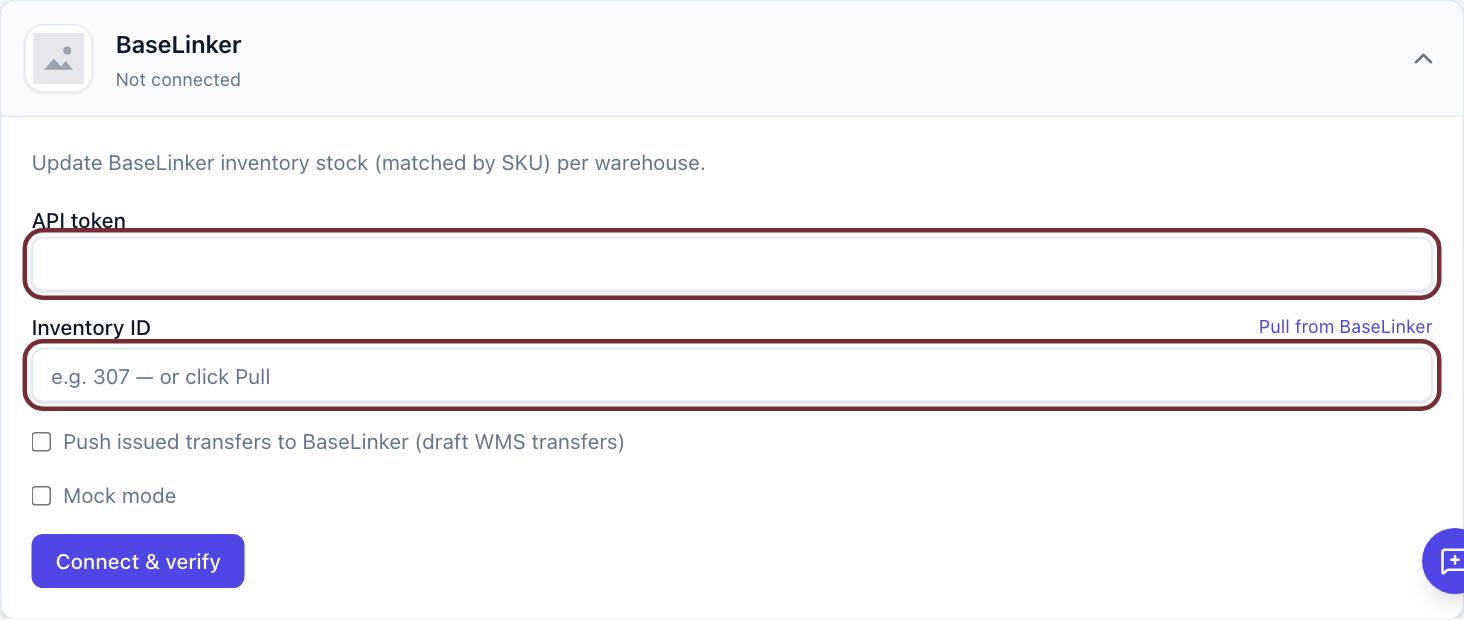
- 1In SaleHero open Integrations, tab Order management, and expand BaseLinker.
- 2Paste the token into API token.
- 3Click Pull from BaseLinker and pick your inventory under Inventory ID.
- 4Click Connect & verify.
Base allows 500 requests a minute per account, shared by every token. A dedicated SaleHero token makes its usage easy to see in that list.
BaseLinker Call URLs (automatic actions)
Some Base automatic actions call SaleHero: the Oblio storno, a notice on the warehouse TVs and splitting cash on delivery across parcels. SaleHero gives you the address; you paste it into the action in Base.
- 1In SaleHero open Integrations, tab Order management, and expand BaseLinker Call URL.
- 2Click Generate the address next to the action you need, then copy it.
- 3In Base, open the automatic action that should call SaleHero and add a step that calls a URL. Paste the address.
- 4Replace the example values after the “?” (event, courier, account) with those of the action, and keep the &token at the end.
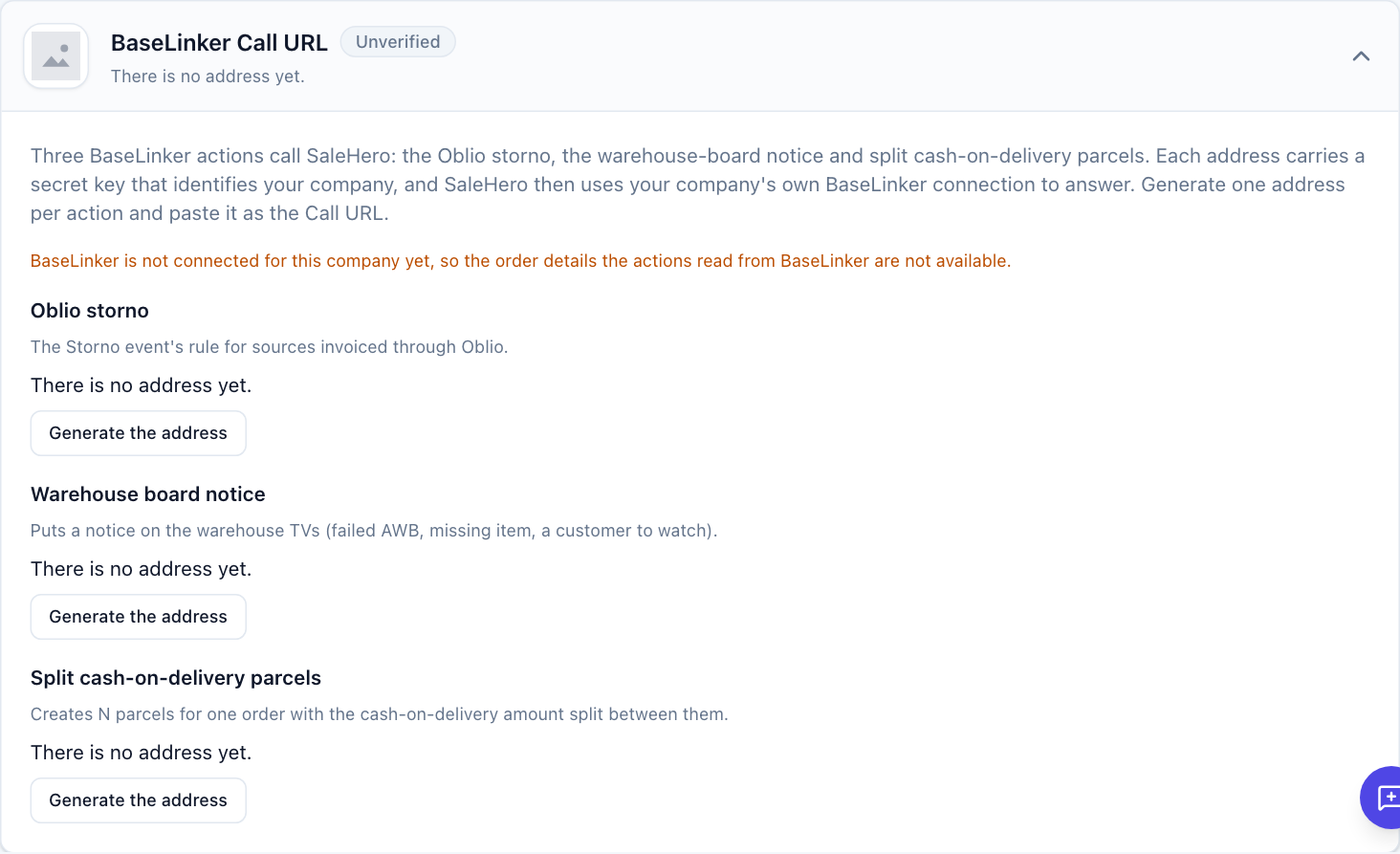
The token in the address identifies your company. Treat the address like a password: don't post it in chats or tickets.
Shopify (main store)
The main store connects with an Admin API access token from a custom app. It needs the scopes read_orders, read_products, read_inventory and write_inventory, plus write_products if SaleHero writes product specifications.
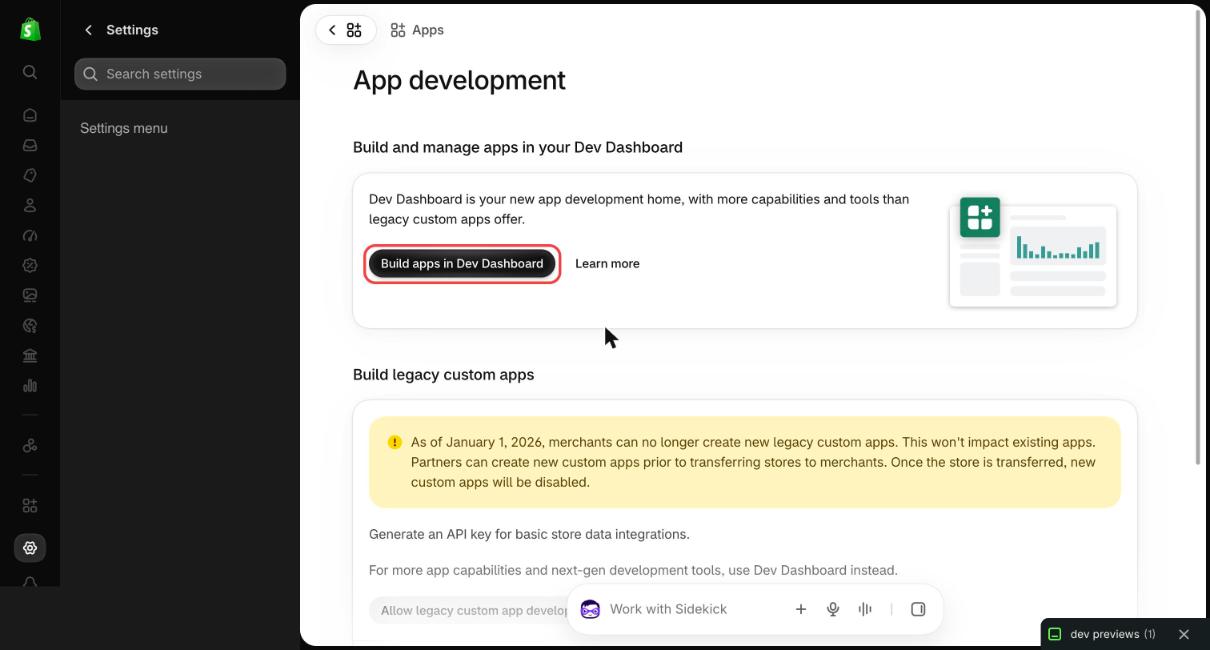
- 1In the Shopify admin open Settings, then Apps, then App development.
- 2Open your existing custom app, go to API credentials and copy the Admin API access token. Shopify shows it in full only once, right after the app is installed.
- 3Copy the store address too, the one ending in .myshopify.com.
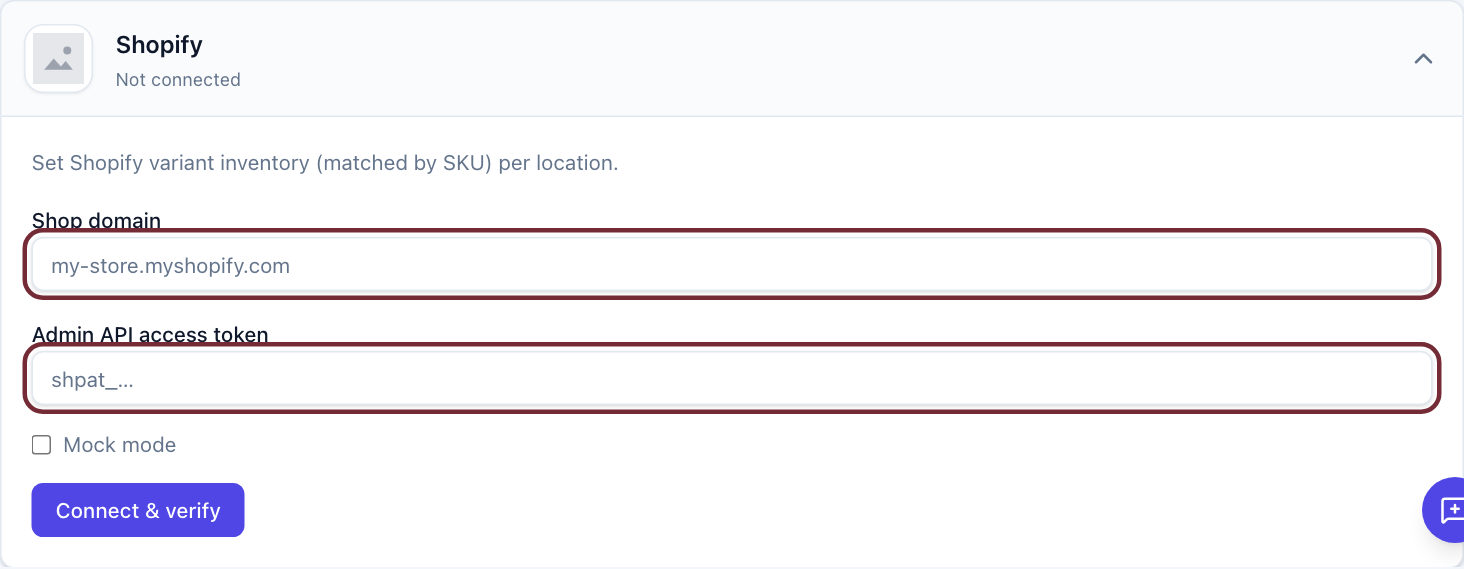
- 1In SaleHero open Integrations, tab Shops, and expand Shopify.
- 2Paste the address into Shop domain and the token into Admin API access token.
- 3Click Connect & verify.
Since 1 January 2026 Shopify no longer lets merchants create new legacy custom apps. A store without one builds the app in the Dev Dashboard instead, which gives a client ID and secret: those are accepted under Other Shopify stores (next section).
Other Shopify stores
Storefronts in other countries connect with either an Admin API token or, simpler to keep alive, a Dev Dashboard app: SaleHero renews its token itself. Read-only needs read_products and read_customers; writing products to the store also needs write_products and read_metaobjects.
- 1In the Shopify admin open Settings, Apps, App development and click Build apps in Dev Dashboard.
- 2Create an app in the same Shopify organization, select the scopes above and release a version.
- 3Install the app on the store, then copy the Client ID and the Secret from the app's Settings.
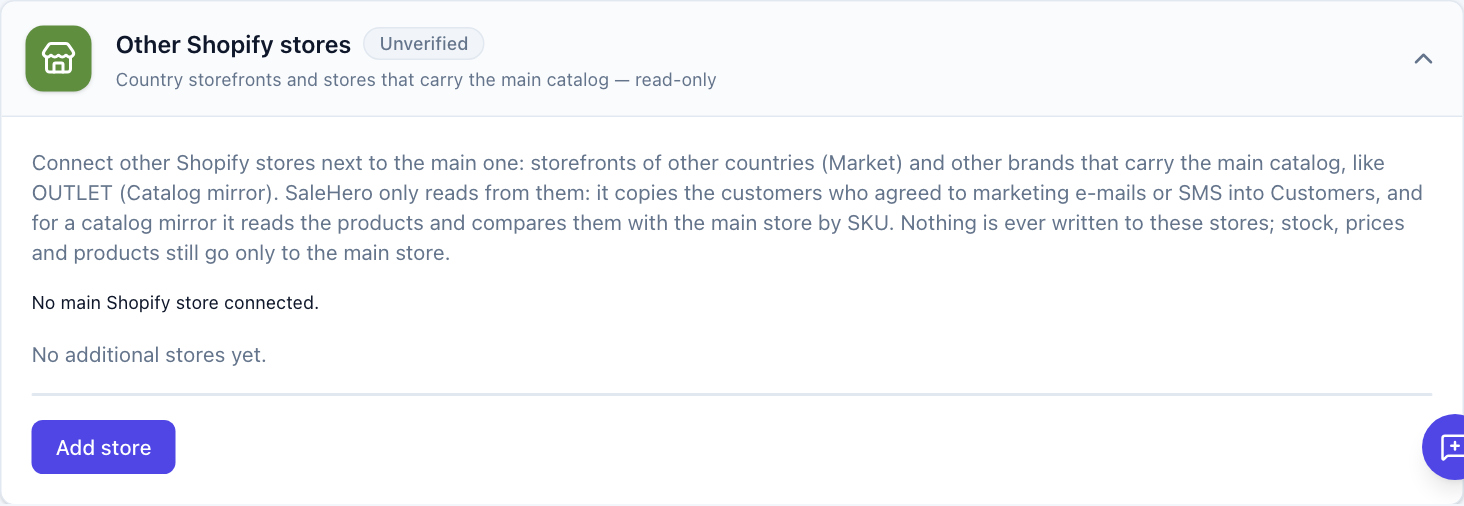
- 1In SaleHero open Integrations, tab Shops, expand Other Shopify stores and click Add store.
- 2Fill in the name, the country and the .myshopify.com address, then paste the Client ID and Secret (or an Admin API token) and save.
Trendyol
- 1Sign in to the Trendyol seller panel and open Account, then Integration information.
- 2Copy the Seller ID, the API Key and the API Secret.
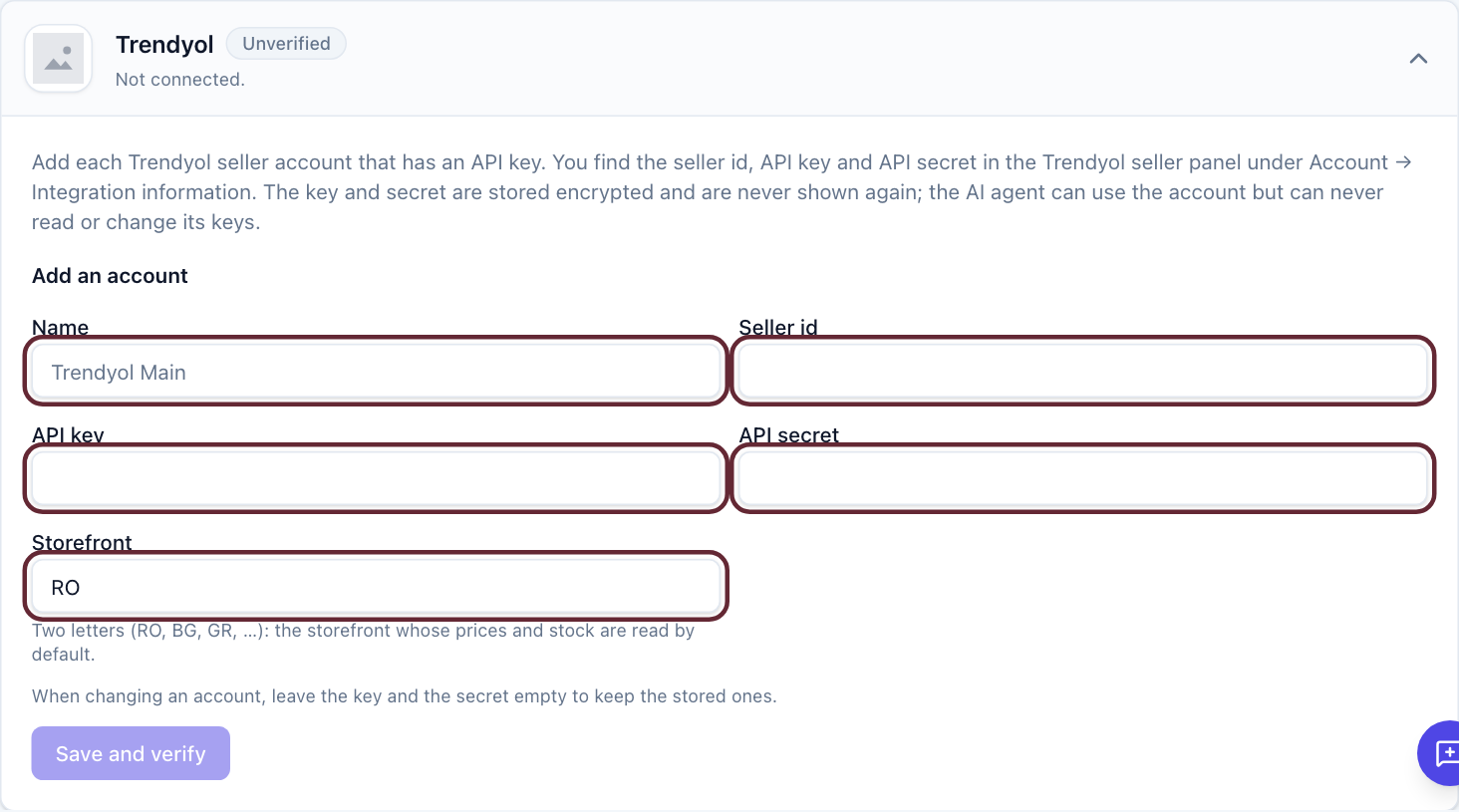
- 1In SaleHero open Integrations, tab Marketplaces, couriers & tools, and expand Trendyol.
- 2Under Add an account fill in a name, the seller id, the API key, the API secret and the two-letter storefront (RO, BG, GR…).
- 3Click Save & verify. Add one account per Trendyol seller account.
Try it on your own shop
Create an account, connect your tools and the first data lands the same day.