 SaleHero
Menu names in this guide (for example Settings, Integrations) are the ones you see in SaleHero after you sign in. The screenshots show a demo shop.
Getting started
How the app is organised: sidebar, tabs, search, your account and what each member sees.
This guide shows you how to find your way around SaleHero: the sidebar, the tabs, search, language, your account and the feedback button. It also explains the three views of stock and why colleagues can see different things.
How the sidebar is organised
The sidebar on the left is your map of SaleHero. At the top you find the organisation, Search, Dashboard and, when you are allowed to use it, WMS app. Below them come the groups of pages, one per job. You only see the groups your company uses and your account may open, so a colleague can have a shorter menu than yours. The foot of the sidebar is one row with your name. It opens a menu with the language, your account and the Guides.
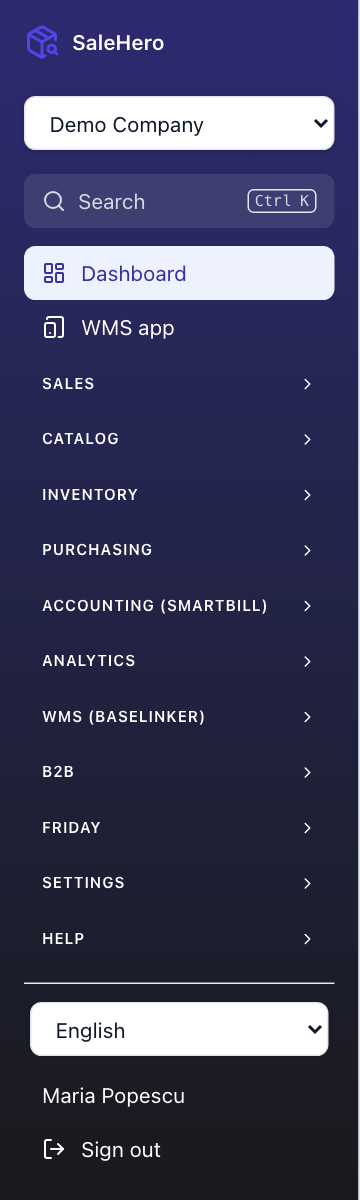
- Orders: Orders, Order flow, Order confirmations, Customers, Returns & cases, Marketplace inbox, Calls.
- Products: Products, Specifications, GS1 codes, Price panel, Pricing engine, Channel pricing.
- Stock & purchasing: Stock, Review queue, Stock control, Demand & transfers, Purchase lists, Purchase suggestions, Goods receptions, Suppliers.
- Warehouse: Warehouse stock, Counts, Relocations, Courier handover, Daily throughput, Cameras, Setup.
- Invoices & accounting: Left to reconcile, Invoice register, Issue documents, Cashflow, Payouts, Bank, Book stock, Stock movements, Stock documents. Issue documents and Stock documents appear only when SaleHero issues the documents, and Book stock only when SmartBill is connected.
- Marketing: SMS campaigns, Promotions, Audience, Messages, Consent, Shopify bridge, SEO, Ads. Audience, Messages, Consent, Shopify bridge appear only where the Marketing switch is on.
- Reports: Product sales, Profit, Monitoring, Marketplaces, Couriers, Advisor.
- B2B: B2B clients, Quotations, Feeds, B2B settings.
- Team: Chat, Who's online, Boards, My work, Attendance, People, Employees. The FRIDAY pages appear only if FRIDAY is switched on for your organisation.
- Settings: Integrations, Warehouses, Document settings, Plugins, Audit log, App usage, Privacy requests, Feedback, Company settings.
- A group with only one page you can open shows as that page. Pages of a paid module your company has not bought show with a lock to owners and admins, and lead to Settings, Modules.
A short menu shows every group open under its name. When the menu is long, groups fold: move the mouse over a group name and a small menu opens next to it with the pages inside, or click the name to keep it open (click again to fold it). You can also reach it with the keyboard. Pages that belong together, such as Order flow with Order statuses, share one entry in the menu and are linked by a tab bar on top of the page (see the tab bar section below).
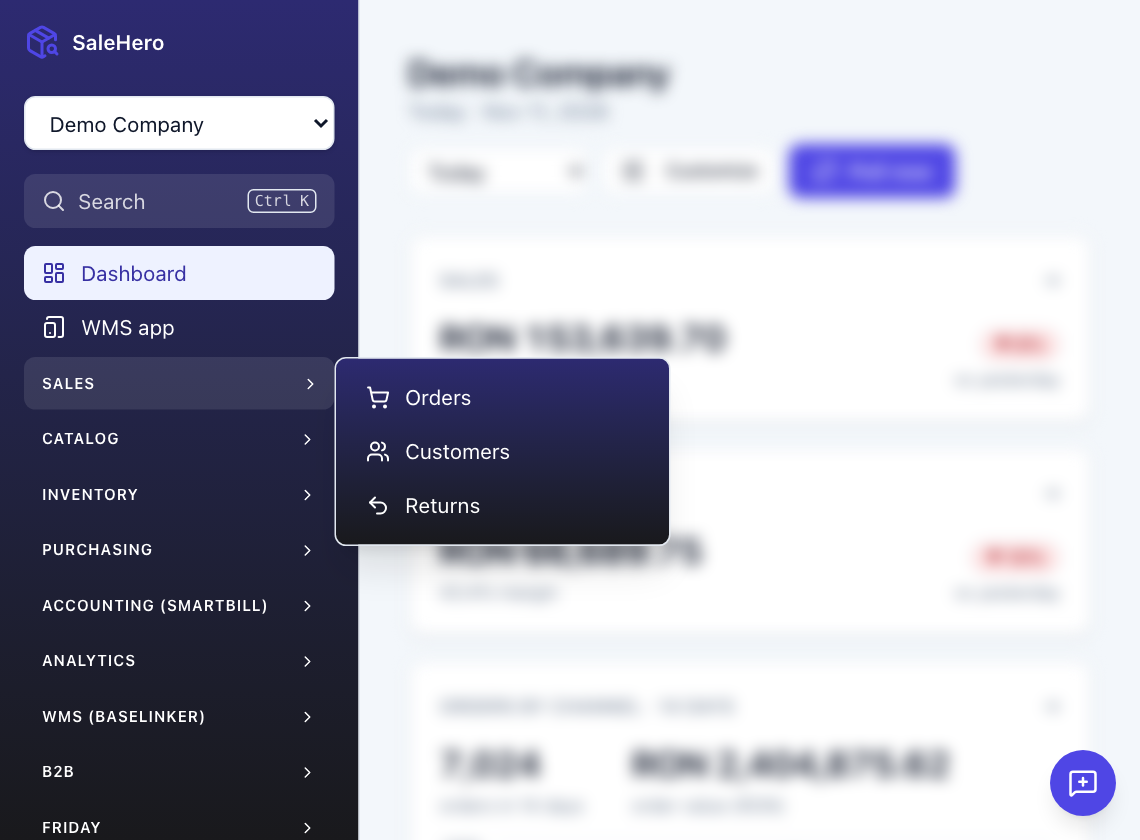
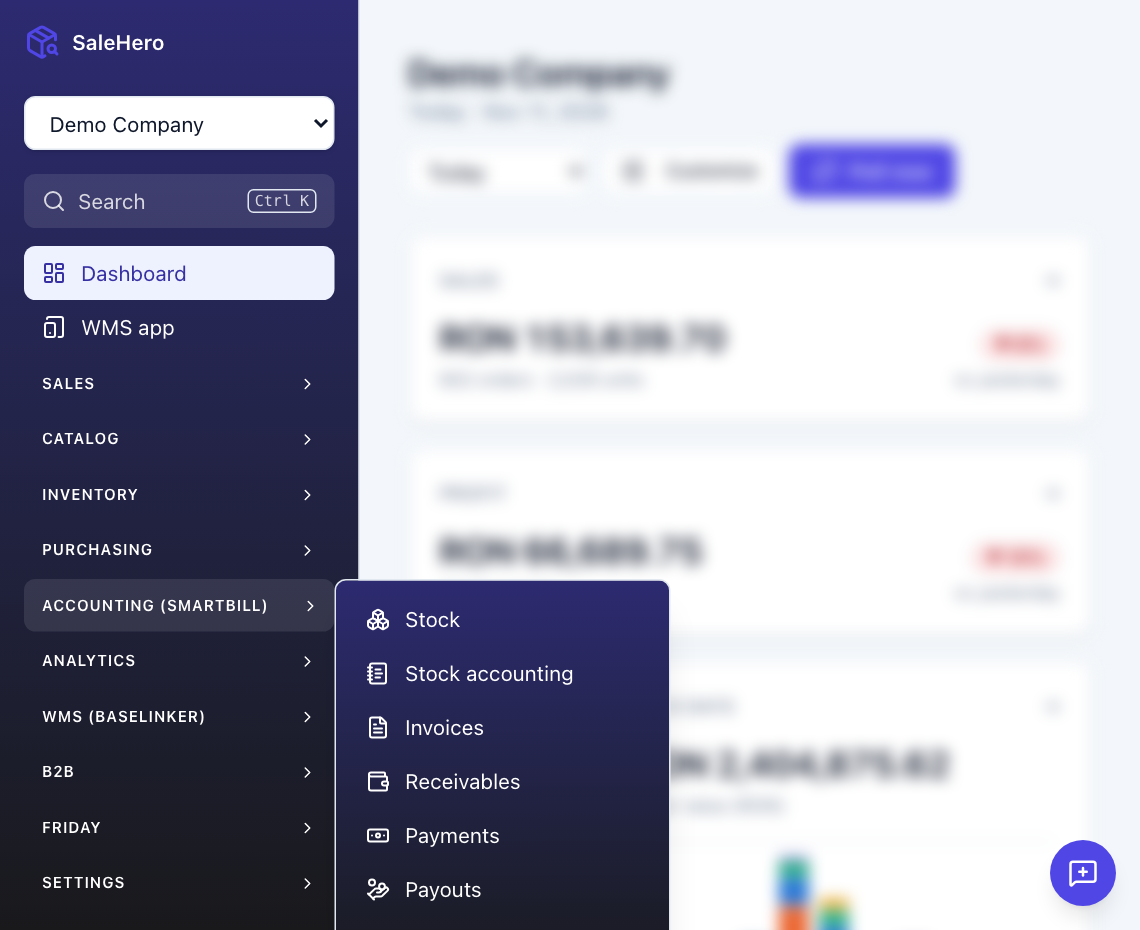
- 1Move the mouse over the group you want, for example Orders.
- 2Click the page in the small menu, for example Customers.
On a phone or a narrow window the sidebar is replaced by a menu button at the top. It opens the same list as a drawer, with the groups you can expand one by one.
Switching organisation
The first box in the sidebar shows the organisation you are working in. Everything you see, orders, products, stock and settings, belongs to that organisation. If your account is a member of more than one, open the box and pick another one.

- 1Click the box under the SaleHero logo.
- 2Pick the organisation you want. The page reloads in that organisation.
The last choice in the list, + New organisation, starts the set-up of a brand new organisation. Do not use it unless you really mean to create one.
The tab bar on top of the page
Some menu entries open a group of pages. The menu shows one entry for the group and the pages inside it appear as tabs above the content. For example Products has Products, Families and Conflicts, and Stock control has Reconciliation, Differences, Adjustments, Stock reads. Click a tab to move between the pages of the group.

- Order flow: Order flow, Order statuses. Marketplace inbox: Trendyol questions, TEMU requests. Calls: Call reports, Calls, Missed.
- Products: Products, Families, Conflicts. Specifications: Specifications, Translations.
- Price panel: Price panel, Price groups. Pricing engine: Pricing engine, Pricing policy.
- Cashflow: Cashflow, Receivables, Payables, and Customer statements when SaleHero issues the documents.
- Counts: Stock count, Cycle counts. Relocations: Relocations, Free up A/B, Documents.
- Setup: Warehouse board, Printers, Warehouse team.
- Invoice register: Invoice register, Oblio invoices, SPV / e-Factura. Stock movements: Movements, Ledger, Valuation.
- Stock control: Reconciliation, Differences, Adjustments, Stock reads. Demand & transfers: Demand, Transfers.
- Profit: COGS & CPS, Profit by product, Loss analysis. Marketplaces: Trendyol, TEMU pricing, Sales sources.
A tab only appears if your account may open that page. If you can open fewer than two pages of a group, the bar is not shown at all.
Global search
Press Ctrl K (Cmd K on a Mac) from any page, or click Search in the sidebar. A box opens where you type what you are looking for. It searches several areas at once and takes you straight to the result.
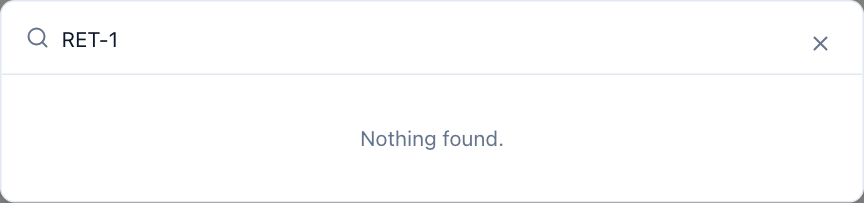
- What you can type: order number, AWB, SKU, EAN, phone, email, invoice (series and number, like SERIES 123), a RET- or CAZ- code, or a name.
- Groups of results: Orders, Customers, Returns, Order cases, Products, Invoices, Purchase lists, Suppliers, Transfer documents and B2B clients.
- You need at least 3 characters. Each group shows up to 5 results.
- If nothing matches you see: Nothing found.
- 1Press Ctrl K or Cmd K, or click Search.
- 2Type at least 3 characters, for example an order number or an AWB.
- 3Use the up and down arrow keys to move through the results and press Enter to open one, or click it.
Search only looks in the areas you may open. If a colleague finds something you cannot, it usually means your account has no access to that section. The Search button is hidden if your account has no searchable section at all.
Your name menu: language, account and sign out
The foot of the sidebar is one row with your name. Click it to open a menu with the language selector, My account, My data, Guides, Desktop app and Sign out. The language selector switches the whole app between English, Chinese and Romanian. Your choice is kept in the address, so the page reloads in the new language.
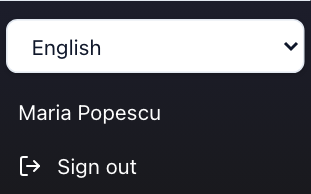
- Language: English, 中文 or Română.
- My account: opens your account page (see the next section). My data sits next to it.
- Guides: opens the guides. Desktop app: the desktop version of SaleHero.
- WMS app (near the top of the sidebar): a link to the touch-friendly warehouse app used on handheld scanners and phones. It shows only if your account may use at least one of its tools, such as courier handover, bin transfer or the move list.
- Platform admin: an entry that only platform administrators see. Sign out: ends your session on this computer.
A change of language only changes the screen texts. It does not change your data.
Your account
Click your name at the bottom of the sidebar, then My account, to open the Account page. It holds your profile.
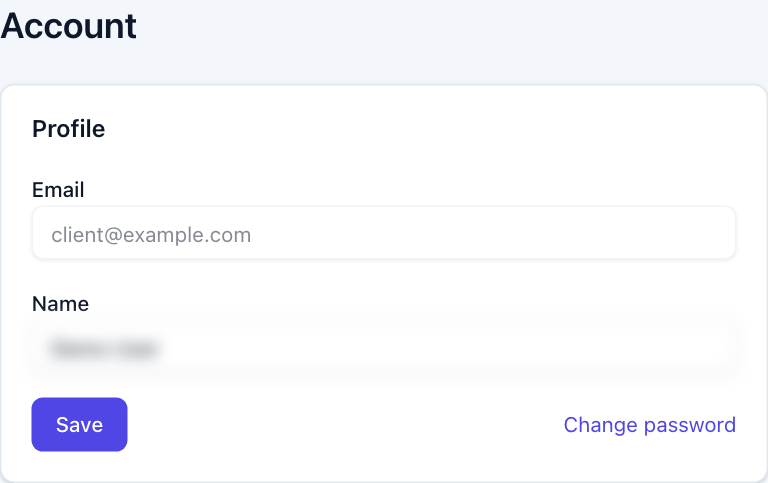
- Email: the address you sign in with. It is grey and cannot be changed here.
- Name: the name colleagues see. You can edit it.
- Save: stores a new name.
- Change password: opens the page where you ask for a password reset.
- 1Click your name at the bottom of the sidebar, then My account.
- 2Edit the Name field and click Save. A short message confirms the update.
To change a colleague's role or password, an owner or admin uses Settings, Team. You cannot do it from your own Account page.
The feedback button
A round button sits in the bottom right corner of every page. Use it any time something does not work or you have an idea. It opens a small form and the people who run SaleHero receive your message.
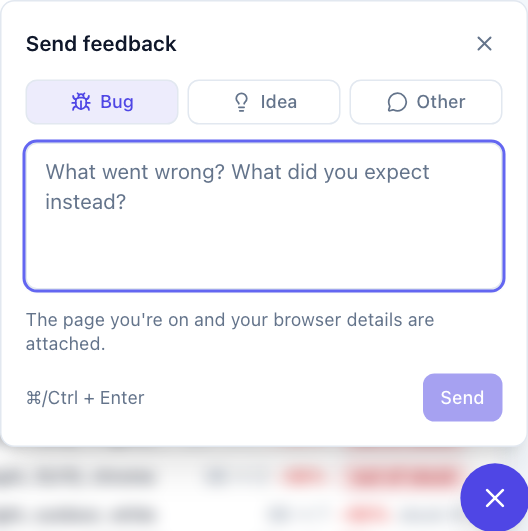
- 1Click the round button in the bottom right corner.
- 2Choose Bug (something went wrong), Idea (something that would make your work easier) or Other.
- 3Write at least a few words. Say what went wrong and what you expected.
- 4Click Send, or press Cmd or Ctrl and Enter.
- The page you are on and your browser details are attached automatically, so you do not need to describe where you were.
- Everyone can send feedback. The messages are collected in Settings, Feedback, which only members with access to Settings can open.
A good message is short and concrete: one real example, such as an order number, is worth more than a long explanation.
Where the guides live
The guides you are reading are inside the app. Click your name at the bottom of the sidebar, then Guides. The page lists every guide, grouped by topic, starting with Start here. Click a card to open the guide.
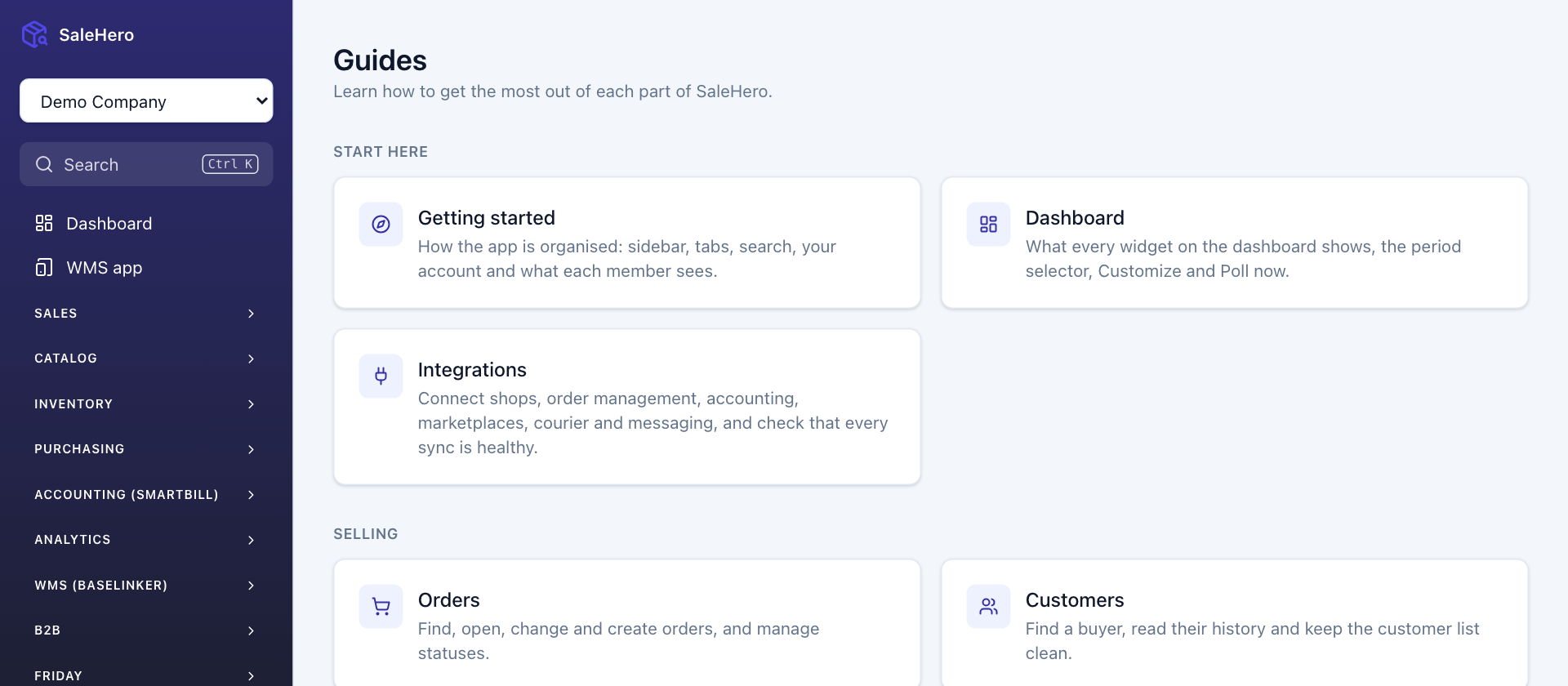
- 1Click your name at the bottom of the sidebar.
- 2Click Guides.
- 3Pick the guide for the area you are working in.
Guides are always open to every member, so everybody can read them.
The three views of stock
Stock can be opened from three places in the sidebar. They all use the same page, but they do not show the same thing, so look at the title and the toggle before you read the numbers.
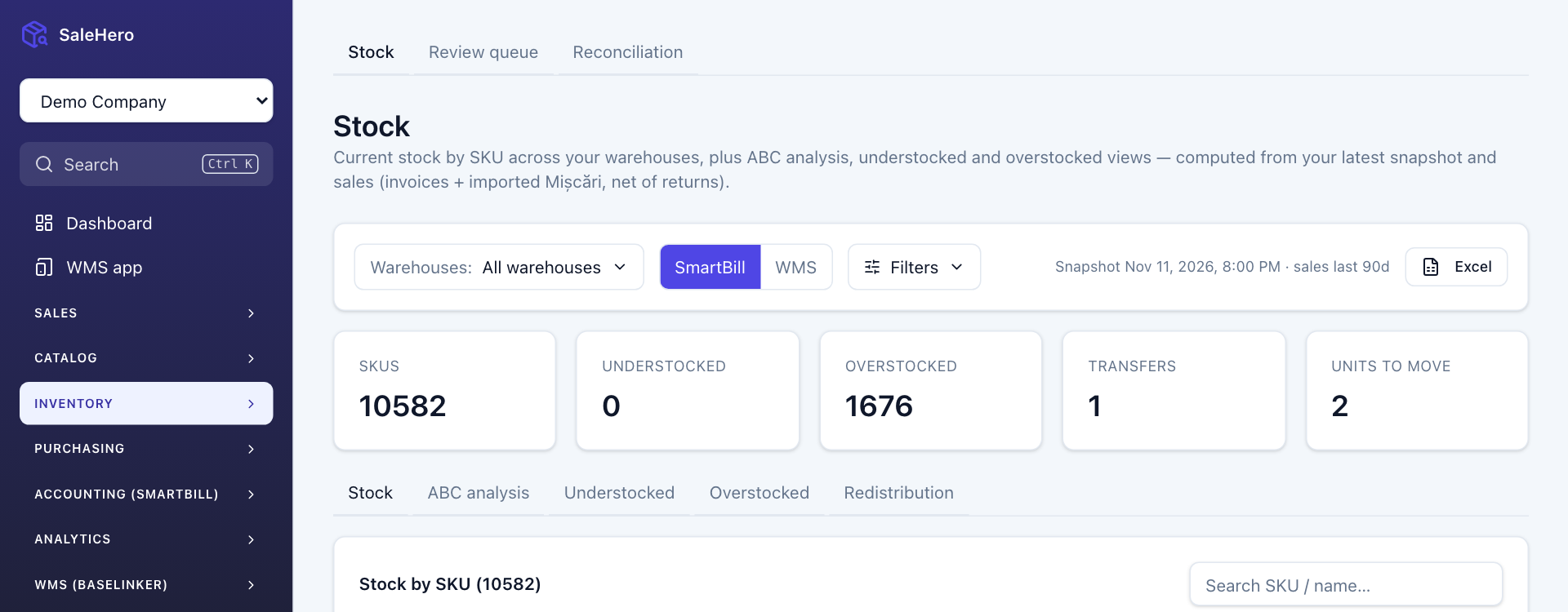
- Stock & purchasing, then Stock: the combined view. If BaseLinker is connected, a toggle at the top switches between the SmartBill figures (what the accounting says) and the WMS figures (what is physically in the warehouse).
- Invoices & accounting, then Book stock: the same page fixed on the SmartBill figures. There is no toggle. It shows only when SmartBill is connected.
- Warehouse, then Warehouse stock: the same page fixed on the warehouse figures. It is titled WMS stock, has no toggle and has a button to read the WMS stock again.
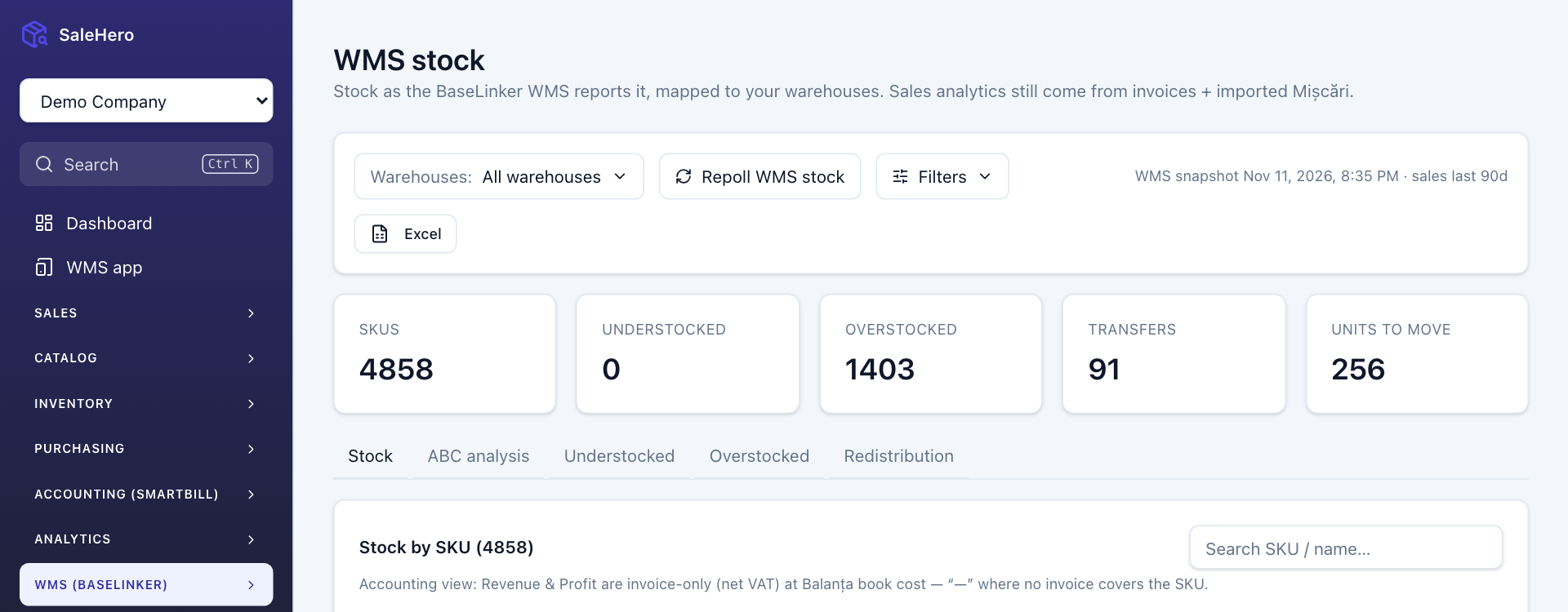
Which entry you can open depends on your permissions: Finance for the SmartBill view, Warehouse for the WMS view and Stock for the combined one. When two figures do not match, check which view you are in first.
What each member sees
SaleHero shows each person only what their role allows. There are three levels of role: owner, admin and member. Owners and admins can open everything. A member gets access section by section, and for each section it is either No access, Read (look but do not change) or Write (look and change).
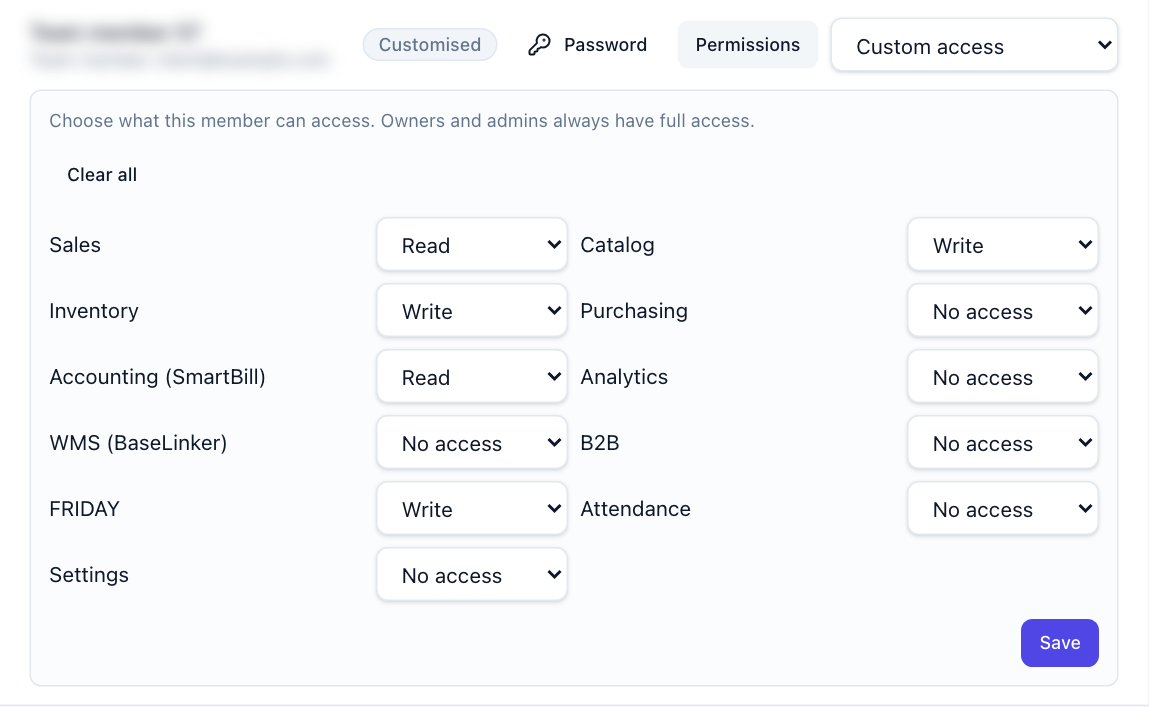
- The sections you can set are Sales, Catalog, Pricing, Stock, Purchasing, Warehouse, Finance, Analytics, B2B, FRIDAY, Attendance, SmartPBX and Settings. They are permission sections and do not match the menu groups one to one.
- The Dashboard and the guides are always readable by every member.
- A page you may not read disappears from the sidebar, and a group disappears when none of its pages is left. Its tabs, search results and dashboard widgets disappear with it.
- Read lets a member open pages and see data. Write is needed to save, send or change something.
- Job roles are ready-made sets of access. For example a warehouse operator reads Sales and Catalog and works the warehouse app, and a customer agent writes Sales and B2B. A member whose access was edited by hand is marked Customised with the label Custom access.
- 1An owner or admin opens Settings, then the Team tab.
- 2Click Permissions on the member's row.
- 3Choose No access, Read or Write for each section, then save.
If you cannot find a page a colleague mentions, it is almost always a permission and not a bug. Ask an owner or admin to check your access.
See what it does for your shop
Feature pages that go with this guide:
Try it on your own shop
Create an account, connect your tools and the first data lands the same day.