 SaleHero
Menu names in this guide (for example Settings, Integrations) are the ones you see in SaleHero after you sign in. The screenshots show a demo shop.
Purchasing
Purchase lists, suggestions, goods receptions and suppliers.
Purchasing is where you plan what to buy, follow it until it arrives and record what came in. This guide goes through the four pages in the order you usually use them.
How purchasing works
Purchasing is part of the Stock & purchasing group, where you plan what to buy, follow it until it arrives and record what really came in. It has four pages: Purchase lists, Purchase suggestions, Goods receptions, Suppliers.
- 1Add the supplier under Suppliers.
- 2Create a purchase list for that supplier, or let Purchase suggestions show what is running low.
- 3Fill the list with SKUs and quantities and follow it on its way.
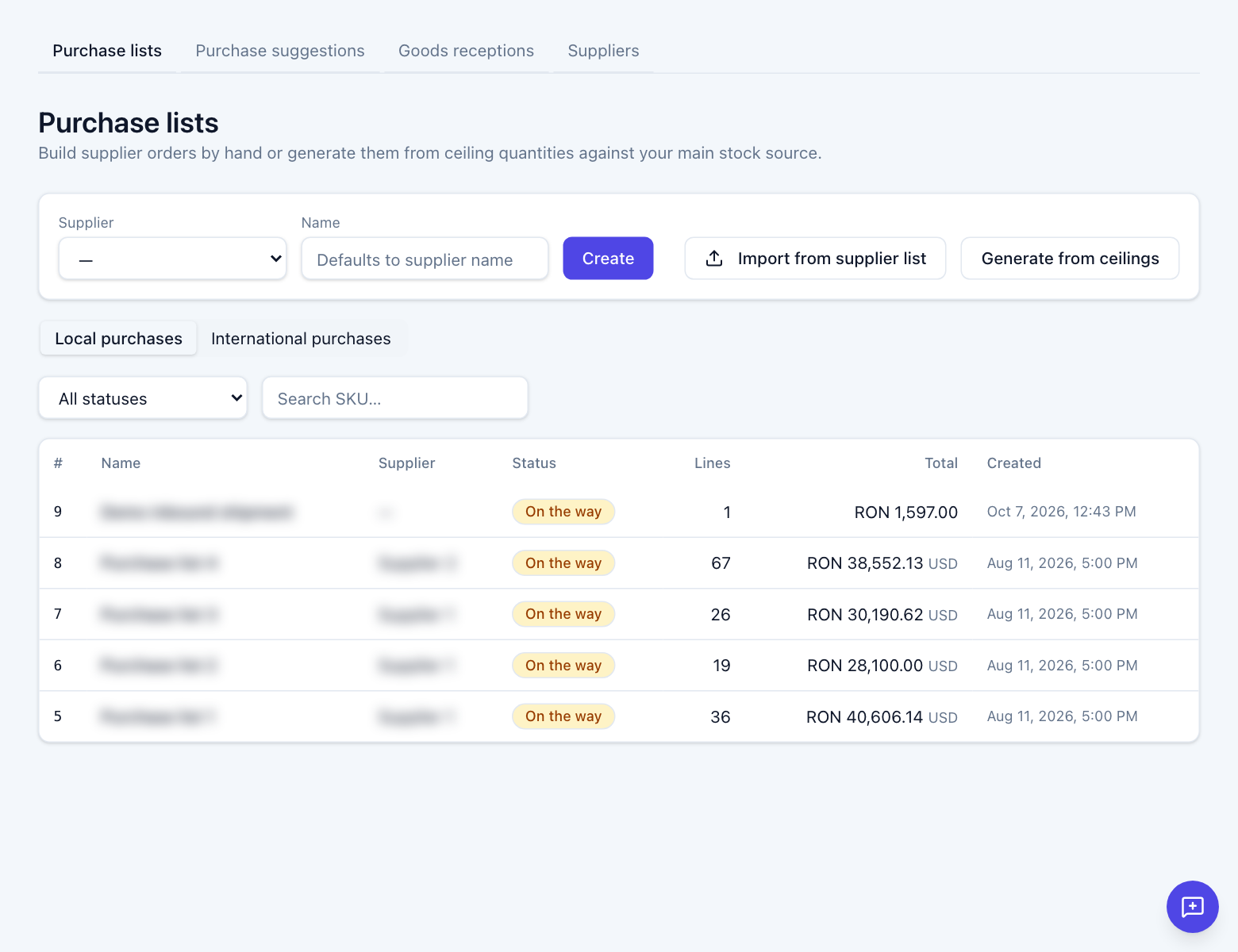
A purchase list has a status: Draft, Forwarded, On the way, Received or Cancelled. Finalizing a reception sets its list to Received.
Purchase lists
Open Purchase lists in the Stock & purchasing group. Each row is one list with its name, supplier, status, number of lines, total, expected arrival and creation date. Click a row to open the list.


- Create: makes an empty list for the chosen supplier. If you leave Name empty, it takes the supplier name.
- Import from supplier list: reads a supplier file, shows a preview with invoice number, currency and any unknown SKUs, and creates the list when you confirm.
- Generate from ceilings: builds purchase lists from your products, grouped by supplier.
Generate from ceilings groups products by their supplier, so link your products to a supplier first.
International purchases
Next to Local purchases there is the International purchases tab. It shows only lists of suppliers marked International, with stage buttons: All, Forwarded, On the way and Received, each with a count.
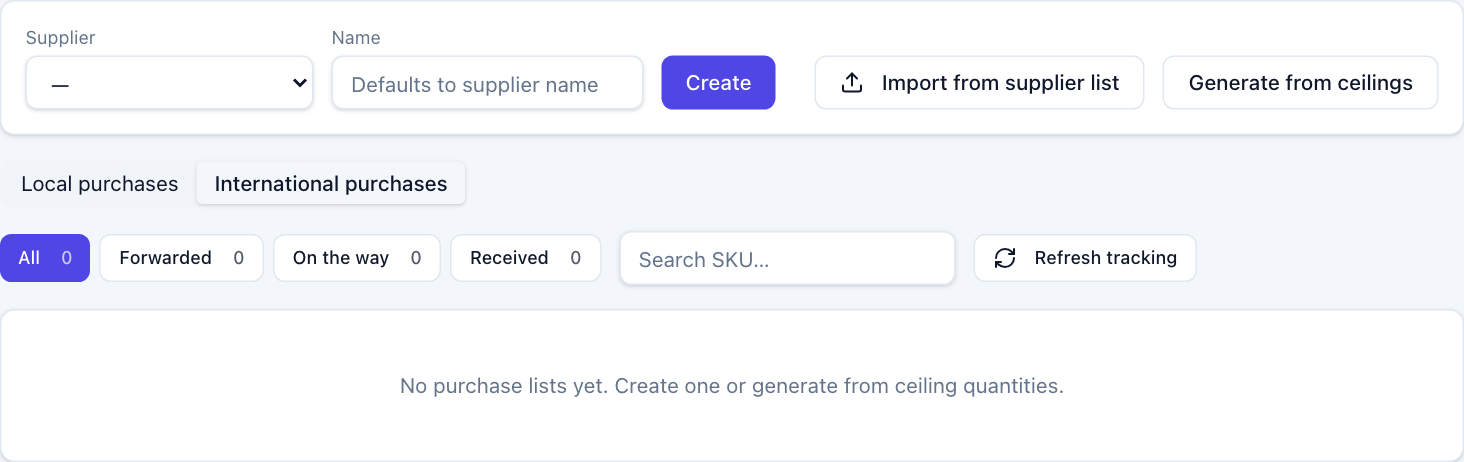
- Search SKU finds the lists that contain a product.
- The ETA Constanța column shows the expected arrival at port and can be sorted soonest first or last.
- Refresh tracking asks the shipping tracker for the latest news on all lists now.
For an international supplier the status moves by itself: Forwarded when the list is created, On the way once it is tracked or has a tracking number, and Received when the reception is finalized. Ocean tracking also refreshes about every 12 hours.
A purchase list page
The page opens with the list name and supplier. Above the lines you can change the status, set the Expected arrival date, download a PDF or a PDF (no prices) to send to the supplier, open Supplier invoice, or press Create reception.
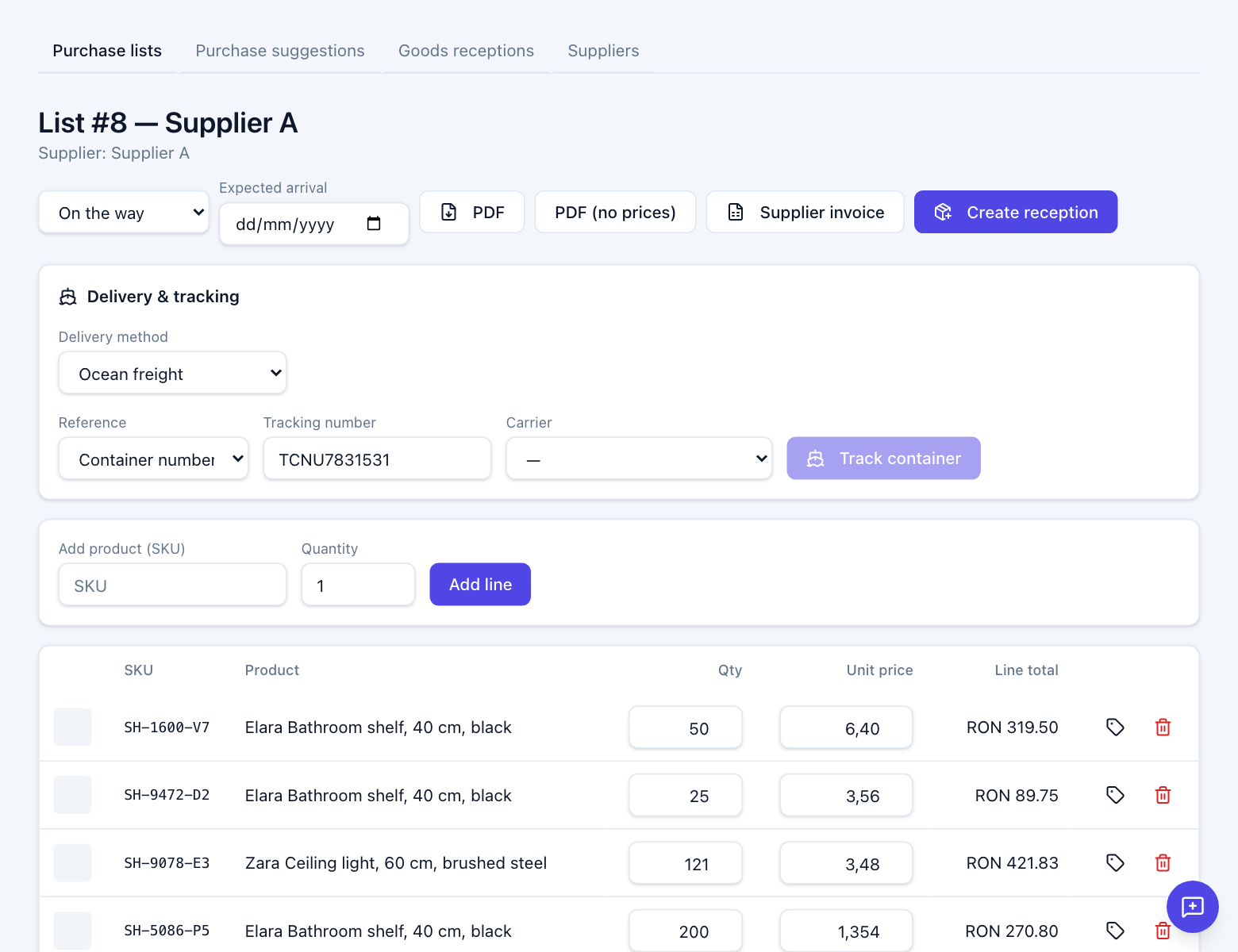
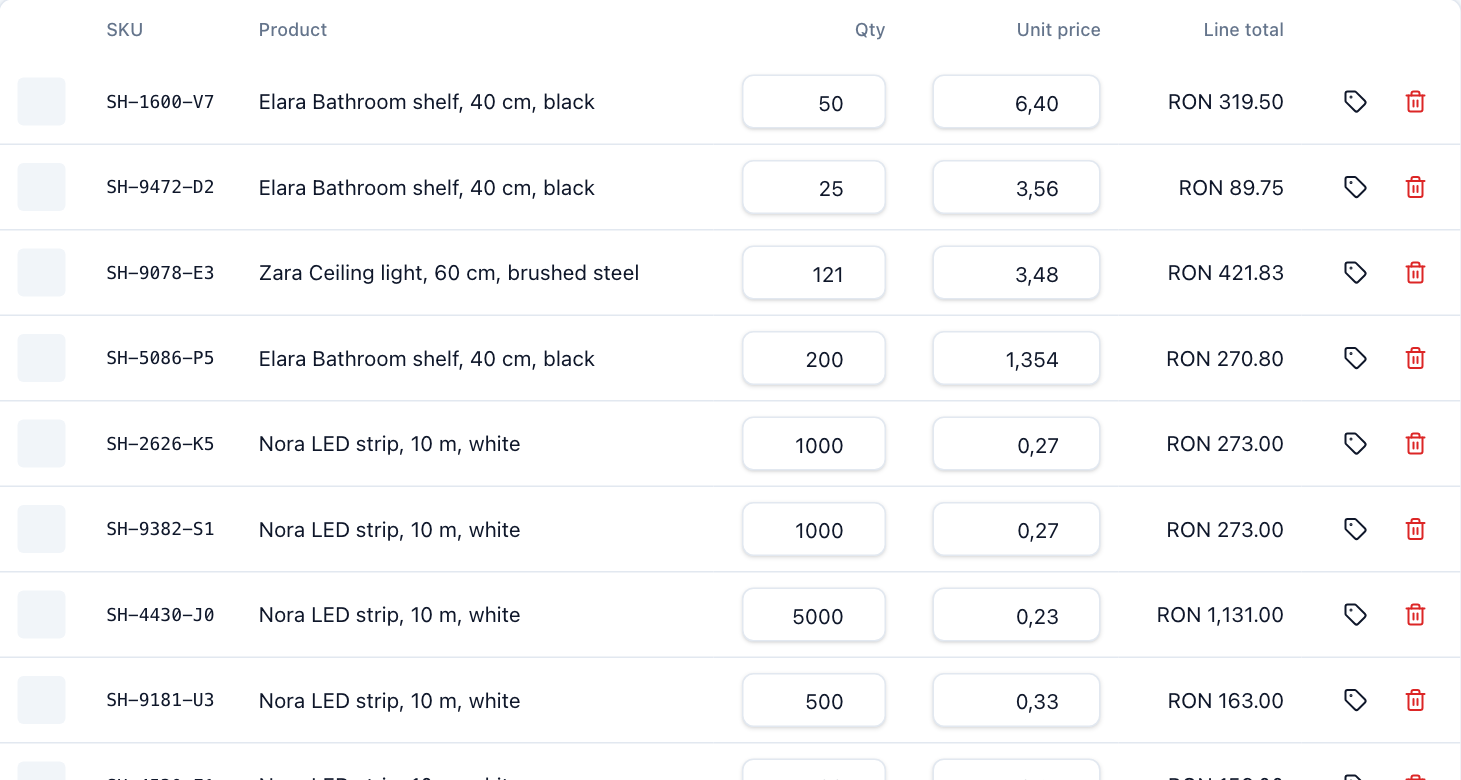
- 1Type a SKU and a Quantity under Add product (SKU), then press Add line.
- 2Edit Qty or Unit price in the table when something changes.
- 3Check the total, then download the PDF for the supplier.
Use PDF (no prices) when the supplier should not see your buying prices, for example when you send the list to a warehouse.
Delivery and tracking
The Delivery and tracking box on a list records how the goods travel. Choose the Delivery method, for example Ocean freight, then pick the Reference type, such as Container number, type the Tracking number and choose the Carrier.
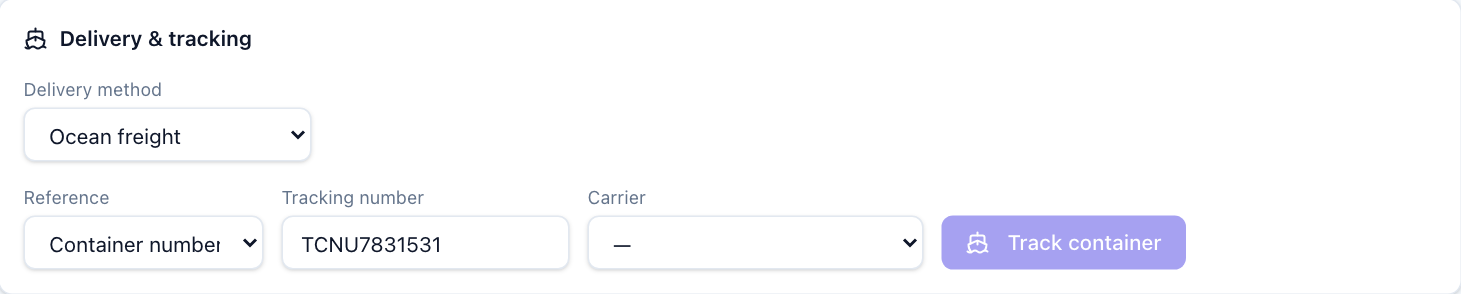
- Track container starts ocean tracking for the number you typed.
- Once tracked, the expected arrival is copied to the list as its Expected arrival.
- The list shows when a voyage has arrived or is overdue.
Ocean tracking refreshes about every 12 hours by itself. To get the latest news sooner, press Refresh tracking on the International purchases tab.
Supplier invoice export
Supplier invoice builds the supplier commercial invoice for the list as an Excel file, with a Romanian translation sheet. Quantities and prices come from the list. Descriptions, weights and cartons can be corrected in the window, and nothing is saved.
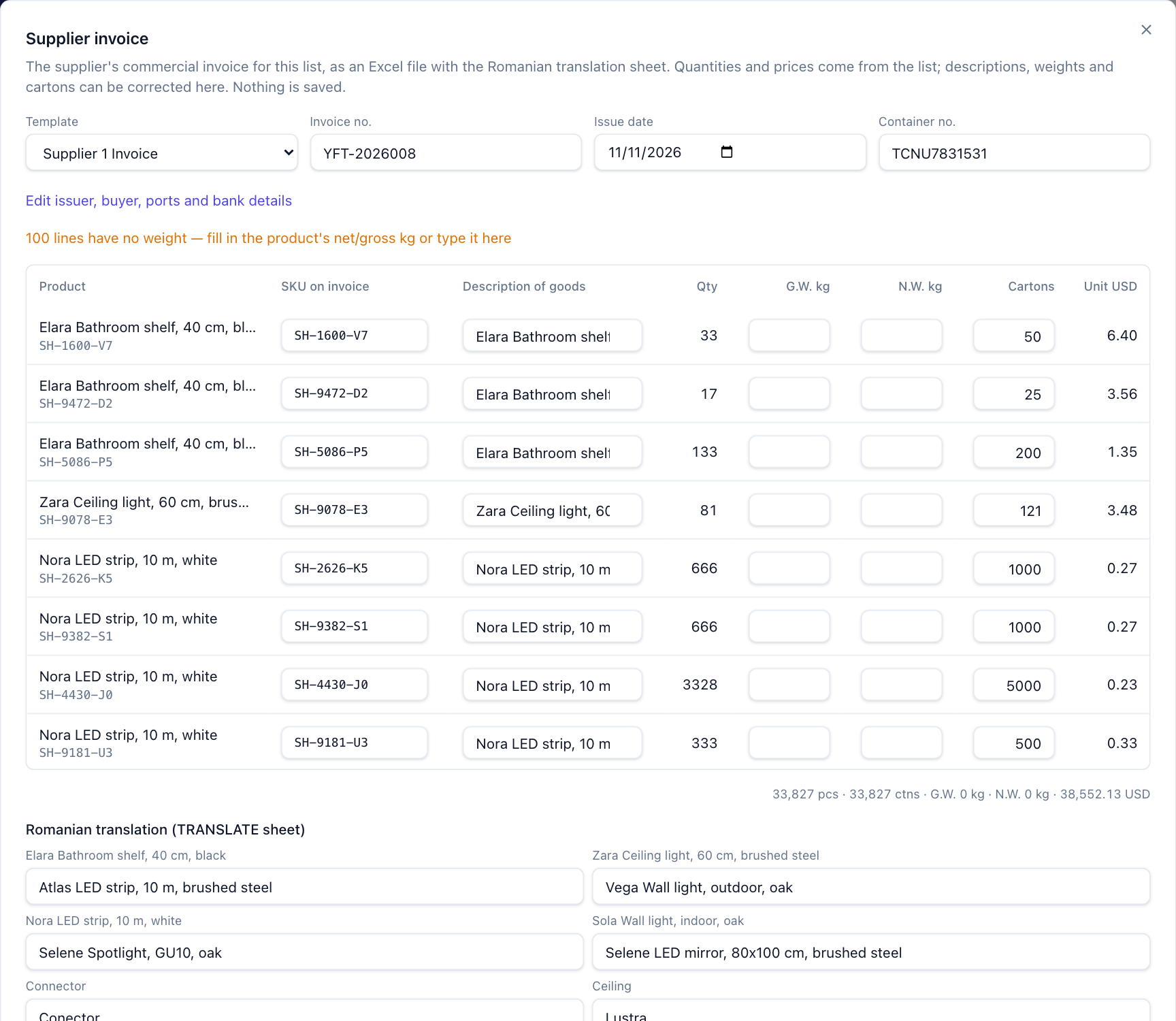
- 1Press Supplier invoice on the list page.
- 2Choose the Template and fill in Invoice no., Issue date and Container no.
- 3Fix any line with a missing weight, shown in the orange warning.
Weights come from the product data. Fill them in once on the product and they stay for the next invoice.
Purchase suggestions
Purchase suggestions lists products whose stock rotation is under the chosen Rotation window. It is advice only: nothing is ordered until you put the products on a list.
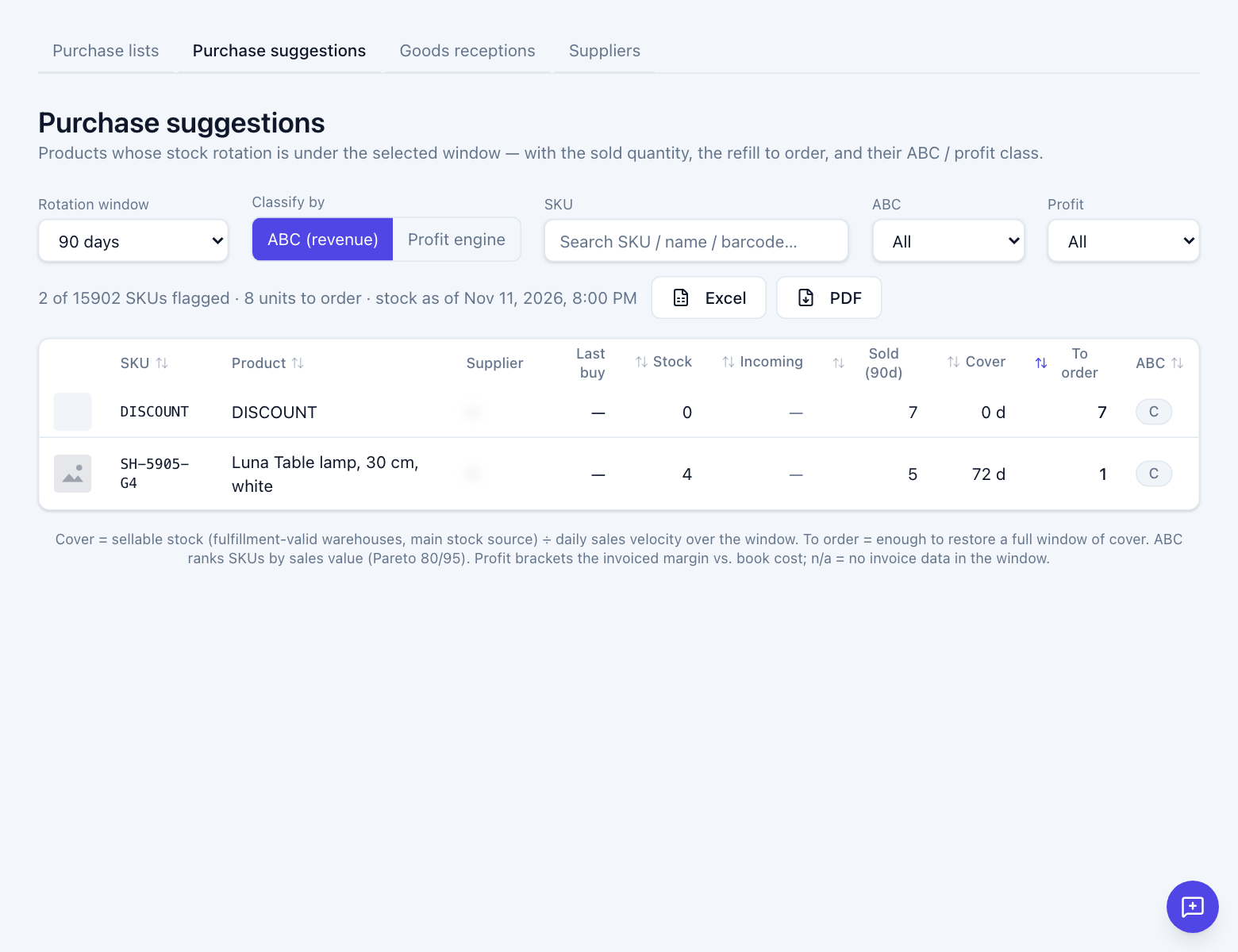

- Stock: sellable stock now. Incoming: already on the way.
- Sold: units sold in the window. Cover: stock divided by daily sales, in days.
- To order: the quantity that restores a full window of cover.

The Excel and PDF buttons export the suggestions, so you can send them to a colleague or a supplier.
Goods receptions
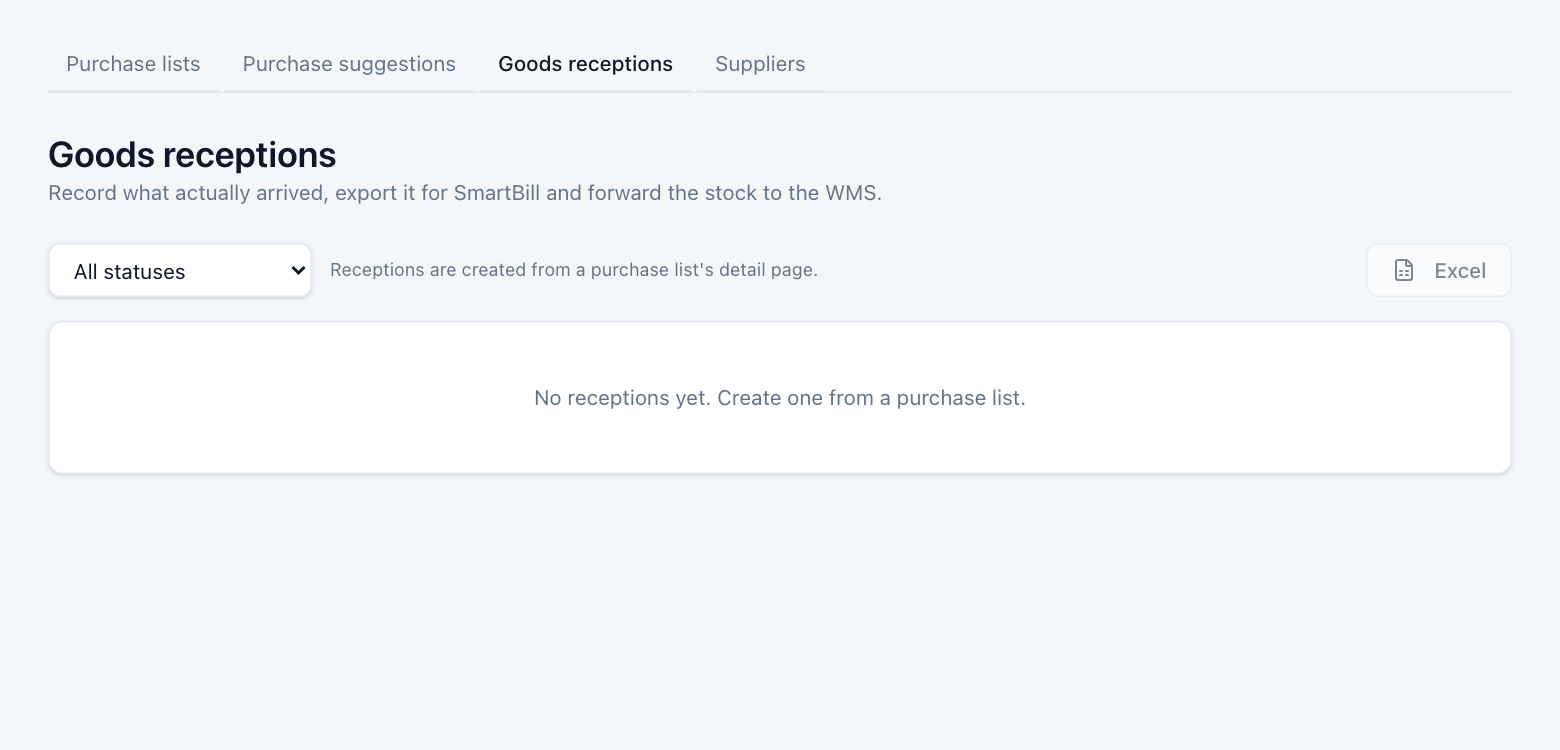
Goods receptions is where you record what actually arrived. Receptions are not created here: open a purchase list and press Create reception. This local database has no reception yet, so the list below is empty.
A reception starts as Draft. On its page you set the Target warehouse and the Supplier document (invoice or aviz number), and fix the Received qty of each line. A Compare with purchase list block shows the difference against Ordered qty, or All lines match.
- Landed cost (measured): add Freight, Customs and Other costs and choose how to allocate them: by line value, quantity, volume (cbm) or weight.
- Finalize freezes the lines, sets the list to Received, updates the last buy prices and writes the landed cost when extras are above zero.
- SmartBill XLSX downloads the reception for a manual NIR import in SmartBill. SaleHero does not post it.
Finalize cannot be undone and the landed cost is frozen with it, so check the received quantities and extra costs first. The reception page itself could not be captured here because there is no reception to open.
Suppliers
Suppliers holds your supplier master data. Link products to a supplier so that generated purchase lists are grouped by supplier. Supplier names are hidden in the picture.
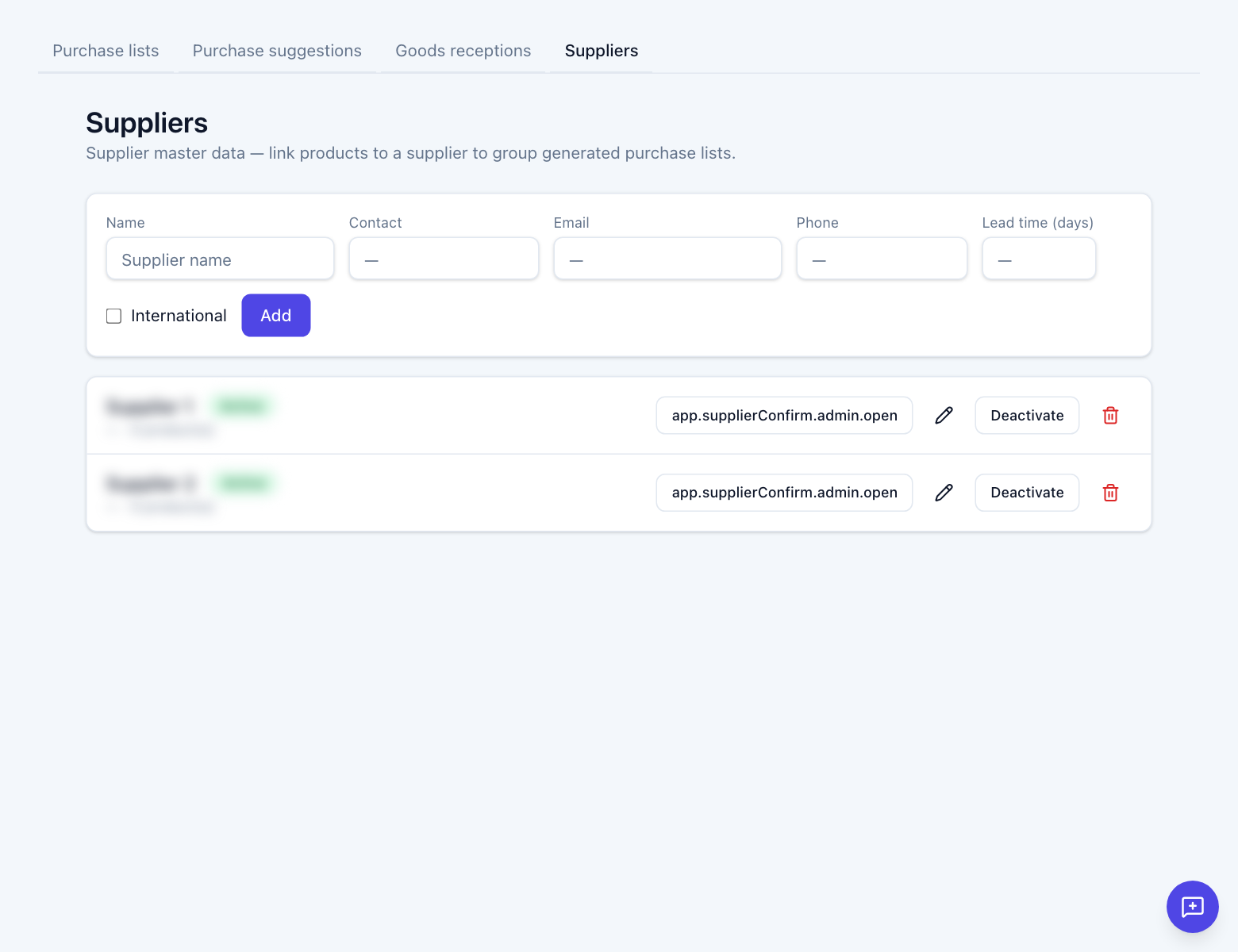

- 1Type the Name, and optionally Contact, Email, Phone and Lead time (days).
- 2Tick International if the supplier ships from abroad.
- 3Press Add.
Each row has a pencil to edit, Deactivate or Activate, and a bin to delete the supplier. Ticking International switches that supplier to the self-driving stages described under International purchases.
Supplier stock confirmation
From a supplier row you can open its confirmation page. There you create a confirmation link and send it to the supplier, who marks which products are In stock, Not in stock or No longer supplied.
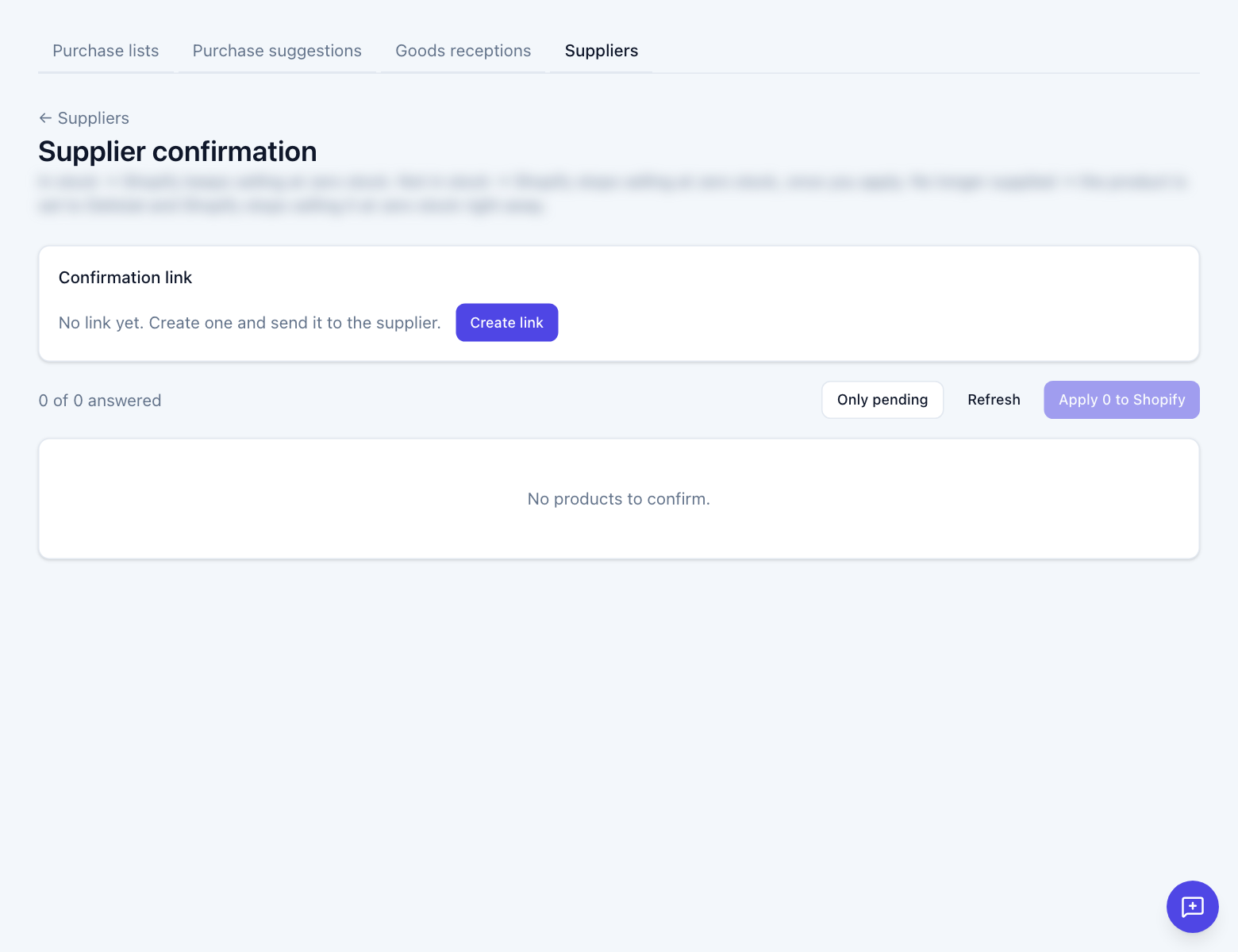
- 1Press Create link and send the link to the supplier.
- 2Press Refresh to see the answers that came in.
- 3Check the rows marked Pending.
In stock keeps Shopify selling at zero stock. Not in stock makes Shopify stop selling at zero stock. No longer supplied sets the product to Delistat. None of it happens until you press Apply, which writes to Shopify, so only press it when you mean it.
Try it on your own shop
Create an account, connect your tools and the first data lands the same day.