 SaleHero
Menu names in this guide (for example Settings, Integrations) are the ones you see in SaleHero after you sign in. The screenshots show a demo shop.
Customers
Find a buyer, read their history and keep the customer list clean.
Customers is every buyer behind your orders. This guide covers the list and its search, the page of one customer with its orders and history, and the phone lookup the call centre uses.
The customer list
Customers is the list of every buyer behind your orders. Channel orders are matched to a customer by email and phone, manual orders by what staff typed. Open it from the sidebar, group Orders, item Customers, when you need to find a buyer, check how often they order or see who is flagged.
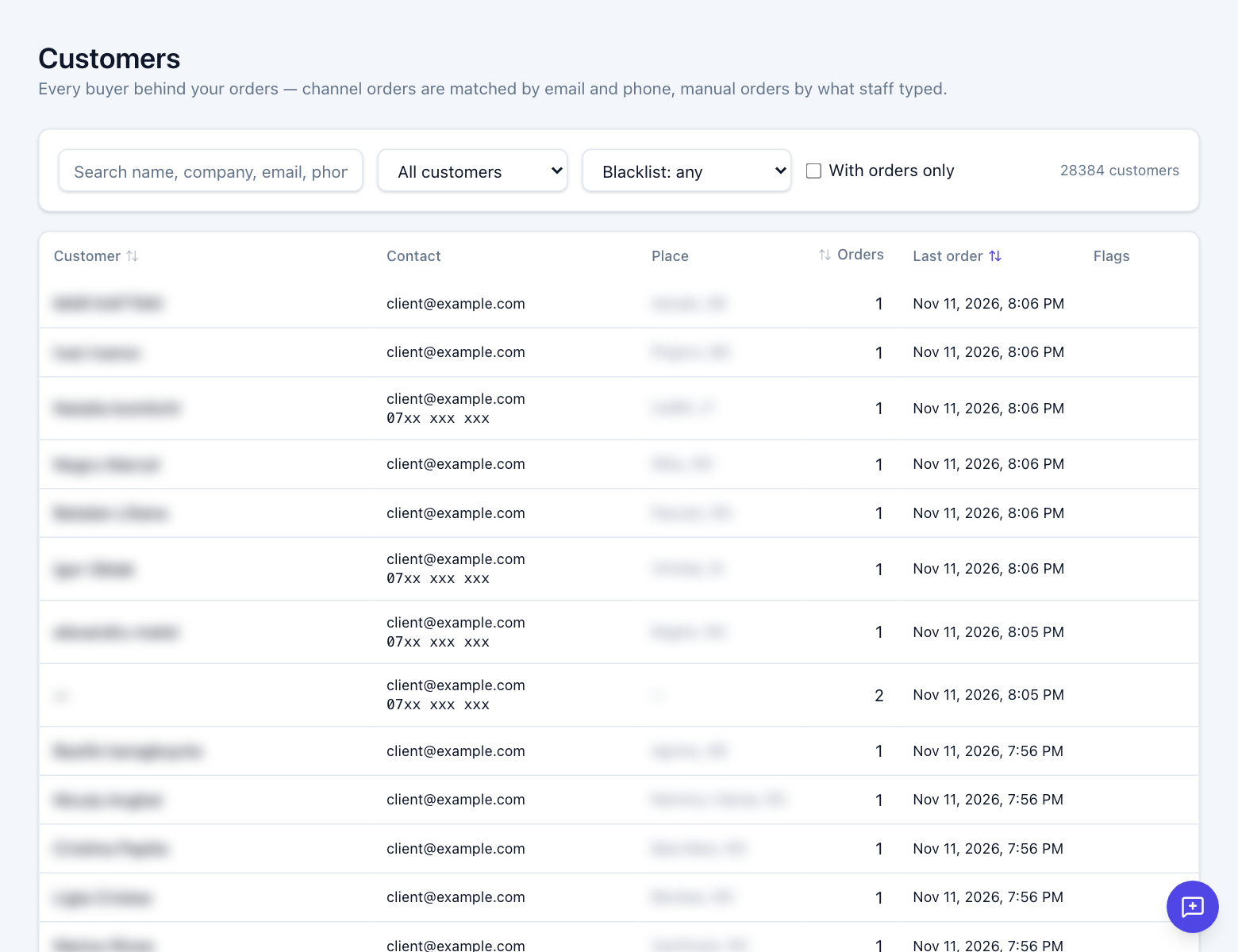
The list is paged. Use the Prev and Next buttons under the table; the label shows which page you are on. Changing any filter sends you back to page 1.
The name shown is the name on the customer record. If it is empty the list shows first name plus last name, and if that is empty too, the company.
Search and filters
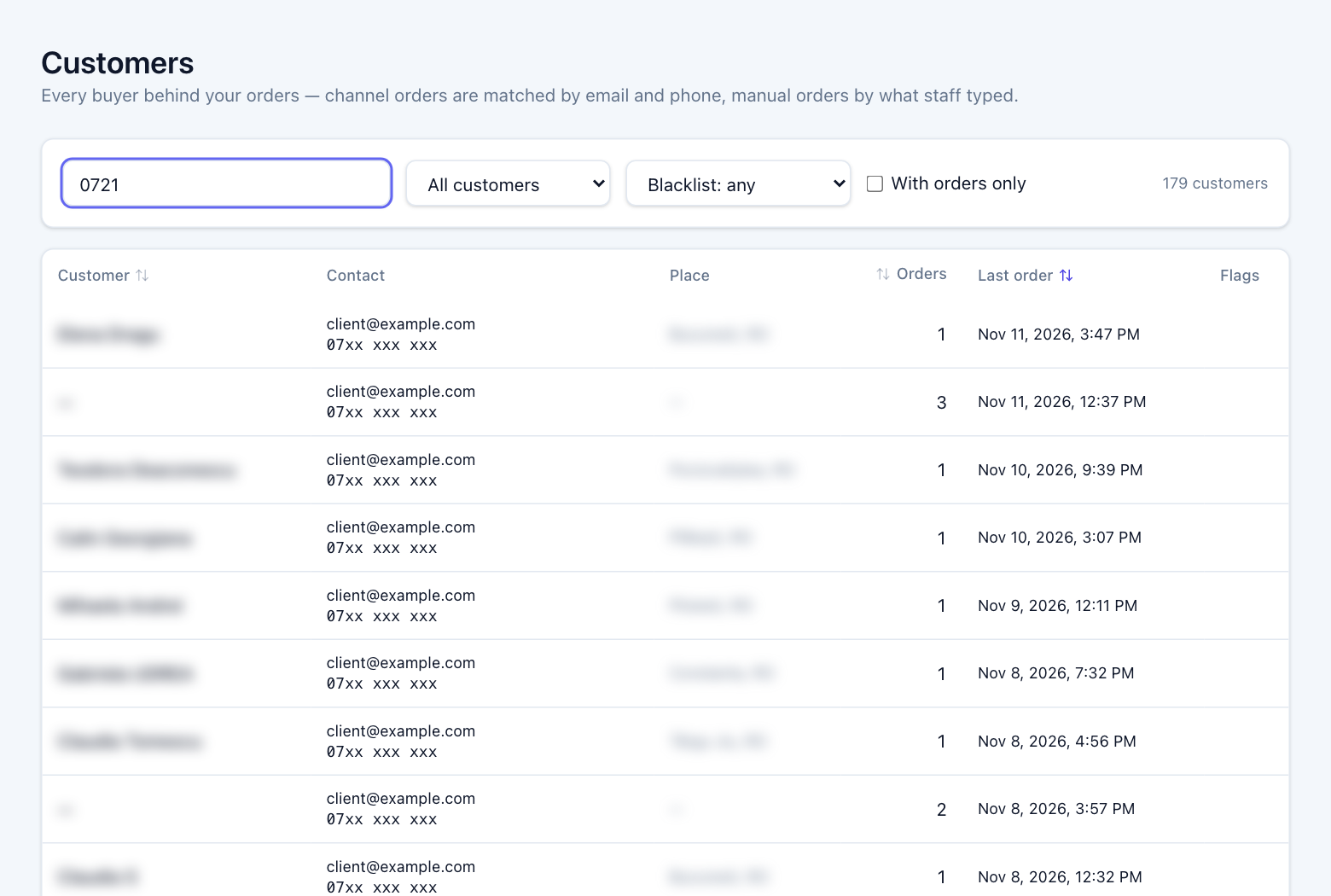
The card above the table holds the search box and three filters. The count on the right shows how many customers match.

- Search: type a name, company, email, phone or CIF. The text is looked for anywhere in the name, company, first name, last name, email and CIF, ignoring capitals. It runs a moment after you stop typing.
- Phone: from 4 digits up, the search also matches phones by their last 9 digits, so 0721..., 40721... and +40721... all find the same customer.
- Kind: All customers, Companies or Private persons.
- Blacklist: any, Blacklisted only or Not blacklisted.
- With orders only: hides customers that have no orders yet.
Columns and flags

- Customer: the name, a link to the customer page. For a company the company name and CIF are shown under it. Sortable.
- Contact: email and phone.
- Place: city and country, taken from the shipping address, or from the billing address when there is no shipping one.
- Orders: how many orders the customer has. Sortable.
- Last order: date of the latest order. Sortable, and the default sort.
- Flags: Company, Blacklisted (red) and Unsubscribed.
Click a column title to sort by it; click again to reverse. Blacklisted and Unsubscribed are set by hand on the customer page, they are not worked out automatically.
The customer page
Click a name in the list to open the customer page. The top shows who the customer is and a strip of totals; below it are the details, the orders and the history.
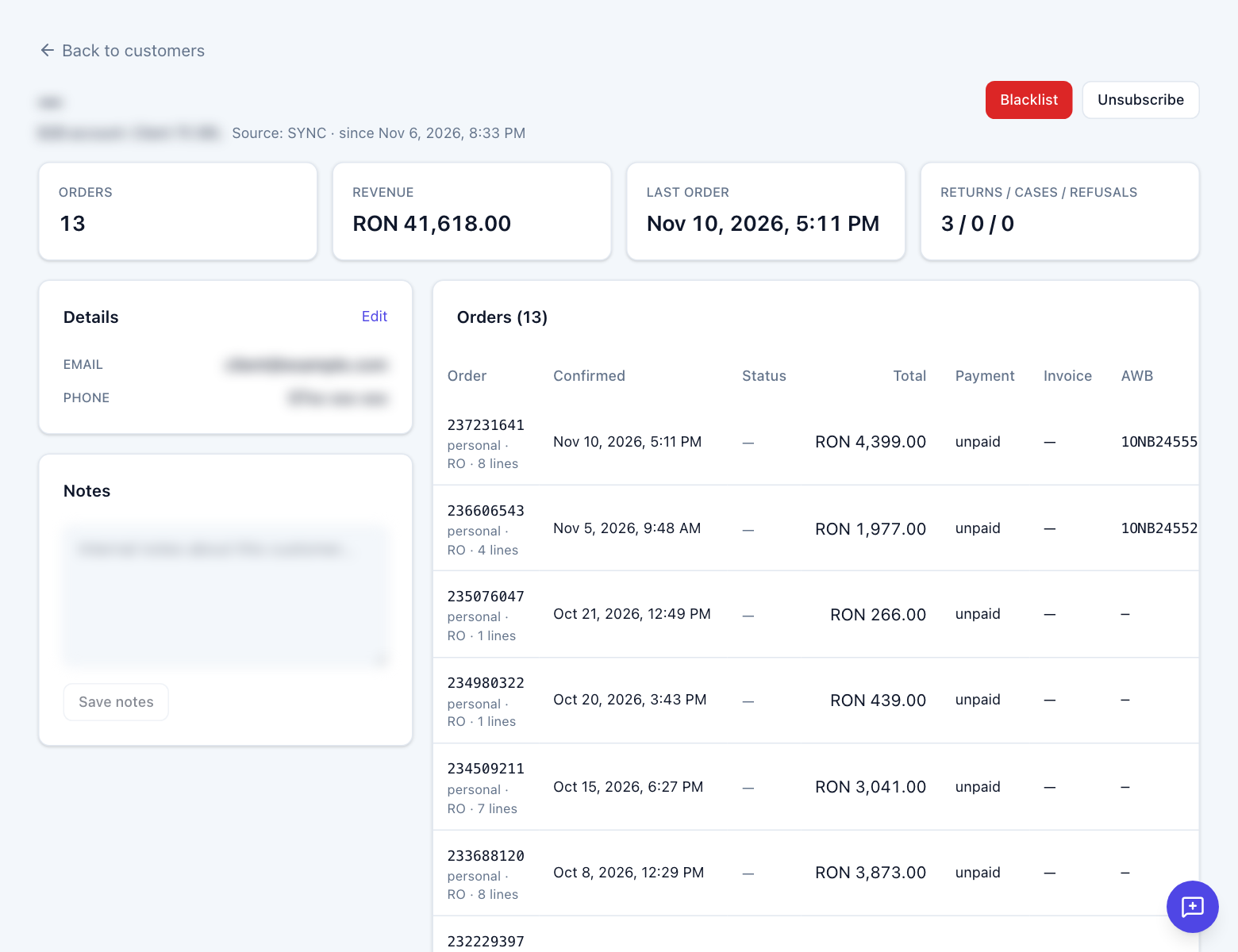

- Badges next to the name: Company, Blacklisted, Unsubscribed.
- B2B account: a link that appears when this customer is linked to a B2B client.
- Source and since: where the record came from and when it was created.
- Add to blacklist, Remove from blacklist, Unsubscribe and Re-subscribe change the flag at once, with no confirmation. They only show for people who can edit sales.

- Orders: number of orders.
- Revenue: total per currency, one figure for each currency the customer paid in.
- Last order: date of the latest order.
- Returns / cases / refusals: three counts for the return requests, support cases and refused parcels filed on this customer's orders.
Details, addresses, duplicates and notes
The left column holds what is known about the person. Edit changes the record itself, so use it to fix a wrong name or add a CIF.
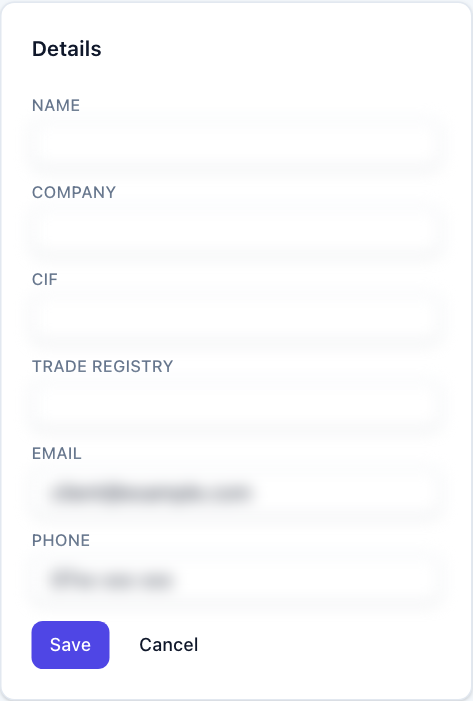
- Details: name, company, CIF, trade registry, email, phone. Edit opens the fields, Save keeps them, Cancel discards.
- Addresses: the Shipping and Billing address, shown only when the customer has them.
- Notes: free text for the team, kept with Save notes. The box is read-only for people without edit rights.
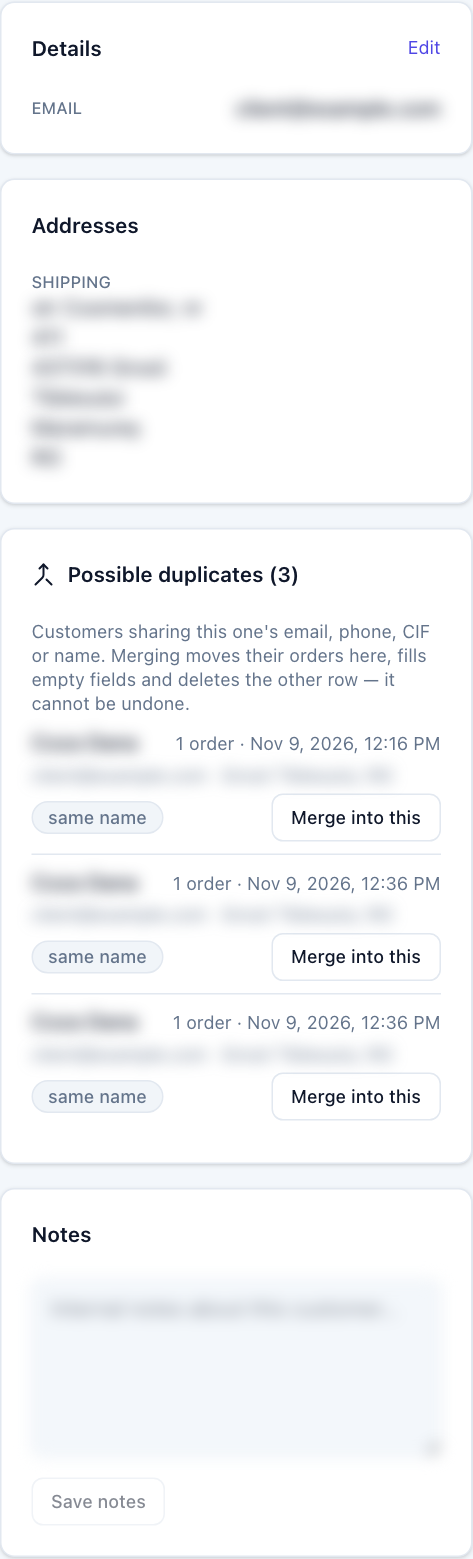
Possible duplicates lists other customers that share this one's email, phone, CIF or name. A badge on each row says which: same email, same phone, same CIF or same name.
- 1Open the customer you want to keep.
- 2Check the duplicate really is the same person: look at its orders and details.
- 3Press Merge into this, then Confirm merge. Cancel backs out.
Merging moves the other customer's orders onto this one, fills this one's empty fields from it and deletes the other record. It cannot be undone. Same name alone is a weak reason: two different people can share a name.
Orders of the customer
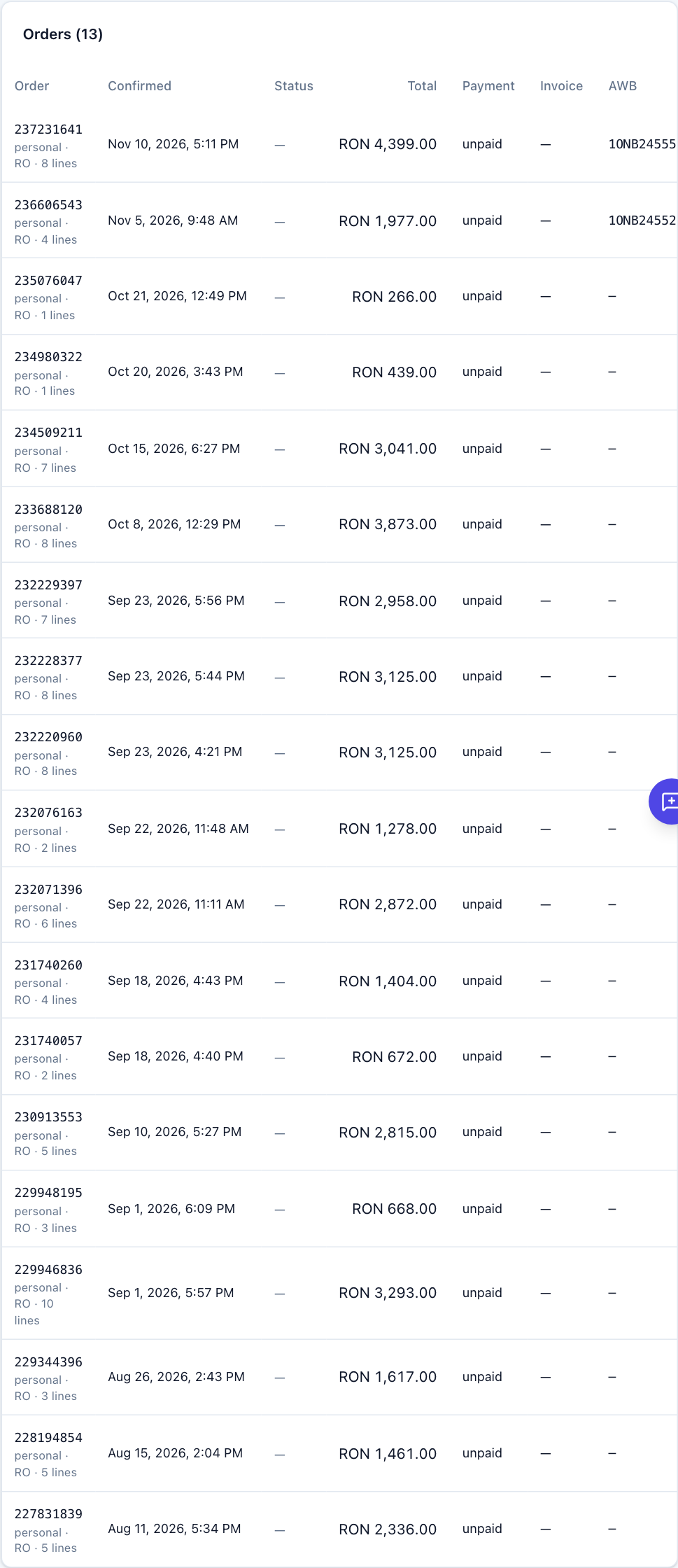
The Orders card lists the customer's orders, newest first. When there are more than 200, only the latest 200 are shown.
- Order: the number, with the source, country and number of lines. It links to the order.
- Confirmed: when the order was confirmed.
- Status: the order status as a coloured pill.
- Total and Payment: the amount and whether it is paid or unpaid.
- Invoice and AWB: the invoice series and number, and the courier waybill.
Timeline
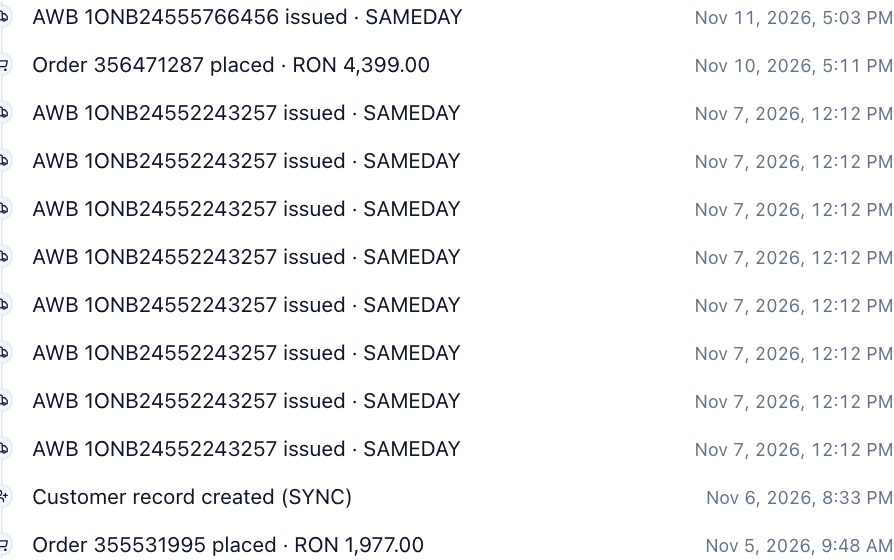
The timeline is the customer's history in one list, newest first. It shows the customer record being created, orders placed, invoices issued, AWBs issued and cancelled, returns requested, cases opened and parcels refused.
After 12 events the list is folded. Press Show all with the number of events to see the rest.
Returns, cases and WhatsApp
When the customer has had any after-sales problem, a card called Returns, cases and refused parcels appears on the right. It does not show at all for customers with none.
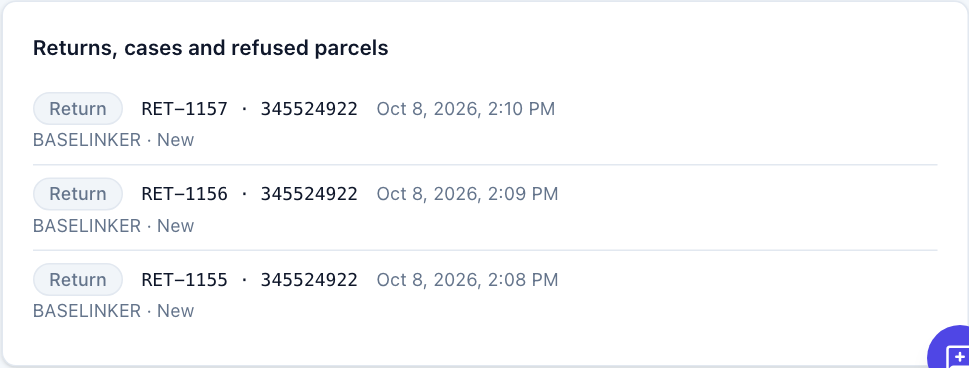
- Return rows link to the return page.
- Case and Refused rows link to the order.
- WhatsApp card: appears only when WATI is connected and the customer has a phone. It reads the conversation live from WATI, stores nothing, and is read-only. A badge says whether the reply window is open or only templates can be sent.
The WhatsApp card is not pictured because it only exists when WATI is connected. It is described from how the page works.
Try it on your own shop
Create an account, connect your tools and the first data lands the same day.