 SaleHero
Menu names in this guide (for example Settings, Integrations) are the ones you see in SaleHero after you sign in. The screenshots show a demo shop.
Orders
Find, open, change and create orders, and manage statuses.
Orders from all your sources live in one place. This guide shows the list, the order page, how to create an order, the TEMU tab and the order statuses.
The order list
The Orders page in the Orders group shows every order from every connected source in one list: BaseLinker, Shopify, B2B and orders typed in by staff. The top of the page has three tabs: Orders, TEMU orders and Order statuses.
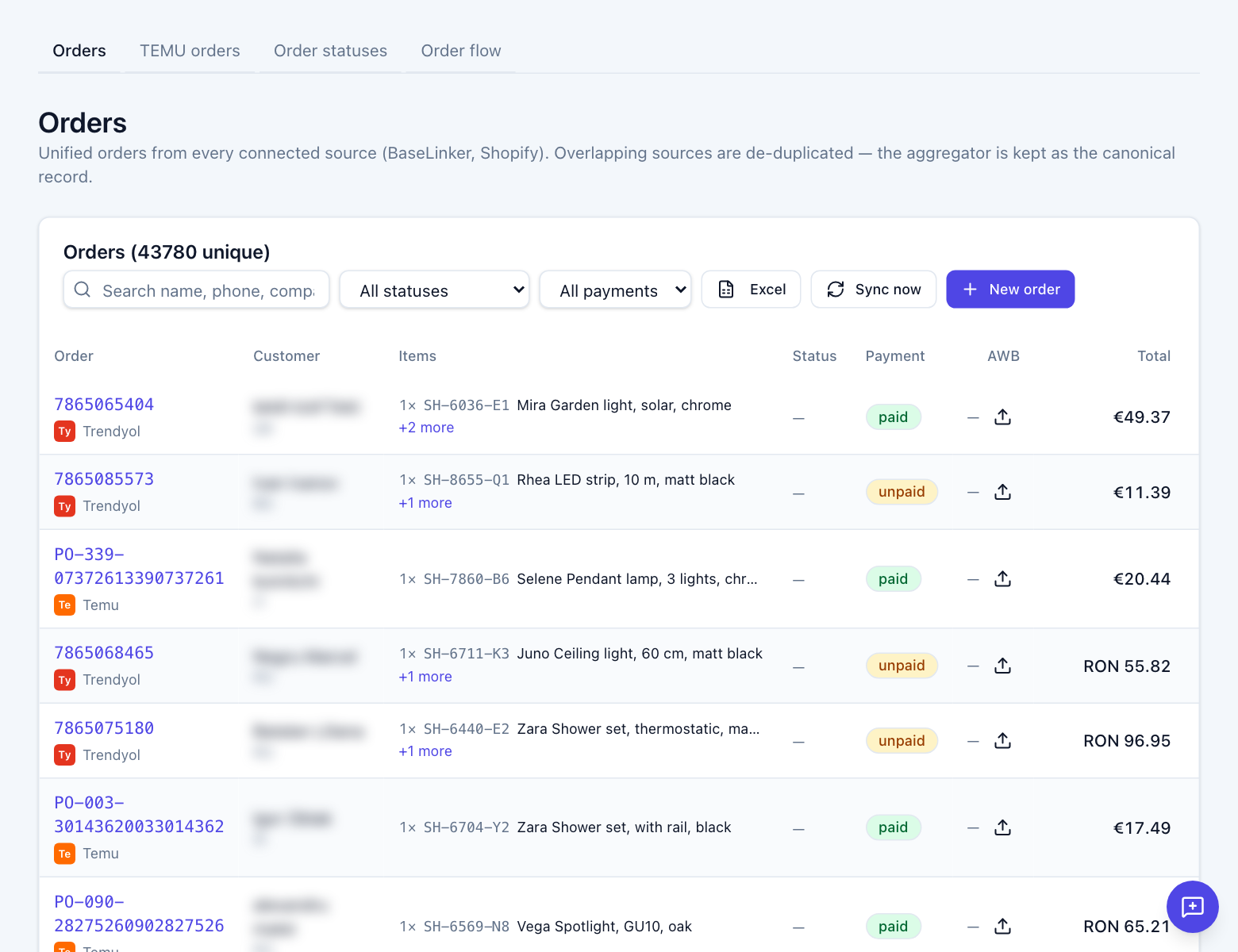
Each row is one order. The columns are Order, Customer, Items, Status, Payment, AWB, the order total and how long ago it was confirmed. The order number opens the order page. Under it you see the channel, for example Trendyol or Temu. Under the customer name you see the country.
The Items column shows the first product with its SKU and quantity. When the order has more products, click +1 more (or the number shown) to open all lines under the row. Click Hide to close them.
- Payment shows paid or unpaid. When there is an invoice, you also see its series and number. The word open next to it means the invoice is not paid yet. The word requested means the customer asked for an invoice and none exists yet.
- AWB shows the courier label of the order. If you may attach one, there is an upload button to attach a label by hand.
- A Shipped badge on the status means the order is recorded as shipped.
The list updates itself from BaseLinker. You only need Sync now when you want fresh orders right away. It can take a moment on large histories.
Search, filter and export
The bar above the table has everything you need to find an order.

- Search: type a name, phone, company or order code. The list filters while you type.
- All statuses: pick one status to see only the orders in it.
- All payments: choose paid or unpaid.
- Reset appears when a filter is active and clears all of them.
- Excel downloads the orders that match your filters as a spreadsheet.
- New order opens the form for a new order (see below).
At the bottom of the list you see which orders are shown, for example Showing 1 to 50 of the total, with Prev and Next buttons. The title shows how many unique orders you have. When the same order arrives from two sources, SaleHero keeps the aggregator copy and counts the other one as a duplicate.
Changing an order status
The Status cell of a row is a small menu. If you may manage orders, you can pick a new status there, or on the order page with Change status. SaleHero saves it and pushes the same status to BaseLinker.
- If BaseLinker does not answer, you see the message Saved locally, BaseLinker push will retry automatically. The row then shows a BL push pending badge. SaleHero keeps retrying for up to 24 hours. You do not need to do anything.
- An order that has already shipped is not moved back to the stages before delivery by itself. If you try it by hand, SaleHero asks you to confirm.
- Which statuses exist, and what each one does to stock, is set under the Order statuses tab of Order flow (see the last section).
The order page
Click an order number to open its page. The top shows the order number, the source and the status. Top right you find the status menu and the buttons that apply to this order. Back to orders returns you to the list.
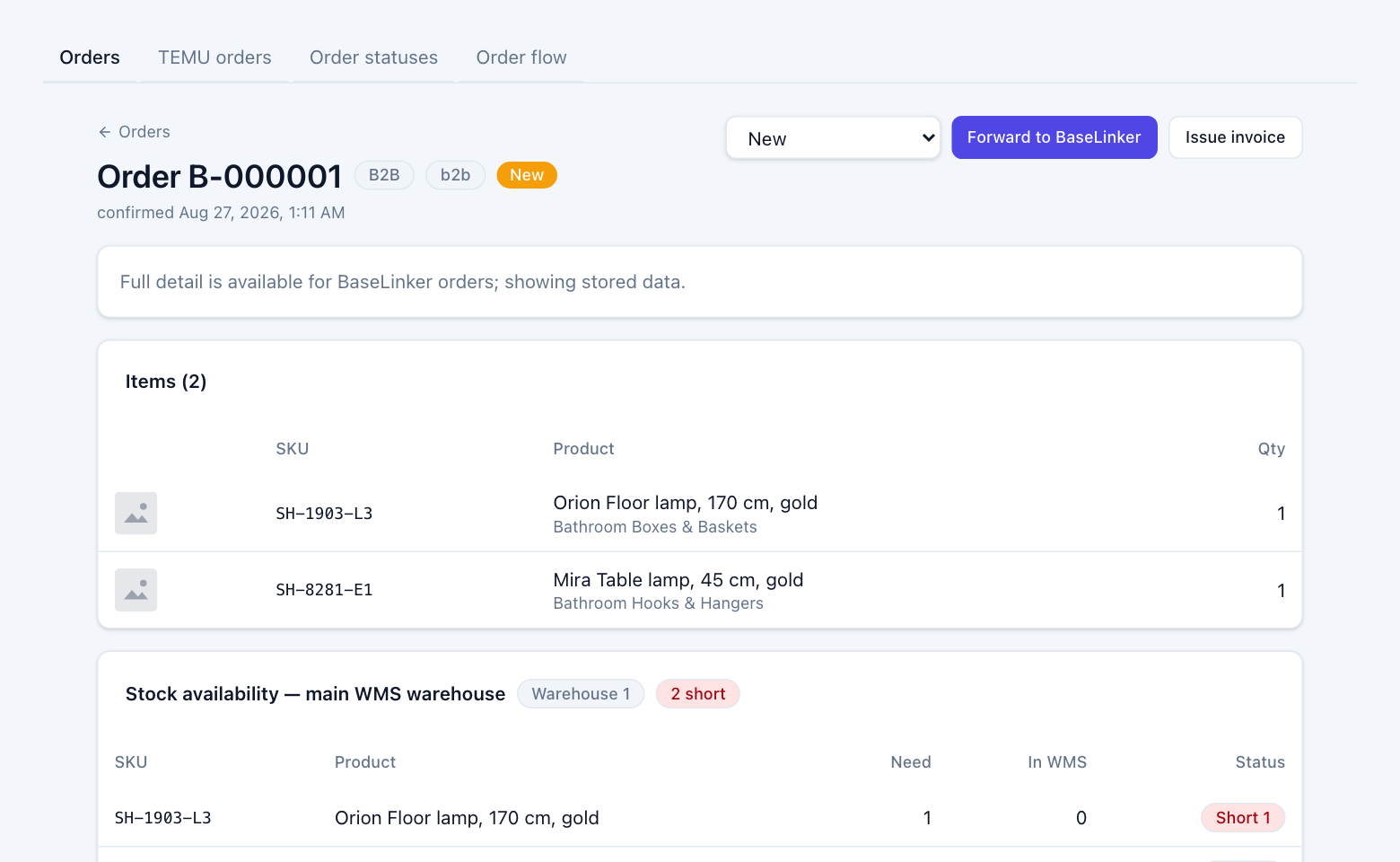
Depending on the order you may see these buttons: Forward to BaseLinker (for B2B and manual orders that were not sent yet), Issue invoice, Create DPD AWB, Edit (manual orders), and Refresh (BaseLinker orders, to read the order again). For BaseLinker orders there is also a link to the order page in BaseLinker.
Below the header you find the panels of the order. Items lists each line with SKU, product and quantity. For BaseLinker orders you also see EAN, unit price, VAT and the line total.
Two stock panels show if the order can be filled: Stock availability for the main WMS warehouse, and Stock availability in SmartBill (accounting). Each shows Need and what is In stock, with a green In stock or a red Short badge per line. When something is missing, the panel adds a list of what To bring into stock and the time of the stock reading.
The two panels can differ. WMS shows what is physically counted. SmartBill shows what accounting believes. Trust WMS for picking and use SmartBill to see why an invoice would fail.
Delivery, invoice, returns and history
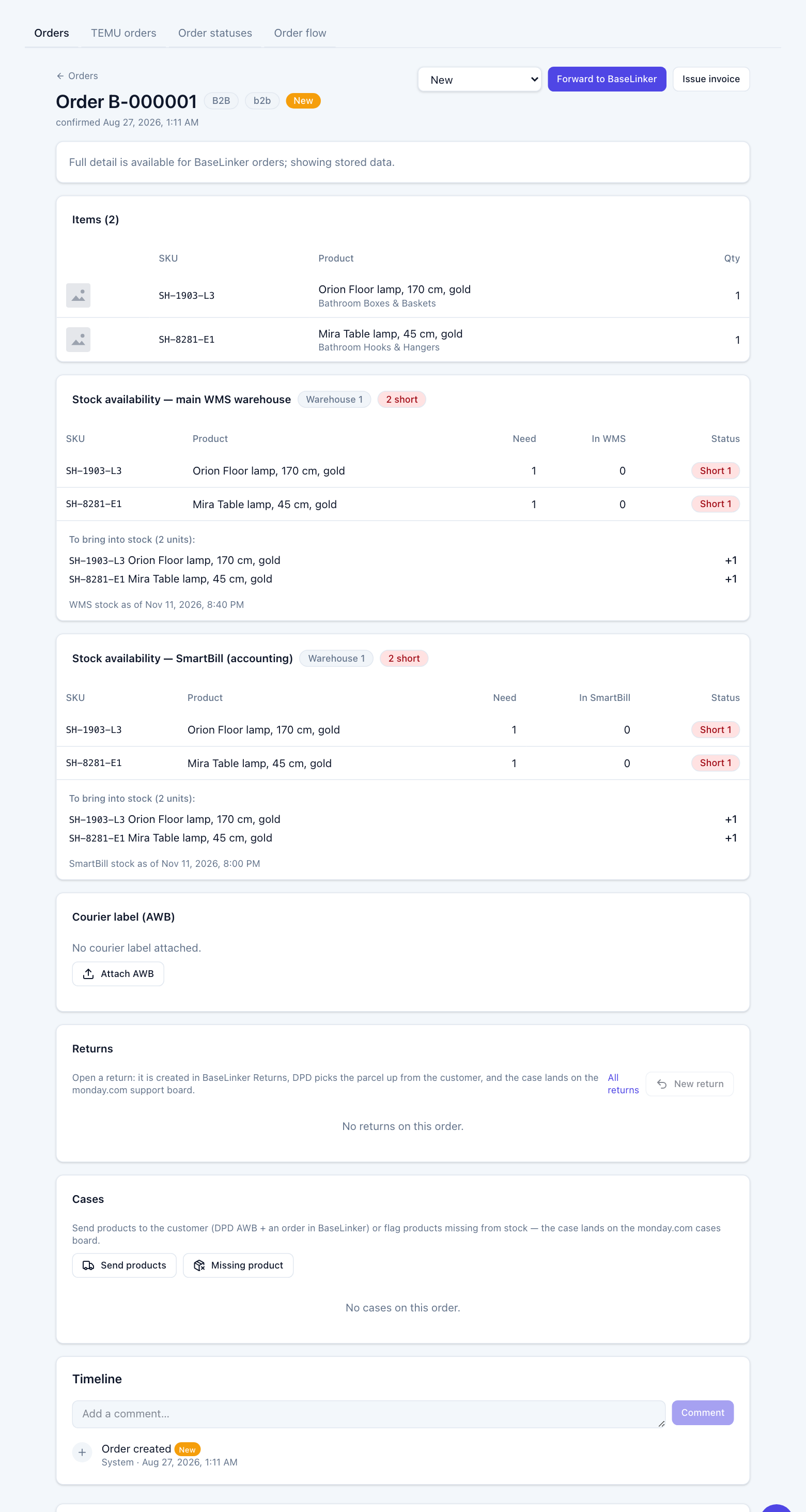
- Courier label (AWB): shows the label of the order, or No courier label attached with an Attach AWB button. Create DPD AWB makes a DPD shipment from your registered point to the delivery address. You choose parcels, weight, the sender point, a note and whether to book the courier pickup.
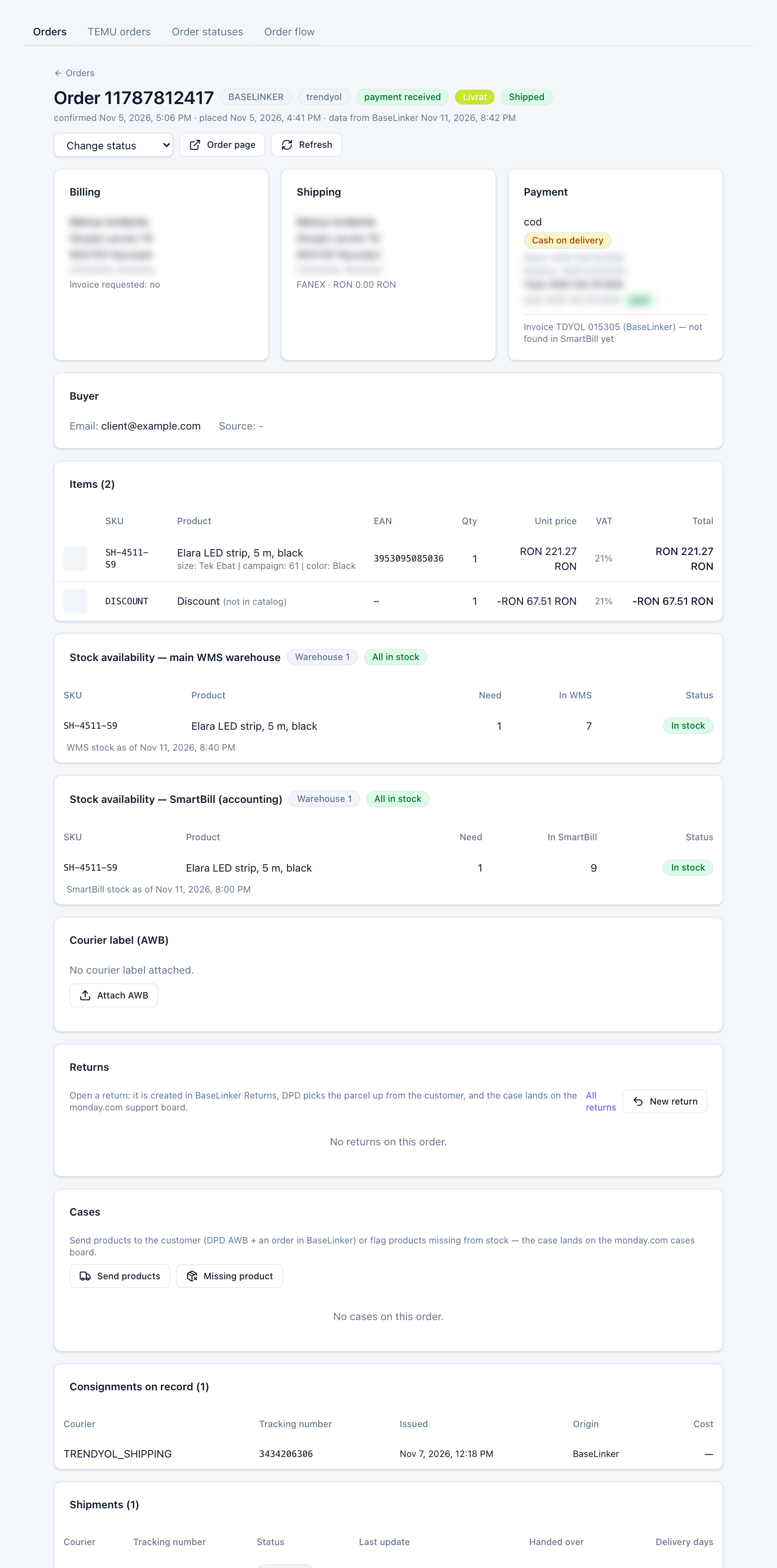
- Shipments: when the order has parcels, a table shows courier, tracking number, status, last update and delivery days. A Handed over column shows whether the courier scanned the parcel.
- Invoice: shows the invoice series and number, whether it is paid and the outstanding amount. Issue invoice opens a window to create one SmartBill invoice: you pick the series, the gestiune and the VAT, and whether to discharge stock.
- Returns: lists the returns of this order. New return opens a window where you choose the items that come back, describe the case and choose what to do: a DPD pickup AWB and the case on the monday.com board. The return is also created in BaseLinker Returns.
- Cases: Send products sends something to the customer (a DPD AWB and a 0-priced order in BaseLinker). Missing product flags products that are not on the shelf. Both are filed on the monday.com cases board.
- Timeline: the history of the order, with every change and who or what made it.
Issue invoice, Create DPD AWB and New return send real documents to SmartBill, DPD and BaseLinker. They cannot be undone from here. A wrong invoice needs a storno in SmartBill. If an earlier attempt got no answer, SaleHero blocks a new one. Check SmartBill or DPD first, then use the clear button.
BaseLinker orders: customer, delivery and payment
For a BaseLinker order the page also reads the full order from BaseLinker. Above the items you find the Billing, Shipping and Payment cards, and the Buyer card. Billing shows the invoice address and the tax ID, and whether an invoice was requested. Shipping shows the delivery address, the courier method and the pickup point if there is one. Payment shows the method, for example Cash on delivery, the amounts for items, delivery, total and paid, and whether payment was received.
- Address normalized or Address fix pending: SaleHero corrected the address for the courier, for example by writing it in Latin letters, repeating the surname or adding a house number. Pending means the fix is not in BaseLinker yet.
- Livraria address check: tells you if the address matches the courier nomenclature, differs from it, or no Romanian locality was found. A proposed fix is shown but not written to BaseLinker until it is applied. If you see this, look at the address by hand.
- Notes: the buyer note and the seller note. Duplicate of and Also seen as show orders that arrived from two sources.
- If the page says Full detail could not be loaded from BaseLinker yet, it shows stored data. Use Refresh to try again.
Creating and editing orders
Click New order on the list. The page has two modes at the top: New order and Import from Excel. The New order mode has two forms in one: a manual order for any customer, and a B2B order for a B2B client.
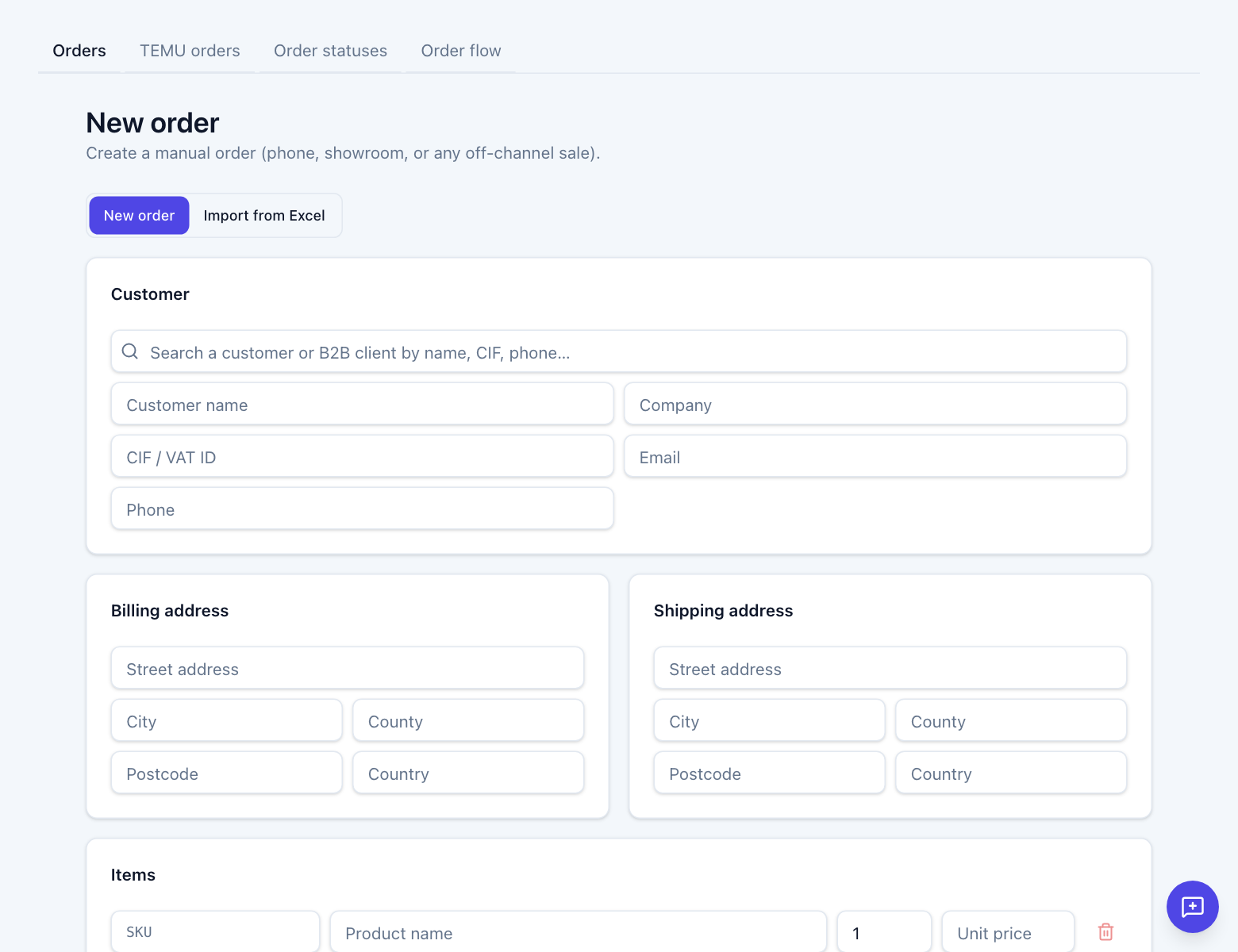
- 1Search a customer or B2B client by name, CIF or phone. Type at least two letters and pick the result. A B2B client opens the B2B form. Otherwise fill in the customer name, company, CIF, email, phone and the billing and shipping addresses.
- 2Add items. For each line enter a SKU, a product name, a quantity and a unit price. Add item adds a line and Remove item deletes it. You can pick a price group to fill all line prices at once. Prices stay editable.
- 3Choose the currency, add a note and click Create order. At least one line with a SKU is required and quantities must be positive.
- B2B order: after you pick the client, a card shows the company, the CIF, the trade registry number and the credit. The client details come from the client record and you can change them for this order only. Prices come from the client's price group by default, or from another group for this order only. Courier transport is added by the client's terms, and may be free. For a client billed to another EU country, prices are without VAT and the invoice has 0% VAT. Choose the payment method, for example bank transfer or cash on delivery, and click Place order. Lines that are not priced are marked Not priced.
- Import from Excel: choose an Excel file with the product code and the quantity. SaleHero shows the order lines and flags unknown SKUs, ambiguous SKUs (you choose the product) and lines without a catalog price. It detects the price group from the customer if it matches a B2B client. Pick a status and the currency, then click Create BaseLinker order. This one creates the order in BaseLinker, so BaseLinker must be connected.
- Editing: the Edit button on the order page opens the same form for a manual order, with the title Edit order. Change what you need and click Save changes. The status is not changed here: use the status menu on the order page.
A B2B or manual order is created inside SaleHero first. Use Forward to BaseLinker on the order page to send it to BaseLinker. Until then it is not in the warehouse flow.
Order statuses
The Order statuses tab defines the lifecycle statuses of your orders. To add one, type a name next to New status name and click Add. Import from BaseLinker brings in the statuses you already have there, and links them so that both sides stay in sync. Linked statuses are imported and pushed automatically.
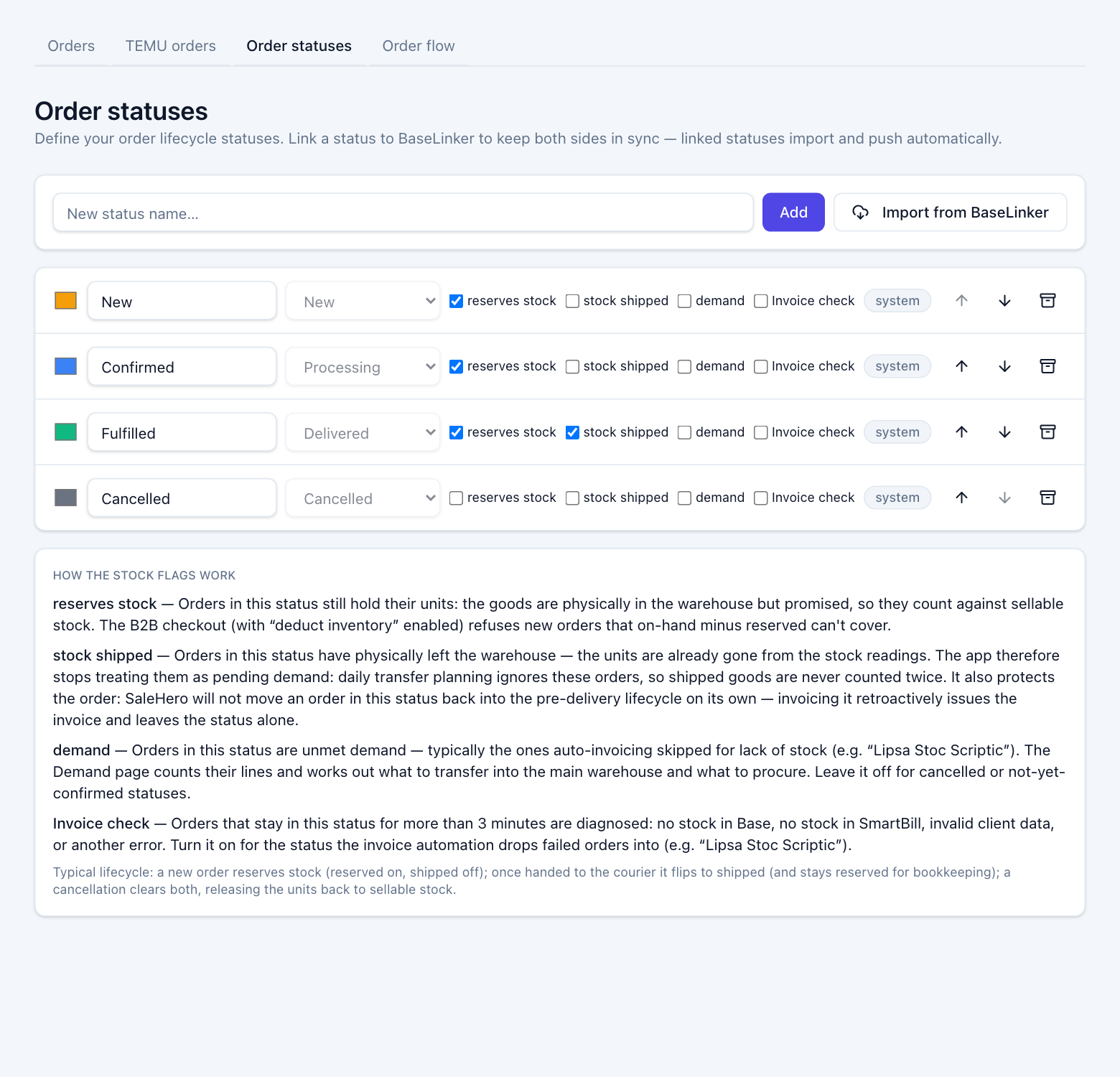
- Color and name: both can be edited in the row. The arrows on the right move the status up or down in the list, and the box icon archives it.
- Role: New, Processing, Ready, In delivery, Delivered, Cancelled, Return or Other. The role tells SaleHero what the status means. A status marked system is built in.
- Reserves stock: orders in this status still hold their units. The goods are in the warehouse, but promised, so they count against sellable stock.
- Stock shipped: orders in this status have left the warehouse. The units are already gone from the stock readings, so the app stops treating them as pending demand.
- Demand: orders in this status are unmet demand, for example orders that automatic invoicing skipped for lack of stock. The Demand page counts their lines.
- Invoice check: orders that stay in this status for more than 3 minutes are diagnosed. The reason can be no stock in Base, no stock in SmartBill, invalid client data or another error. Turn it on for the status where invoicing should have happened.
- Archive hides a status. Its BaseLinker link then stops mapping new syncs. Archived statuses appear in a separate list where you can Restore or Delete them.
Be careful with the flags. They decide how much stock you can sell and what the warehouse plans to transfer. Change them only after talking to the person who runs stock.
Try it on your own shop
Create an account, connect your tools and the first data lands the same day.